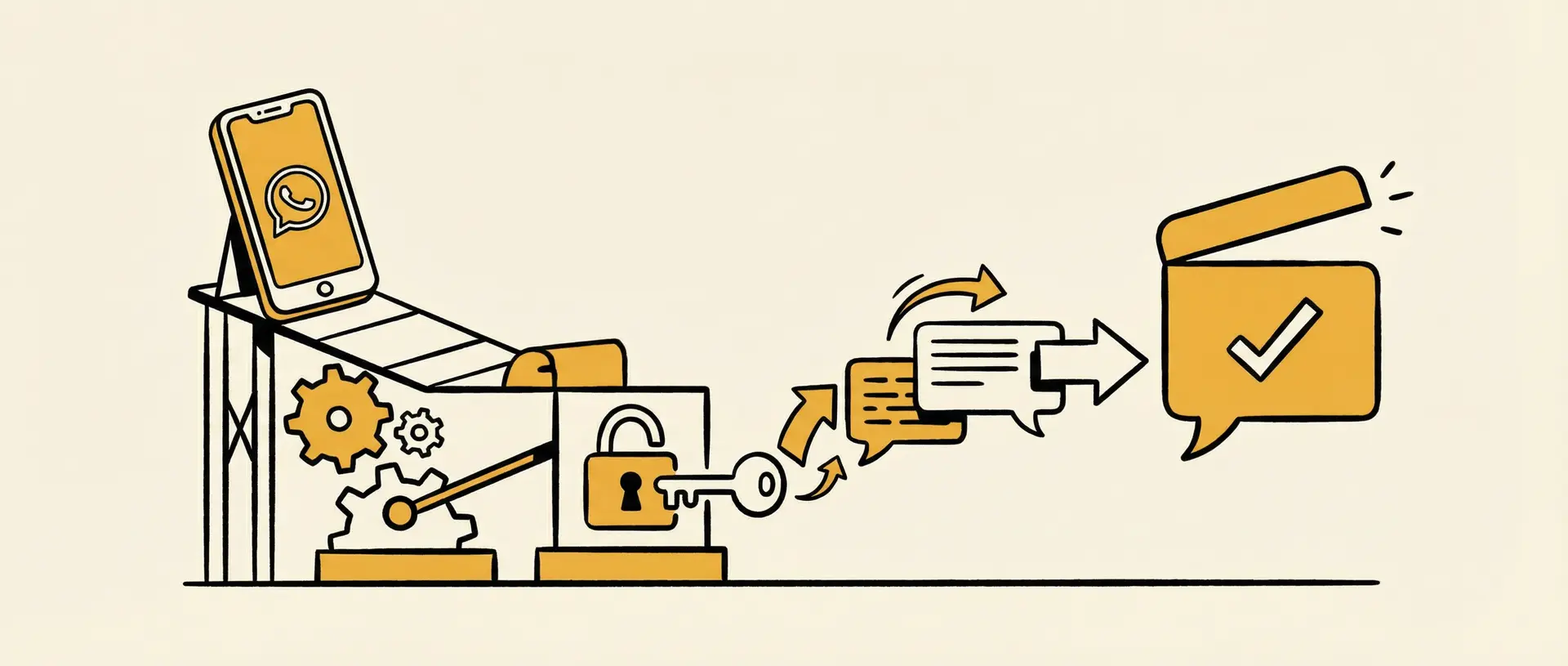

WhatsApp is one of the most popular messaging apps globally, connecting millions of users every day. Whether for personal chats or business communication, knowing how to login to WhatsApp quickly and securely is essential. This guide will show you how to login on mobile, web, and desktop, including tips to solve common login problems.
How to Login to WhatsApp
How to Login WhatsApp on Mobile App
Download WhatsApp from the App Store (iPhone) or Google Play Store (Android).
Open the app and tap Agree & Continue.
Enter your phone number and verify it with the SMS code.
Set up your profile and start messaging.
Tip: Ensure a stable internet connection during verification to avoid delays.
How to Login WhatsApp on WhatsApp Web
WhatsApp Web lets you access your messages on a computer:
Open https://web.whatsapp.com on your browser.
On your phone, tap Settings → Linked Devices → Link a Device.
Scan the QR code displayed on the browser.
Your WhatsApp messages will appear on your computer instantly.
Ideal for working on a PC while staying connected.
How to Login WhatsApp on Desktop App
The desktop app provides a dedicated WhatsApp experience:
Download WhatsApp Desktop for Windows or Mac from the official website.
Open the app and scan the QR code using your mobile WhatsApp.
Access your chats and media without opening a browser.
Tip: Keep your phone connected to the internet to maintain synchronization.
Create a WhatsApp Chat Link After Login
Once you've successfully logged into WhatsApp, you may want to make it easier for people to contact you. One of the simplest ways to do this is by creating a wa.me link, also known as a WhatsApp chat link.
A wa.me link allows customers, prospects, or community members to start a conversation with you instantly without saving your phone number first. This is especially useful for:
Business websites and landing pages
Social media bios
Email signatures
Marketing campaigns
Customer support channels
If you're new to WhatsApp links, check out our detailed guide on WA.me Link Tutorial: How to Create a WhatsApp Link (Step-by-Step Guide), where we explain phone number formatting, pre-filled messages, and best practices for sharing links.
Tips for Secure WhatsApp Login
Never share your verification code with anyone.
Enable two-step verification for extra security.
Always log out from public or shared computers.
Keep WhatsApp updated to prevent login issues.
Use trusted devices to avoid unauthorized access.
Common WhatsApp Login Problems and Solutions (FAQ)
Q1: Can I login to WhatsApp without a phone number?
A1: No, WhatsApp requires a valid phone number for verification. You can use a secondary number, but it must receive the SMS code.
Q2: How do I login to WhatsApp on a PC?
A2: Use WhatsApp Web (web.whatsapp.com) or WhatsApp Desktop and scan the QR code from your phone.
Q3: Why am I not receiving the WhatsApp verification code?
A3: Ensure your number is correct, check your network, or request a voice call code instead. Avoid virtual numbers.
Q4: Can I stay logged in on multiple devices?
A4: WhatsApp allows up to four linked devices in addition to your phone, but all must remain connected.
Q5: How do I fix “WhatsApp login problem”?
A5: Update the app, clear cache, check your internet, or reinstall WhatsApp if necessary.
Q6: Is WhatsApp Web safe to use on public computers?
A6: Only use it temporarily and log out after use. Avoid saving passwords on shared devices.
For more details and troubleshooting, visit the official WhatsApp FAQ.
How to Leverage WhatsApp for Business Growth with AI
Once you are logged in, WhatsApp can become a powerful sales and engagement tool. By integrating Dealism’s AI Sales Strategy, you can:
Automate responses to customer inquiries
Apply proven sales tactics tailored to your audience
Generate leads and increase conversion rates
Focus on high-level strategy while AI handles repetitive tasks
Dealism acts as a smart, always-on sales assistant that works directly with your WhatsApp account. This combination of secure WhatsApp access and AI-driven sales automation ensures your business stays connected, responsive, and profitable. Start leveraging WhatsApp for business today to increase engagement, streamline sales processes, and grow your revenue efficiently.


