Creating a useful WhatsApp message template can save a small team from rewriting the same welcome, order update, reminder, or support response. But “template” can mean two different things on WhatsApp: a saved reply used inside an active chat, or an approved Message Template used to initiate a conversation through the WhatsApp Business Platform.
This guide gives you 25+ examples and shows which ones are quick replies, service messages, Utility templates, or Marketing templates. That distinction matters because the wrong category—or sending a business-initiated message without an approved template—can cause rejection or delivery problems.
What is a WhatsApp message template?
A WhatsApp message template is reusable message copy, but the rules depend on where and when it is sent.
Saved reply in the WhatsApp Business App
This is pre-written text your team can insert into an active customer chat. Greeting messages, away messages, and quick replies do not become approved API templates simply because the wording is saved.
Approved Message Template on the WhatsApp Business Platform
This is a structured, Meta-reviewed message used when a business initiates contact or sends a message outside the 24-hour customer service window. It must use an approved Marketing, Utility, or Authentication template for its designated purpose.
Message situation | Approved template required? | Typical format |
Customer has messaged within the last 24 hours | No, a service reply can be used | Free-form reply, quick reply, agent, or automation |
Business initiates contact or the 24-hour window has closed | Yes | Approved Marketing, Utility, or Authentication template |
Message is posted in a WhatsApp group | Not a Business Platform template use case | Manual group message in the WhatsApp app |
For API templates, numbered placeholders such as {{1}}, {{2}}, and {{3}} insert customer-specific information:
“Hi {{1}}, your order {{2}} has shipped. Track it here: {{3}}.”
In the examples below, square brackets make ordinary saved replies easier to read. Examples marked Utility or Marketing use the numbered variable format expected in an API template.
25+ WhatsApp message template samples
Welcome / first-contact message templates
Best used as: quick replies or service messages after the customer contacts you. If you send one proactively, create and approve it as a Marketing template first.
Hi [Name], thanks for reaching out to [Business Name]. How can we help today?
Welcome to [Business Name]. We can help with [product/service], pricing, and booking.
Hi [Name], thanks for your interest. What are you looking for right now?
Thanks for messaging us. Our team usually replies within [time].
Hi [Name], we received your message from [source]. Do you need details, a quote, or a booking?
WhatsApp group welcome message samples
Best used as: manual group messages in the WhatsApp or WhatsApp Business app. These are not WhatsApp Business Platform Message Templates, and the Platform should not be treated as a tool for sending API templates to groups.
Welcome to [Group Name], [Name]. This group is for [purpose]. Please check the pinned message first.
Hi everyone, welcome to [Group Name]. We share [topic] updates here.
Welcome, [Name]. Feel free to introduce yourself with your name, location, and goal.
Hi [Name], glad to have you here. Updates are posted every [day/time].
Welcome to the group. Please keep messages relevant and avoid repeated promotions.
E-commerce & order update templates
The first four are normally Utility templates because they relate to a specific order. Back-in-stock and abandoned-cart messages are Marketing templates because they promote or re-engage.
Utility: Hi {{1}}, your order {{2}} has been confirmed.
Utility: Good news, {{1}}. Your order {{2}} has shipped. Track it here: {{3}}
Utility: Hi {{1}}, your package for order {{2}} is out for delivery today.
Utility: Your order {{1}} has been delivered. Reply here if anything is missing or damaged.
Marketing: Hi {{1}}, {{2}} is back in stock. View it here: {{3}}
Marketing: Hi {{1}}, you left {{2}} in your cart. Would you like help choosing? {{3}}
Appointment/booking reminder templates
Confirmed appointment updates are normally Utility. An unsolicited message advertising an open appointment slot is Marketing.
Utility: Hi {{1}}, your appointment with {{2}} is on {{3}} at {{4}}. Reply CONFIRM to keep it.
Utility: Hi {{1}}, your booking is confirmed for {{2}} at {{3}}. Address: {{4}}
Utility: Reminder: your appointment starts in {{1}} hours. Please arrive {{2}} minutes early.
Utility: Hi {{1}}, we noticed you missed your appointment on {{2}}. Reply if you would like to reschedule.
Marketing: Hi {{1}}, we have an opening on {{2}} at {{3}}. Would you like to reserve it?
Customer support & off-hours templates
Best used as: greeting, away, quick-reply, or service-message copy during an open customer service window. Outside that window, the business must use an approved template.
Thanks for your message. Our support hours are [hours]. Please leave your question here.
Hi [Name], please send your order number so we can check this faster.
Thanks for waiting. We have assigned your request to the right team.
Hi [Name], please send a photo or screenshot so we can review the issue.
This may need a human agent. We will transfer your conversation now.
Re-engagement / reactivation templates
Best used as: approved Marketing templates sent only to people who have opted in to receive this type of message.
Marketing: Hi {{1}}, are you still interested in {{2}}?
Marketing: Hi {{1}}, you previously asked about {{2}}. Here is the latest update: {{3}}
Marketing: Hi {{1}}, your previous quote for {{2}} is valid until {{3}}. Reply YES if you want to continue.
WhatsApp Business message templates explained
WhatsApp Business Platform Message Templates are structured messages that a business can use to initiate a conversation or contact a customer after the 24-hour service window has closed. The template must be approved before it is used for that purpose. Meta can also review, reclassify, pause, or reject a template later if its content or quality no longer meets policy.
There are three template categories. Service is a fourth message category, but it is not a pre-approved template category:
Category | Best for | Common message formats |
Marketing template | Promotions, product recommendations, abandoned carts, and reactivation | Discount alerts, product launches, back-in-stock messages, and follow-up offers |
Utility template | A specific transaction, account, order, booking, or requested update | Order confirmations, shipping updates, booking reminders, and payment notices without promotional content |
Authentication template | Identity verification | Login codes, one-time passwords, and account verification |
Service message | Replying after a customer messages the business | Free-form support or sales replies inside the 24-hour customer service window |
When a customer messages your business, WhatsApp opens a 24-hour customer service window. The window resets each time that customer sends another message. During the window, the business can reply with service messages without an approved template. Outside it, an approved template is required. See the current WhatsApp Business Messaging Policy.
WhatsApp Business Platform pricing is charged per delivered message and varies by recipient market and message category. As of August 2026, the official pricing page states that service messages and Utility messages sent in response to users are not charged. Pricing can change, so check the live WhatsApp Business Platform pricing page before budgeting a campaign.
The 72-hour free-entry period applies when a customer starts the conversation from a click-to-WhatsApp ad or a Facebook Page call-to-action button. Eligible messages during that period are not charged, although ad spend and third-party platform fees may still apply.
Businesses using AI must also follow the current WhatsApp Business Solution Terms. The rules distinguish between businesses using automation, third-party AI providers, and providers whose primary product is a general-purpose AI assistant; they also include data-use requirements and regional exceptions. Do not reduce this to “all AI is banned” or assume every AI use case is automatically permitted.
How to create a WhatsApp message template
How you create a WhatsApp message template depends on the product you use. In the WhatsApp Business App, Business Tools lets you configure greeting messages, away messages, and quick replies. On the WhatsApp Business Platform, create an approved Message Template in WhatsApp Manager or through your API provider.
Step 1: Create the message in Business App or API
For a Platform template, choose Marketing, Utility, or Authentication based on the message's real purpose—not the category with the lowest price. A message that adds a promotion to an order update may be treated as Marketing even if part of it is transactional.
Write one clear body, insert numbered variables in order, and add only the buttons or media needed for the next action. Provide realistic sample values so the reviewer can understand what each variable represents.
Step 2: Submit the template for Meta review
Submit the template for approval before using it to initiate a conversation. Meta reviews whether its content, category, variables, and intended use align with WhatsApp policy. Meta may approve it as submitted, assign a different category, or reject it.
Before submitting, check four points:
The message has one clear purpose.
The selected category matches the full message, including offers and calls to action.
Variables such as {{1}} and {{2}} are understandable from the surrounding sentence.
The sample values, links, language, and opt-in context are complete and accurate.
Step 3: Avoid common rejection reasons
A template may be rejected or reclassified if it is vague, misleading, submitted as Utility while containing promotional content, missing context, or difficult to understand because variables replace most of the sentence. Policy-restricted content, broken links, and unsupported claims can also create problems.
A weak template looks like this:
“Hi {{1}}, we have a special update for you. Click here now: {{2}}.”
A stronger Utility template gives the transaction context:
“Hi {{1}}, your order {{2}} has shipped. Track the delivery here: {{3}}.”
Clear wording, the correct category, useful sample values, and specific customer context make a Message Template easier to review and safer to send at scale.
Best practices for WhatsApp message templates
A good WhatsApp Message Template is concise, expected, and actionable. It should explain why the business is contacting the customer and make the next step obvious.
Keep one purpose per template
Do not combine an order update, a discount, and a survey in the same Utility template. Separate purposes make the category clearer and the message easier to understand.
Personalize useful details
Include details such as the order number, appointment time, tracking link, or requested service. Do not turn every noun into a variable; the fixed text should still make the message's purpose obvious.
Use a clear CTA
Give the customer one natural next action, such as “Track order,” “Confirm booking,” “View product,” or “Reply YES.” Buttons work best when the next step is predictable.
Match the real category
Use Utility for specific requested or transaction-related updates, Marketing for promotions and re-engagement, and Authentication for verification codes. If a message mixes Utility and Marketing content, expect it to be classified as Marketing.
Respect opt-in and opt-out
Only initiate messages with people who have provided an appropriate WhatsApp opt-in. Record what they agreed to receive, and stop future campaigns promptly when they opt out.
Localize each language version
In WhatsApp Manager, add the required language versions to the template. When submitting through the API, use the same template name with the appropriate language code and localized content. Do not rely on word-for-word translation: preserve the purpose, variables, buttons, and compliance context while making the wording natural for the market.
From template to sale — don't stop at "sent"
A WhatsApp template can open or reopen a conversation, but it does not answer the questions that come next. Once a customer responds, the business still needs to explain pricing, clarify needs, recommend the right next step, follow up, and involve a human when necessary.
Dealism is designed for that reply stage. It does not replace Meta's template approval process. After the customer replies through a supported WhatsApp connection, a Dealism AI sales agent can use the business's information and conversation context to continue the exchange.
Create your free Dealism account and build an AI agent for the conversations that follow →
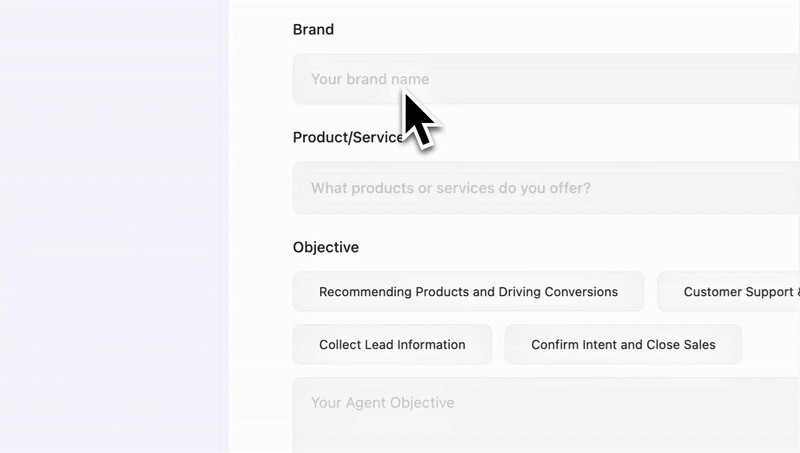
A practical post-template workflow can include:
Answering routine questions
Use verified business information to explain price, delivery, availability, service details, or operating hours.Qualifying intent
Clarify the customer's needs, timing, location, budget, or preferred option without forcing everyone through the same rigid script.Guiding the next action
Move the customer toward the appropriate product, booking page, checkout, or next step.Following up in context
Continue from the existing conversation when a customer asks for more time or needs another reminder, subject to WhatsApp's messaging rules.Handing off to a human
Escalate complex or high-intent conversations with the relevant context attached.
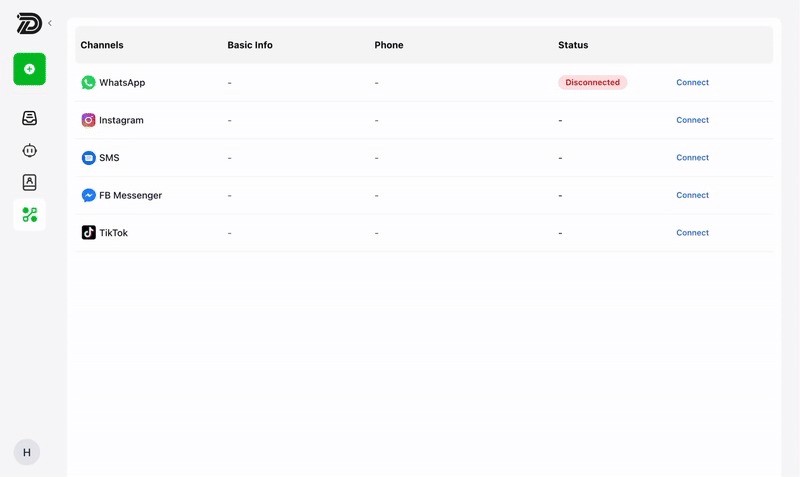
The template opens the door; the conversation creates the opportunity. Learn more about WhatsApp automation, then use Dealism when you need the reply to become a useful sales conversation instead of another unread inbox item.
Build and test your Dealism AI sales agent →
FAQ
What is the ideal number of message templates to have in WhatsApp Business?
There is no official ideal number. Start with the messages your team repeatedly needs—such as welcome replies, order updates, booking reminders, missed-appointment follow-ups, abandoned-cart messages, support replies, and reactivation campaigns. Keep Utility and Marketing purposes separate, and add more only when there is a clear recurring use case.
Do you use buttons in WhatsApp message templates?
Use buttons when the next step is straightforward, such as confirming a booking, tracking an order, opening a product page, or contacting support. If the customer needs to explain something, a reply button or normal conversation may be more appropriate than forcing a website CTA.
When should you update a WhatsApp message template?
Review a template when customers repeatedly misunderstand it, ignore its CTA, opt out, block the sender, or ask the same follow-up question. Also check it when your offer, link, policy, price, or operating process changes. Monitor template status, quality rating, delivery, read rate, button clicks, and top block reasons where those insights are available.