Conocimiento
Actualizado
Lectura de 4 min
Elimine este elemento únicamente cuando la información ya no deba ser utilizada
Cuando un dato cambia, suele ser más seguro editarlo que crear un duplicado. Elimine una entrada únicamente cuando esté obsoleta, sea incorrecta o ya no resulte de utilidad para responder a los clientes.
Buscar la entrada de conocimiento
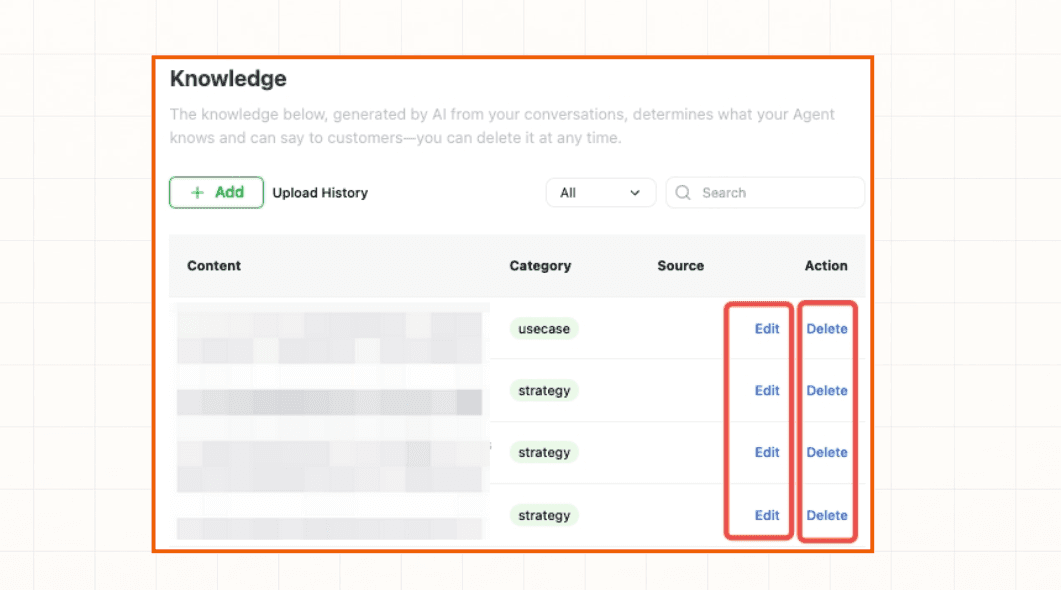
Abre Knowledge. Utiliza el buscador para localizar el nombre de un producto, una pregunta o una frase. También puedes filtrar por categorías —por ejemplo, faq, pricing, product_info o usecase— para acotar la lista.

Editar información
Localiza la entrada correspondiente en la lista de Knowledge.
Selecciona Edit en la columna de acciones.
Corrige el contenido y guarda los cambios.
Busca posibles entradas duplicadas o contradictorias que también requieran una actualización.
Asegúrate de que la respuesta directa y los datos clave sean fáciles de localizar. Si ha cambiado alguna tarifa, política o servicio, incluye las nuevas condiciones y elimina la información obsoleta.
Eliminar información
Localiza la entrada que ya no quieres que utilice el Agent.
Selecciona Delete en la columna de acciones.
Revisa la entrada y confirma la eliminación si el sistema te lo solicita.
Antes de eliminar, comprueba si otra pregunta frecuente, producto, política o caso de uso hace referencia a esta misma información. Si los clientes siguen necesitando una respuesta, asegúrate de añadir una alternativa antes de borrarla.
Verificar los cambios
Realiza una nueva búsqueda en la lista de Knowledge y pon a prueba al Agent con preguntas relacionadas con la entrada editada o eliminada. Confirma que la respuesta antigua ya no se utiliza y que la nueva información se muestra de forma completa.
Si el Agent sigue recurriendo a información obsoleta, consulta El Agent no utiliza el nuevo conocimiento o contacta con el soporte de Dealism.