WhatsApp groups are useful for collaboration and communication—but once a group has served its purpose, keeping it around can feel unnecessary. Whether you’re the group administrator or just a regular member, deleting a WhatsApp group requires following the correct steps.
This guide will walk you through the process, explaining the nuances of leaving a group versus deleting it entirely. We'll cover both Android and iOS devices, ensuring you can manage your WhatsApp groups effectively.
Understanding Group Deletion on WhatsApp
It's important to understand that you cannot truly delete a WhatsApp group for everyone unless you are the admin and all other members have left. When you leave a group, you are simply removed from it, and the group continues to exist for the remaining members. If you are the admin, and you leave without appointing a new admin, the group will be deleted for everyone. If you're not an admin, you can only remove yourself.
For Group Admins: Deleting the Group
If you are the admin of the WhatsApp group, you have the power to delete it entirely. However, this can only happen after all other participants have left the group. Here's the process:
Open WhatsApp and select the group you want to delete.
Tap the group name at the top of the screen.
The Group Info screen appears.
Scroll to the Participants section.
Tap the name of the first participant you want to remove.
From the slide-up menu, tap Remove from Group.
Confirm by tapping Remove.
Scroll to the bottom of the Group Info screen and tap Exit Group.
Tap Exit Group again to confirm.
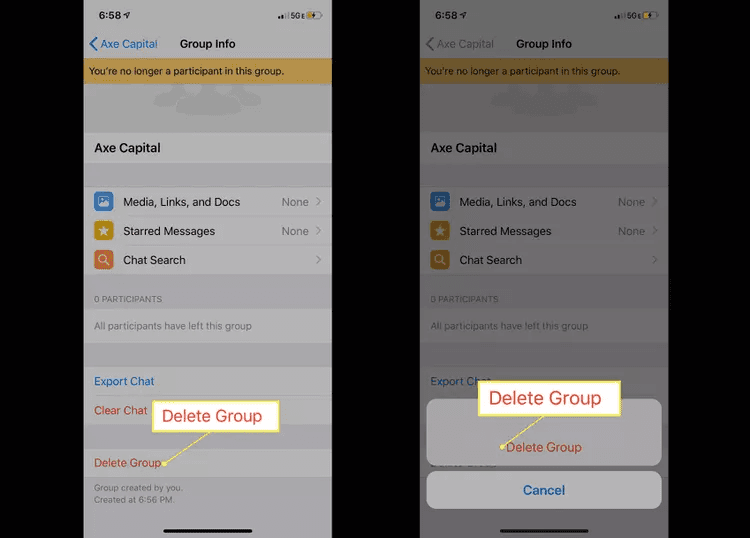
A message will appear saying you’re no longer a participant.
Tap Delete Group at the bottom.
Confirm by tapping Delete Group again.
For Group Members: Leaving a Group
If you are not the admin, your options are limited to leaving the group. This removes you from the chat, but the group will continue to exist for others. Here's how:
Open WhatsApp and tap the group chat.
Tap the group name at the top.
Scroll down and tap Exit Group.Tap Exit Group again to confirm.
After exiting, return to your chat list.
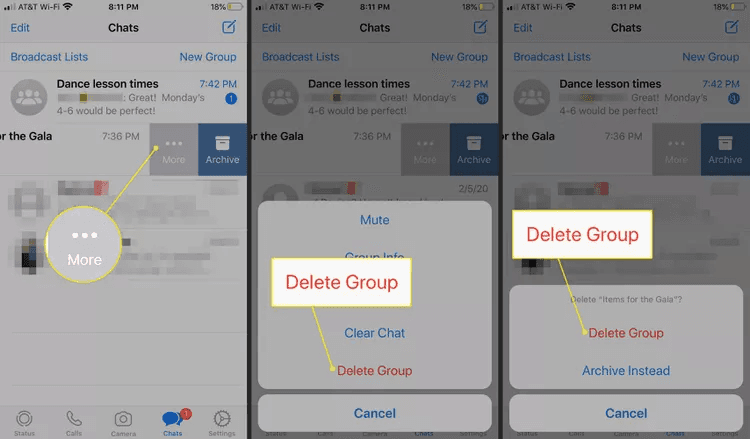
Swipe left on the group chat.
Tap Archive to hide the chat.
Tap More > Delete Group.
Tap Delete Group again to confirm.
Note: On some versions of WhatsApp, you might also see an option to 'Mute Notifications' before leaving. This can be useful if you're not ready to leave but need a break from the constant pings.
What Happens When You Delete or Leave a Group?
You are removed: Your name will appear in the group chat indicating you have left.
Chat history: Your chat history with that group will remain on your device unless you manually delete it.
Notifications stop: You will no longer receive messages or notifications from the group.
Group existence: If you were not the admin and left, the group continues to exist for other members. If you were the admin and all others left, the group is deleted.
Advanced Tips for Group Management
Managing WhatsApp groups can sometimes feel like juggling too many balls. Here are a few extra tips:
Use auto-reply features: If you find yourself needing to manage responses within groups or for individuals, consider using an WhatsApp auto-reply tool. These can help manage expectations when you're busy. You can learn more about them here: WhatsApp Auto-Reply Solutions.
Mute noisy groups: Instead of leaving immediately, try muting notifications. This is a great way to reduce distractions while keeping the option to check in later.
Archive groups: If you want to keep a group's history but don't want it cluttering your main chat list, you can archive it. This moves the chat to a separate 'Archived Chats' folder.
Conclusion
Deleting or leaving a WhatsApp group is a straightforward process, whether you're an admin or a regular member. Understanding the difference between leaving and deleting is key to managing your communication effectively. By following these steps, you can keep your WhatsApp experience clean, organized, and less overwhelming. Remember, for admins, the ultimate deletion of a group relies on all members exiting first.
Frequently Asked Questions (FAQs)
Can I delete a WhatsApp group if I'm not an admin?
No, if you are not an admin, you can only leave a WhatsApp group. You cannot delete it for other members.
What happens to the group chat history when I leave?
Your chat history with the group remains on your device after you leave, unless you choose to delete it separately.
Will other members know if I leave a group?
Yes, a message will appear in the group chat stating that you have left.
How do I delete a group if I'm the only one left in it?
If you are the last remaining participant, the group is automatically deleted for everyone. You will usually see a 'Delete Group' option after leaving.
Can I rejoin a group after leaving?
You can only rejoin if another member (usually an admin) invites you back to the group.
Is there a way to delete a group without leaving it first?
As an admin, you must leave the group after removing all other members for the group to be deleted. You cannot delete it and remain a member.


