Published
Feb 7, 2026

Imagine this: you're deep into a work project, your phone is across the room, and a crucial WhatsApp message arrives. You need to respond quickly, but fumbling for your phone is a productivity killer. This is where WhatsApp Web shines, offering a convenient way to manage your chats right from your computer. But how do you get there? Signing in to WhatsApp Web is usually a breeze, but sometimes a little guidance can make all the difference.
This comprehensive guide will walk you through the entire process of signing in to WhatsApp Web, from the initial steps to common troubleshooting tips. We'll also explore why this feature is so valuable for staying connected.
What is WhatsApp Web?
WhatsApp Web is a feature that allows you to use WhatsApp on your computer through a web browser. It mirrors the conversations and messages from your phone, so you can send and receive messages, share files, and even make voice and video calls directly from your desktop. This is particularly useful for individuals who spend a lot of time on their computers for work or personal tasks.
How to Sign In to WhatsApp Web: A Step-by-Step Process
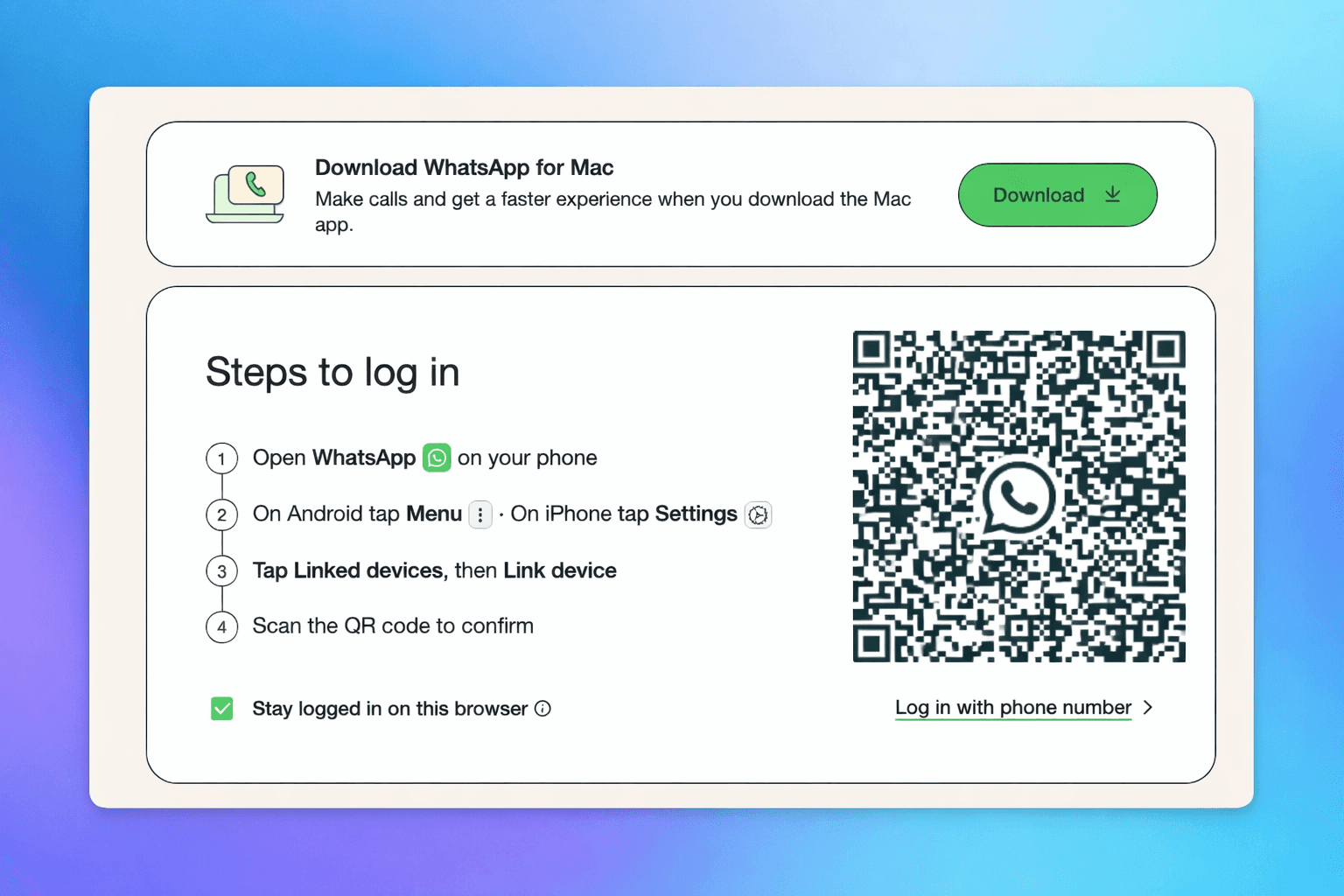
The sign-in process for WhatsApp Web relies on scanning a QR code. Here’s a breakdown of what you need to do:
Open WhatsApp on Your Phone: Ensure you have the WhatsApp application installed and active on your smartphone. Your phone must also be connected to the internet (Wi-Fi or mobile data).
Navigate to WhatsApp Web Settings:
On Android: Open WhatsApp, tap the three vertical dots in the top-right corner, and select "Linked devices." On iPhone: Open WhatsApp, go to "Settings" (usually found at the bottom-right), and tap "Linked Devices."
Tap "Link a Device": On your phone, tap the "Link a device" button. You might be prompted to authenticate using your phone's fingerprint, face ID, or passcode for security.
Scan the QR Code: Your phone's camera will now activate. Point it at the QR code displayed on the WhatsApp Web page open in your computer's browser. Ensure the QR code is fully visible within the frame on your phone's screen.
Wait for Connection: Once the QR code is successfully scanned, your WhatsApp account will automatically log in on your computer. Your chat history should then appear.
What You Need for WhatsApp Web Sign-In
To successfully sign in and use WhatsApp Web, you'll need:
A Smartphone: With WhatsApp installed and an active account.
Internet Connection: Both your phone and computer need a stable internet connection.
A Web Browser: A modern web browser like Chrome, Firefox, Safari, or Edge installed on your computer.
The WhatsApp Web Website: Access this by going to web.whatsapp.com on your computer.
Troubleshooting Common WhatsApp Web Sign-In Issues
While the process is straightforward, you might encounter a few hiccups. Here are some common problems and their solutions:
QR Code Not Scanning
Check Internet Connection: Ensure both your phone and computer are connected to the internet.
Clean Your Phone's Camera Lens: Smudges can interfere with scanning.
Ensure Proper Lighting: Too much glare or darkness can make scanning difficult.
Keep Phone Steady: Hold your phone steady while scanning.
Refresh WhatsApp Web: Try refreshing the WhatsApp Web page on your computer (press F5).
"Phone Not Connected" Error
This usually means your phone isn't connected to the internet. Check your Wi-Fi or mobile data settings on your phone. WhatsApp Web requires your phone to be online to function, even though messages are displayed on your computer.
Account Already Linked
If you see a message that your account is already linked to another device, you may need to log out of WhatsApp Web on other computers you've used previously. You can do this from your phone's "Linked devices" settings.
Browser Compatibility Issues
Ensure you are using an up-to-date version of a supported web browser. Outdated browsers can sometimes cause rendering or functionality problems.
Enhancing Your WhatsApp Experience with Auto-Reply
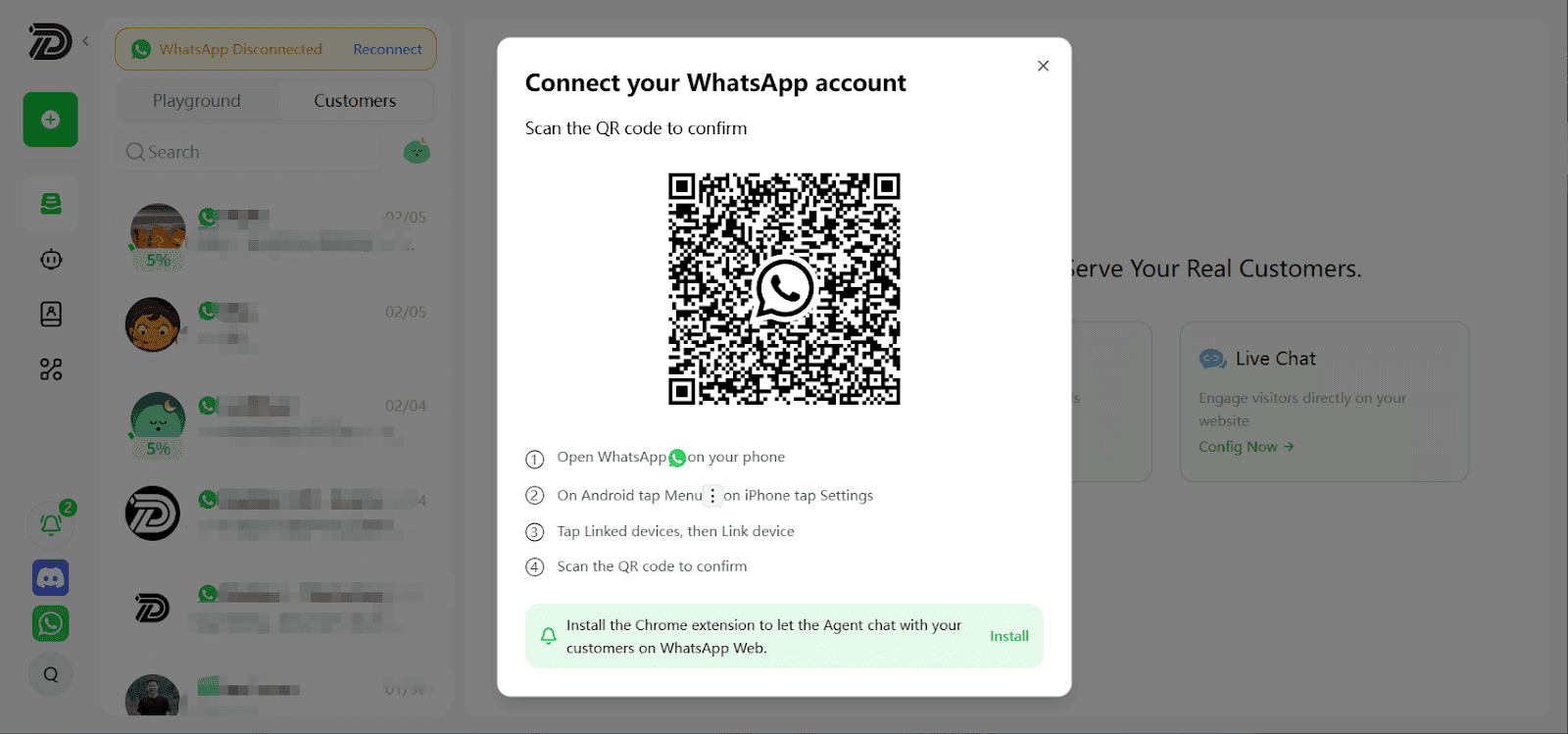
For businesses and individuals looking to streamline their communication further, features like WhatsApp auto-reply can be incredibly beneficial. Imagine instantly responding to customer inquiries or acknowledging messages when you're unavailable. Tools like Dealism.ai's WhatsApp Auto-Reply can help automate these responses, saving time and improving customer satisfaction. This is especially useful when managing multiple conversations via WhatsApp Web.
Security Considerations for WhatsApp Web
Security is paramount. Always ensure you are signing in from a trusted computer. If you use a shared computer, remember to log out of WhatsApp Web when you're finished. You can log out directly from the WhatsApp Web interface on your computer or from the "Linked devices" section on your phone. This prevents unauthorized access to your messages.
According to Statista, as of January 2023, WhatsApp has over 2 billion active users globally. This vast user base highlights the importance of secure and convenient access methods like WhatsApp Web.
Conclusion:
Signing in to WhatsApp Web is a straightforward process that significantly enhances your messaging experience by bringing it to your desktop. By following the steps outlined above and being aware of potential troubleshooting tips, you can ensure a smooth and efficient connection. Remember to prioritize security by logging out of shared devices, and consider leveraging advanced features like auto-replies to further optimize your communication workflow.
Frequently Asked Questions (FAQs)
Do I need to keep my phone on and connected to the internet for WhatsApp Web to work?
Yes, your phone needs to be powered on and connected to the internet for WhatsApp Web to function. While messages are sent and received via your computer, the phone acts as the primary connection point.For businesses that rely heavily on WhatsApp for customer communication, tools like Dealism help ensure conversations continue smoothly with automated replies and follow-ups, even when you’re not actively online.
Can I use WhatsApp Web on multiple computers simultaneously?
Yes, you can link your WhatsApp account to multiple computers. You can manage these linked devices from the "Linked devices" section on your phone.
Is WhatsApp Web secure?
WhatsApp Web uses end-to-end encryption, just like the mobile app. However, it's crucial to ensure you are using a trusted computer and to log out when you finish using it on shared devices.
How to use WhatsApp Web on iPhone?
iPhone users can access WhatsApp Web by opening web.whatsapp.com in a browser and scanning the QR code from the WhatsApp app on their iPhone. Go to Settings → Linked Devices → Link a Device, then scan the code displayed on your screen.
If you’re using WhatsApp for customer inquiries or sales, pairing WhatsApp Web with Dealism allows you to reply automatically and keep conversations moving, even when you’re away from your phone.
Is WhatsApp Web free to use?
Yes, WhatsApp Web is completely free to use. It mirrors your mobile WhatsApp account and does not charge any additional fees. However, managing high volumes of customer messages manually can still be time-consuming.
That’s why many businesses choose solutions like Dealism to automate replies, follow-ups, and actions—while continuing to use WhatsApp Web at no extra cost.
How often do I need to re-scan the QR code?
You typically only need to scan the QR code once to link a device. WhatsApp Web will remain logged in until you manually log out, log out from your phone, or if there are prolonged periods of inactivity, which might require re-linking.