Team Version
Updated
15 min read
Screenshot version note
The existing screenshots preserve the UI recorded on September 8, 2026. The feature and metric definitions in this section have been updated to the September 18, 2026 product baseline. Replace the images only after new screenshots are captured.
Available in multiple languages
Beta Invitation Guide
Team console | |
For | Team admins and project owners |
Updated | 2026-09-08 |
Roles and Boundaries
Items | Team Admin (https://app.dealism.ai/team/login) | Personal account users (log in via app.dealism.ai) |
|---|---|---|
Project and Member Management | Create projects, add accounts and check status | Create or register a Dealism account |
Instagram Channel Authorization | Generate and send authorization links, and check the results | Open the authorization link and complete the authorization process |
Automation | Use Team's unified entry points to create Automations, train the AI Customer Agent, maintain knowledge, and modify Automation for an individual account. | You may also configure it in your own Dealism backend |
Data Dashboard | View by project, account and content | Use the personal backend as the daily execution entry |
Part II English User Guide
00 Prepare before you start
Dealism Team is currently available through a whitelist beta. Confirm that the signed-in account has Team access. If it does not, contact Dealism Support to apply for whitelist access.
Prepare the member list. For existing users, confirm the email used for their Dealism personal account.
Ask each member to have access to the Meta / Instagram credentials and permissions required to manage the target professional Instagram account.
Use a consistent project naming convention, such as Brand | Market | Campaign | Month.
Sign in and change language
1. Open https://app.dealism.ai/team/dashboard/.
2. Sign in with a Dealism account that has Team access.
3. Open the avatar menu in the upper-right corner and select Language to switch among 中文, English, Português, and Español.

Figure 0-1 Dealism sign-in page
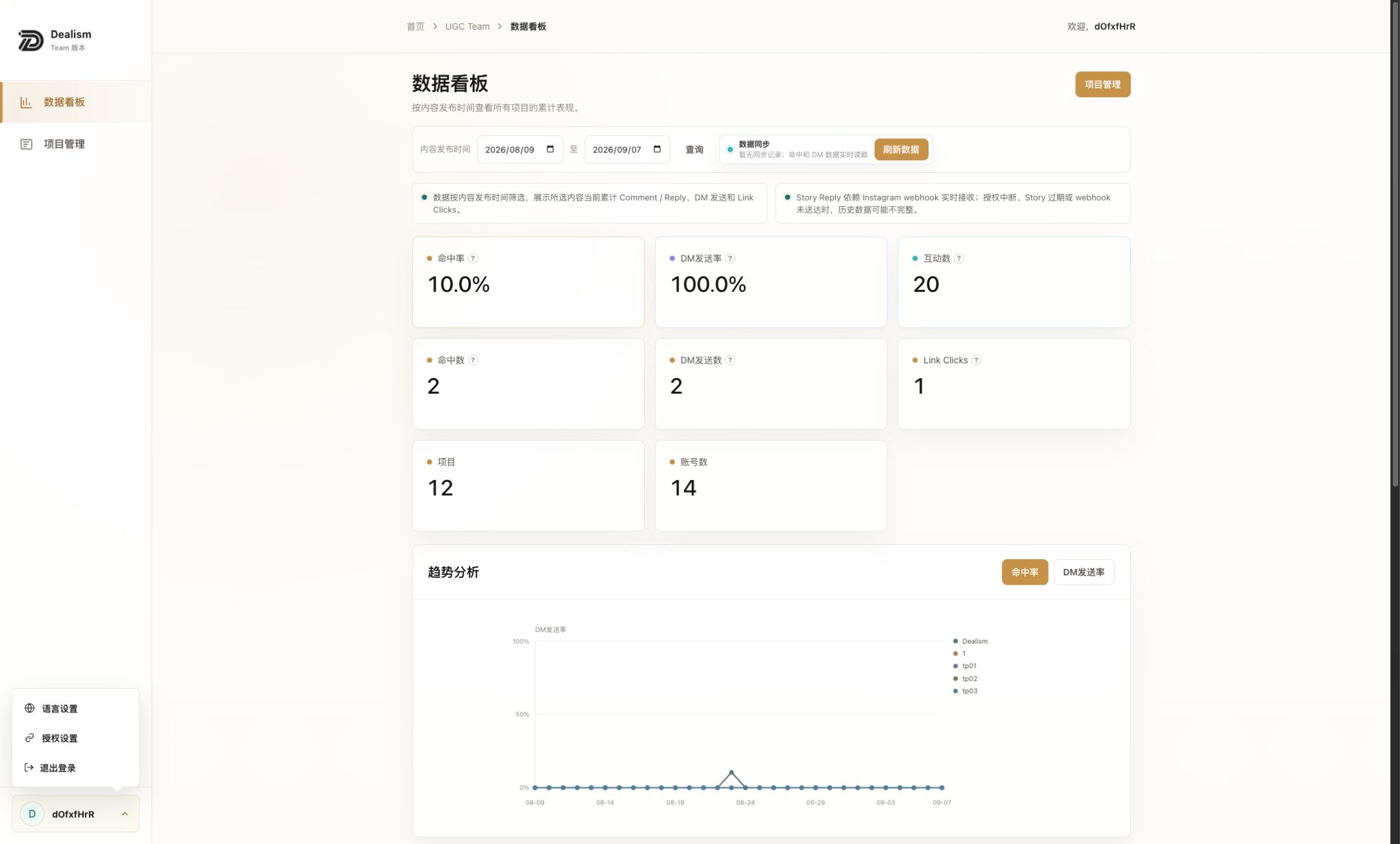
Figure 0-2 Account menu
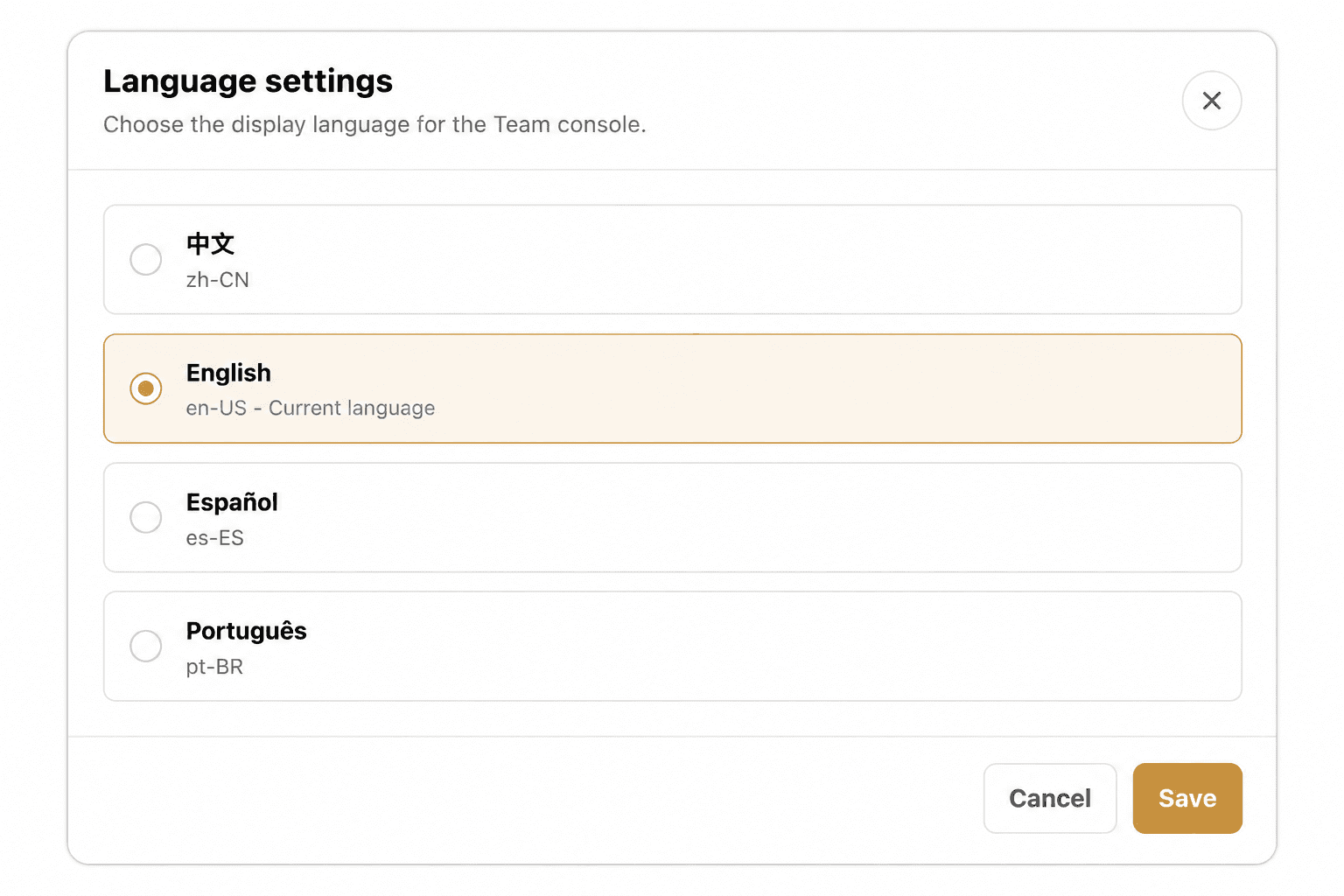
Figure 0-3 Language selector
01 Create a project
How to create the workspace for one brand or campaign
1. Open Project management from the left navigation.
2. Select Create project in the upper-right corner.
3. Enter the Project name and Brand / Client. Project owner displays the currently signed-in Team account.
4. Select Create. Confirm that the project appears in the list, then open the project details.
Field | Purpose | Recommended practice |
|---|---|---|
Project name | Internal identifier for the work | Include brand, market, campaign, or time period |
Brand / Client | Brand or client attached to the project | Keep spelling consistent across projects |
Project owner | Current creator / owner | Confirm that you are signed into the correct Team account |
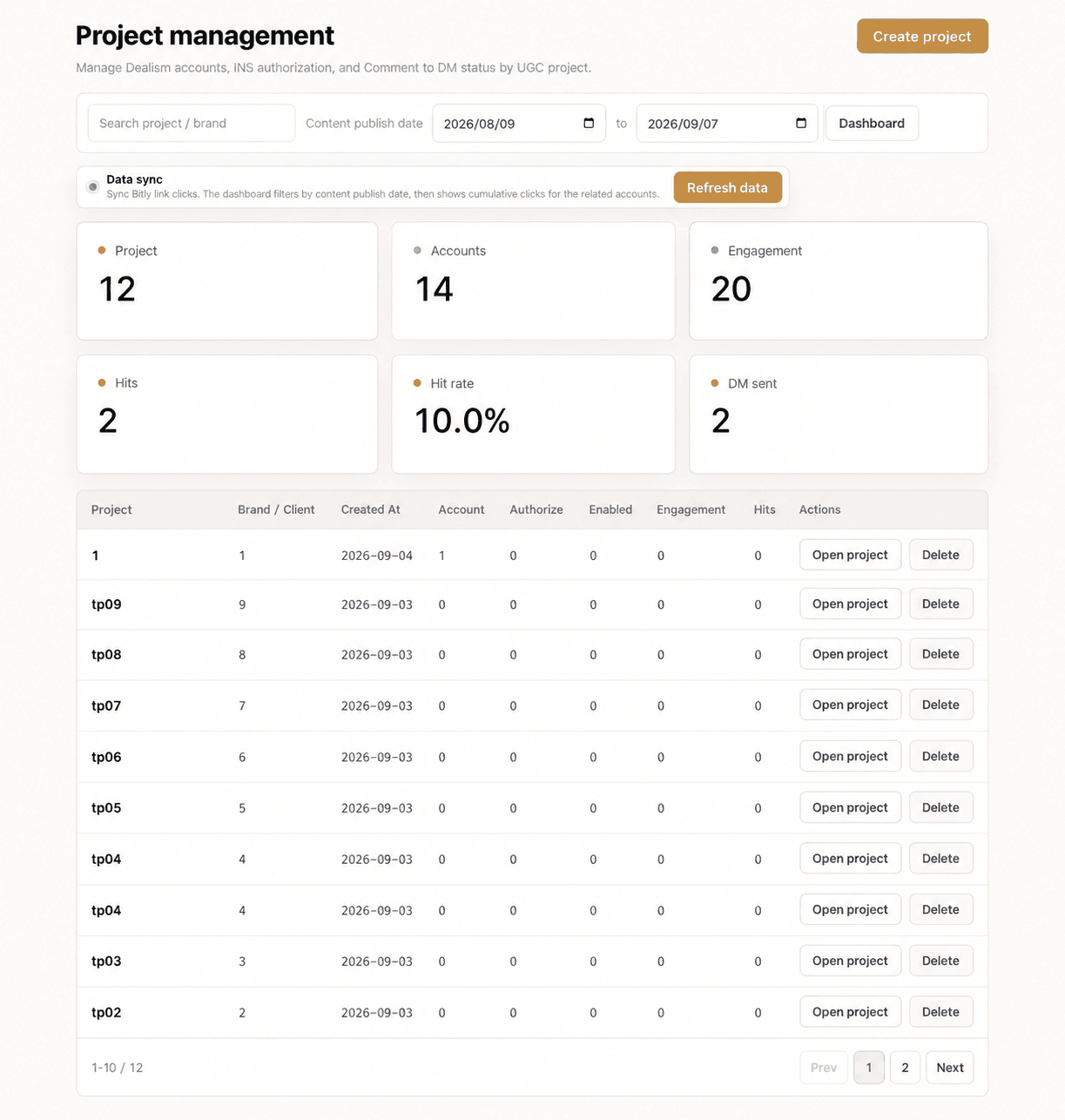
Figure 1-1 Project management
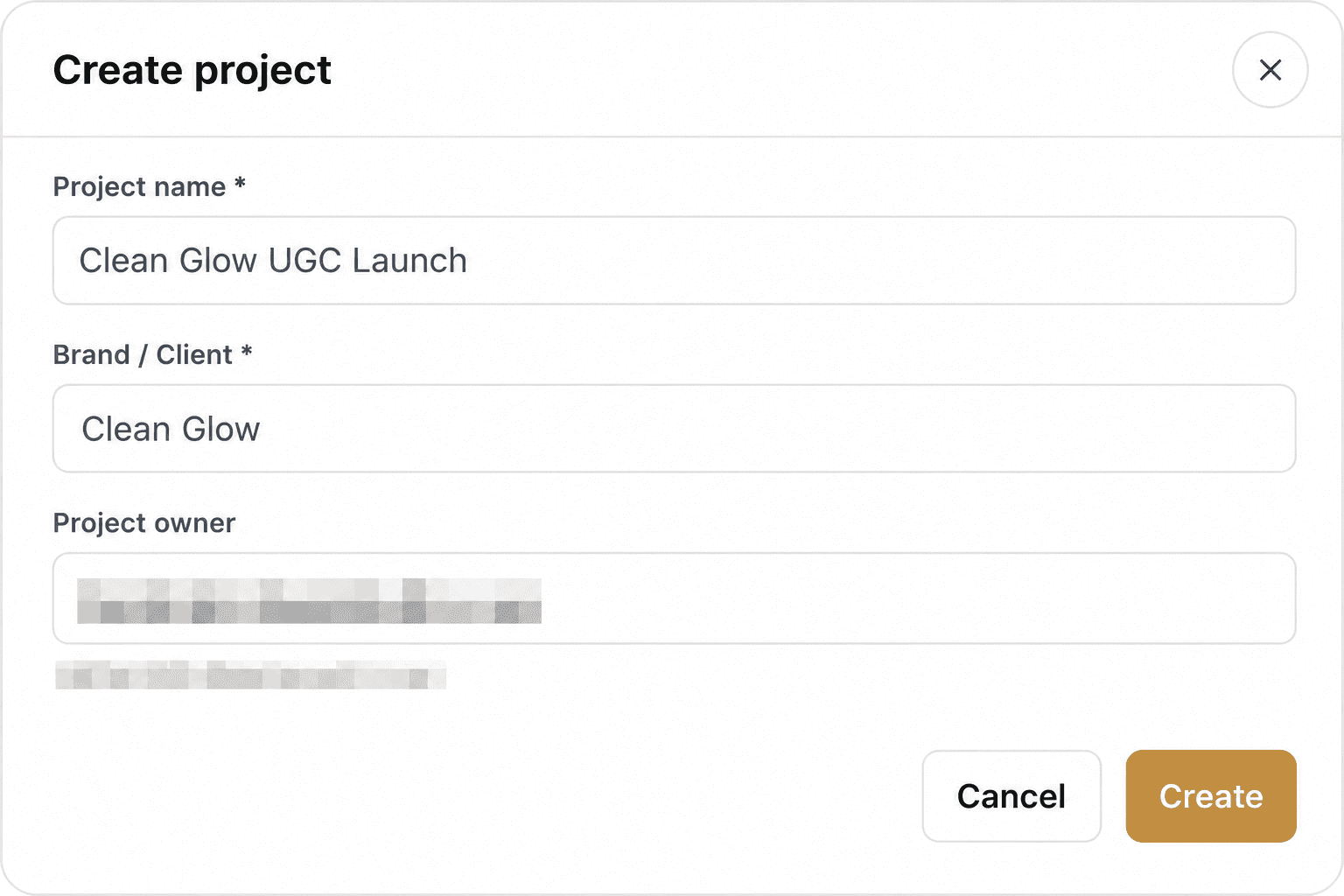
Figure 1-2 Create project
Done when: The new project is visible in the project list, its name, brand / client, and owner are correct, and the project details page opens successfully.
02 Invite an existing user or create an account
Choose one of three onboarding paths
Open the project details and select Add account. Choose the path that matches the member's current Dealism account status.
Path | Use when | What you need | Next action |
|---|---|---|---|
Existing account | The member already has a Dealism personal account | Name, note, login email; password only if the interface requires verification | Review registration and authorization |
One-time account | The member does not have an account and the admin needs to create one | Name and note | Send generated credentials securely |
Invite to register | The member should complete their own registration | Name and note | Send the registration link and wait for completion |
Path A: add an existing Dealism account
1. Choose Existing account in the Add account dialog.
2. Enter the member name, note, and Dealism login email. If the current UI requests a password, use it only with the member's explicit permission.
3. Select Add and confirm that the member appears in the account list.
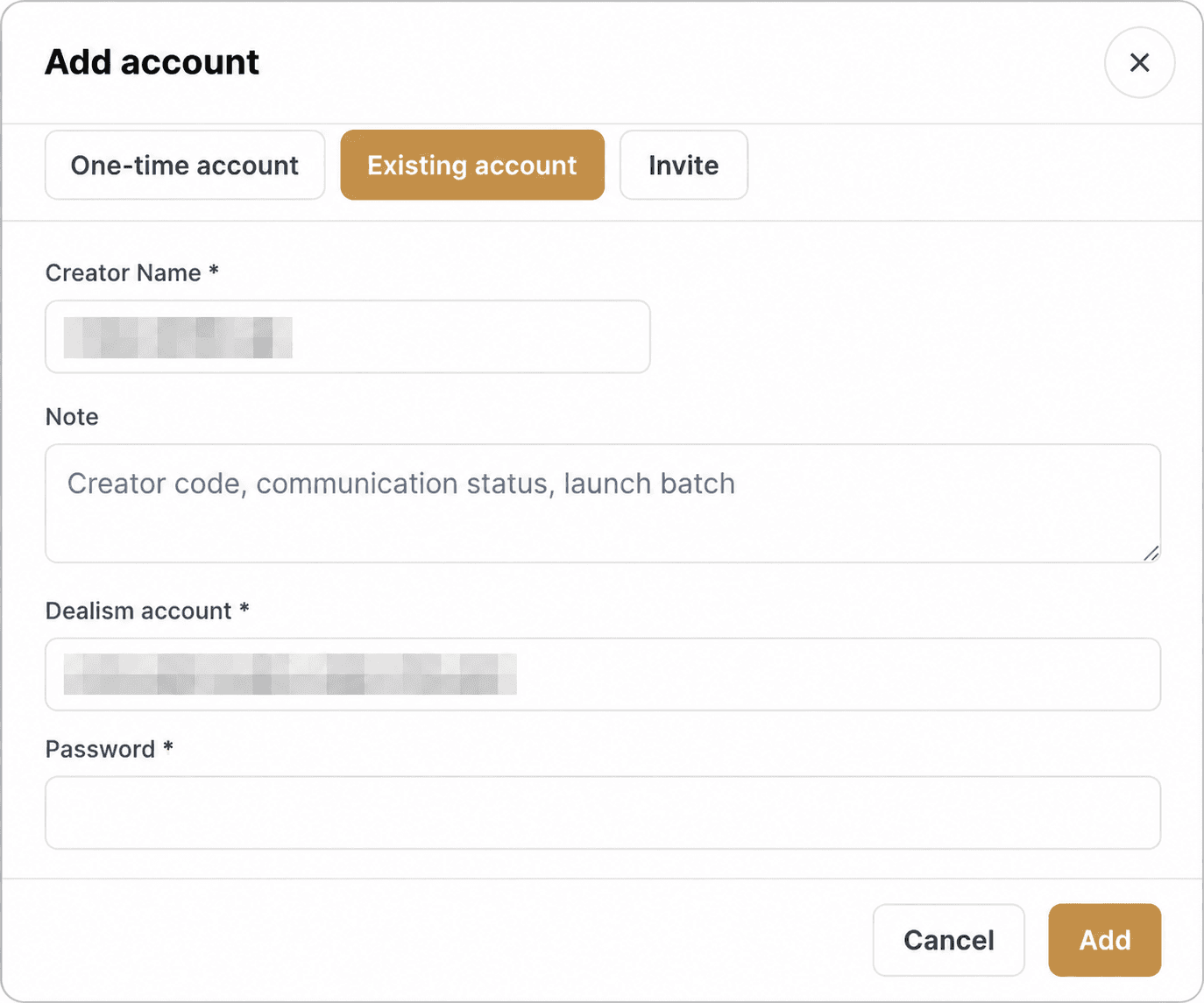
Figure 2-1 Add an existing account
Path B: create a one-time account
1. Choose One-time account.
2. Enter the member name and note, then add the account.
3. Copy the generated email and password and send them through a controlled one-to-one channel. Do not place plaintext passwords in group chats or shared documents.
4. Ask the member to sign in and complete their profile and security setup before Instagram authorization.

Figure 2-2 Create a one-time account
Path C: invite the member to register
1. Choose Invite to register.
2. Enter the member name and note, add the account, and copy the unique registration link.
3. Send the link to that member and tell them which email should be used for the project.
4. After registration, refresh the project and confirm that the status moves beyond Pending registration.
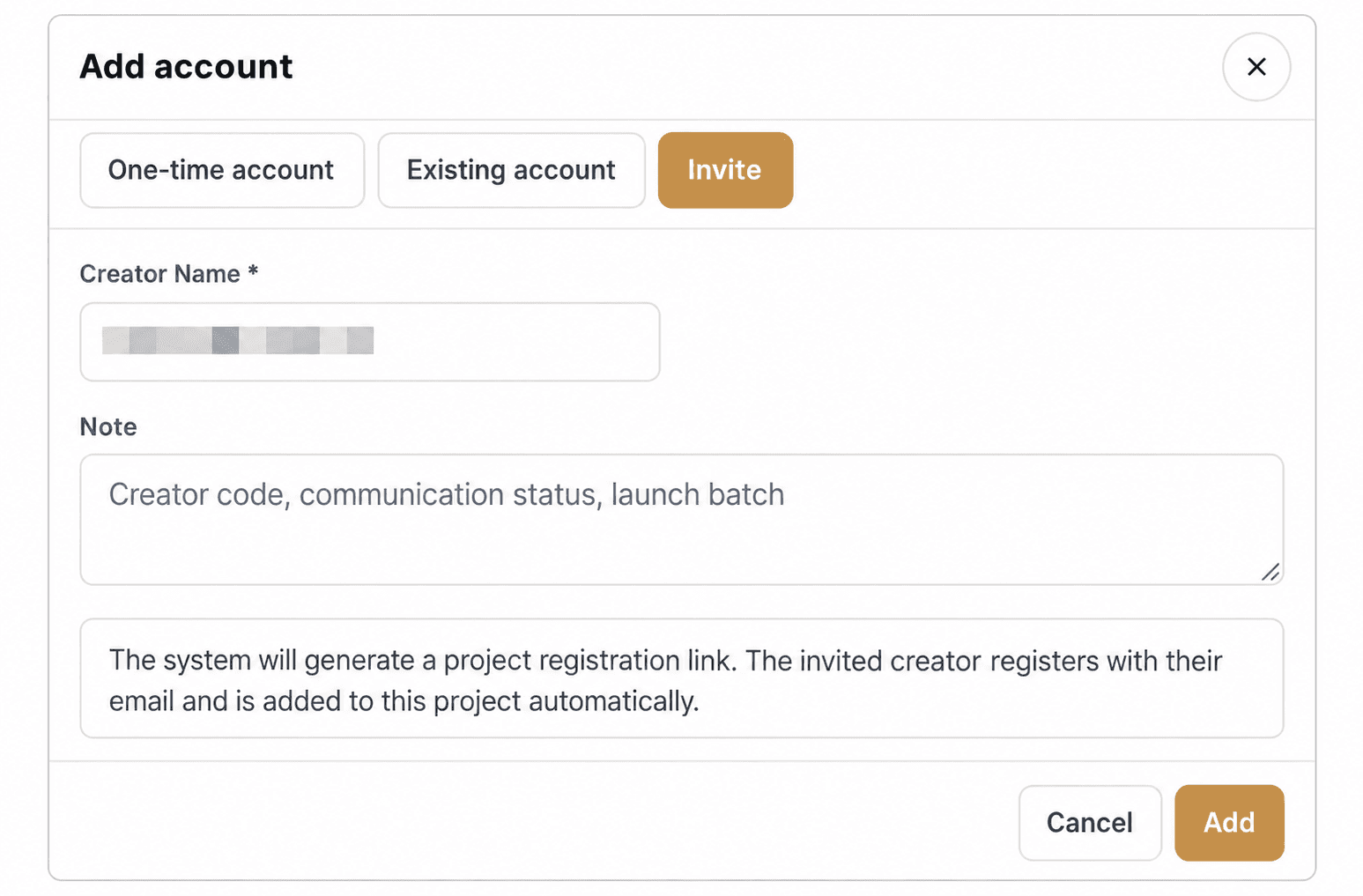
Figure 2-3 Invite a member to register
Account security: Issue each invitation link and set of login credentials to one person and send them directly. Before registration is complete, do not create multiple accounts with the same name; search the project account list first.
03 Review each person's authorization status
Separate registration, Instagram authorization, and Automation enablement
1. Open Project management and enter the target project.
2. Review each account row for registration status, authorization status, and the number of enabled Automations.
3. Use search to find a member and record the owner and next action so the same person is not contacted repeatedly.
Status | Meaning | Admin action |
|---|---|---|
Pending registration | The invitation exists, but the user has not completed Dealism registration | Resend the registration link and confirm the email |
Pending auth | The account exists, but Instagram Channel authorization is incomplete or no longer valid | Generate an authorization link and remind the member |
Authorized | Instagram Channel authorization is complete | Check whether the required Automation is configured and enabled |
N/A | The metric is not applicable, prerequisites are missing, or data cannot yet be calculated | Check registration, authorization, Automation, dates, and sync |
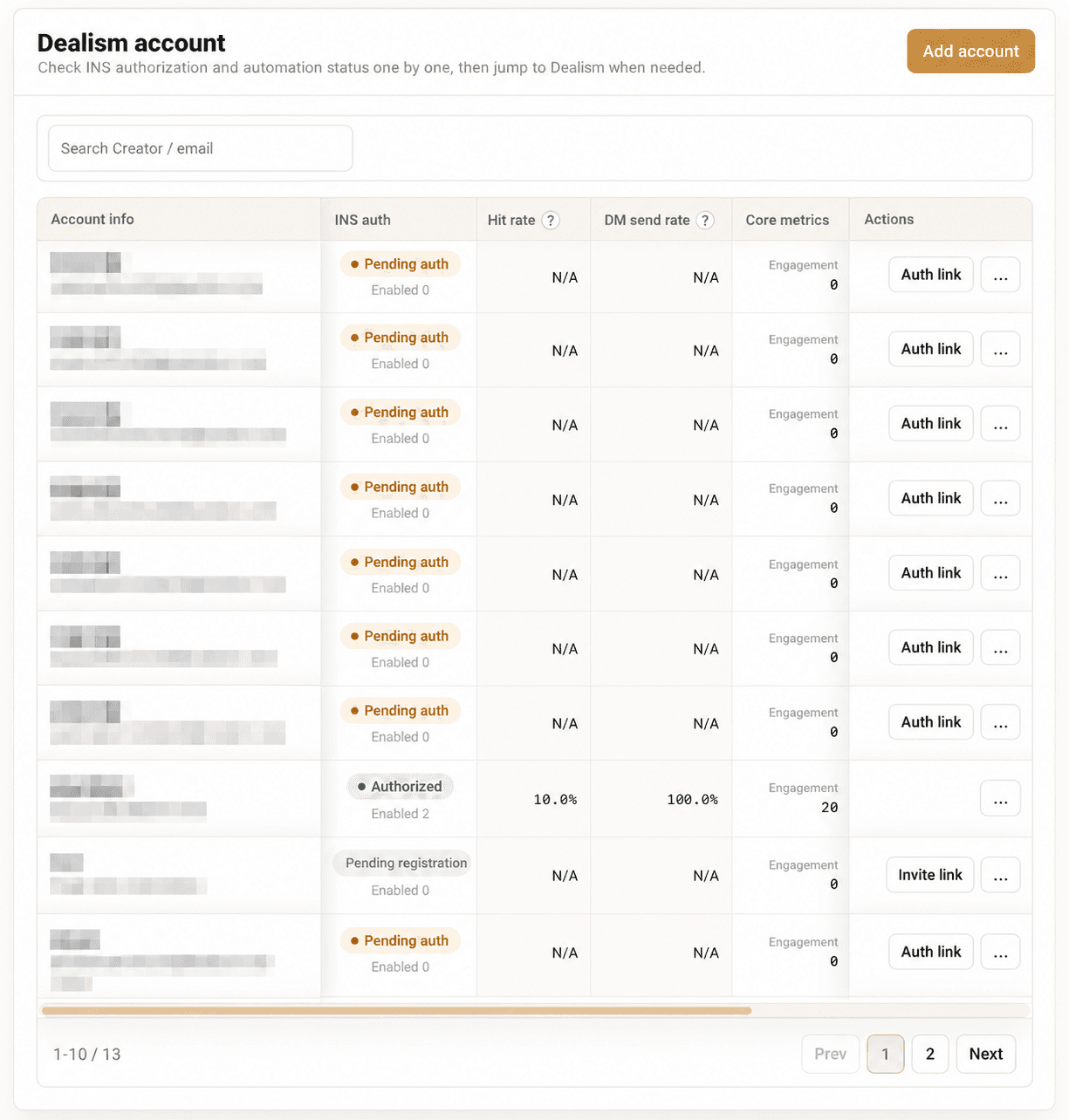
Figure 3-1 Account registration and authorization statuses
04 Remind users or configure Automation for them
Resolve incomplete onboarding and verify account-level execution
A. Remind a user who is pending registration
1. Copy the unique registration link from the member's account row.
2. Send it directly to the member and specify the email they should use.
3. Refresh the project after registration. If the status does not change, verify the email before creating another account.
B. Remind a user who is pending authorization
1. Select Invite authorization / Auth link on the member's row.
2. Copy the newly generated Instagram authorization link. It is valid for 10 minutes, so send it immediately.
3. Ask the member to open the link, sign in to the correct Dealism account, and complete Instagram Channel authorization.
4. Refresh the Team project and confirm Authorized. If the link expires, generate a new one rather than reusing the old link.
C. Configure or update Automation from Team
1. Open the target Project and confirm the Account you intend to manage.
2. Use the unified Team entry point to create an Automation. To maintain an existing Automation for one account, open that account's corresponding edit page.
3. Team also provides unified entry points to train the AI Customer Agent and maintain knowledge. Confirm the target Project and Account again before saving.
4. Configure the trigger scope, keywords or conditions, public reply / DM content, and links. Run one controlled test before enabling.
5. Return to Team and refresh. Confirm the Instagram authorization status, enabled Automation count, and synchronized results.
Check before enabling | Confirm |
|---|---|
Account | You are in the intended member's account, not another member's account context. |
Trigger scope | The target Instagram account, content, and trigger conditions are correct. |
Message content | Brand voice, variables, links, and required disclosures are correct. |
Exception handling | Repeated triggers, missing keywords, expired links, and similar cases are handled appropriately. |
Testing | Complete at least one controlled test before expanding to real traffic. |

Figure 4-1 Account action menu with Automation and Tracking Link
05 Read the dashboard
Move from project summary to account and content detail
Prerequisites
The account is attached to the correct project.
Instagram Channel authorization is complete.
At least one relevant Automation is enabled and has received observable interactions.
The date range covers the publication date of the target content; the dashboard filter is based on content publication date.
Recommended reading order
1. Open Dashboard from the left navigation.
2. Choose the content publication date range, select Refresh data when you need the latest synchronized result, and check the latest sync time.
3. Start at the Project summary, drill into an Account, and then open Content-level detail for a specific Post, Reel, or Story.
4. Read the funnel in order: Engagement → Hits → DMs sent → Link Clicks.
5. Open replied-user details at the Content level to view the count and usernames. To review or continue a conversation, open the corresponding account's Unified Inbox.
Metric | Meaning | How to use it |
|---|---|---|
Engagement | Observable Post / Reel comments and Story Replies | Story Reply depends on Instagram webhooks, so historical data may be incomplete |
Hits | Interactions that match an enabled Automation trigger | If low, review campaign scope and trigger conditions |
Hit rate | Hits relative to Engagement when the denominator is available | If N/A, check prerequisites and the denominator |
DM sent | DMs successfully sent by Automation | Compare with Hits to identify delivery gaps |
DM send rate | DMs sent relative to Hits when calculable | If low, inspect authorization and message conditions |
Link Clicks | Link-click data collected through Bitly | Use it only for the click data supported by the current page. Do not expand it into an unconfirmed GA4 / UTM Visit definition. |
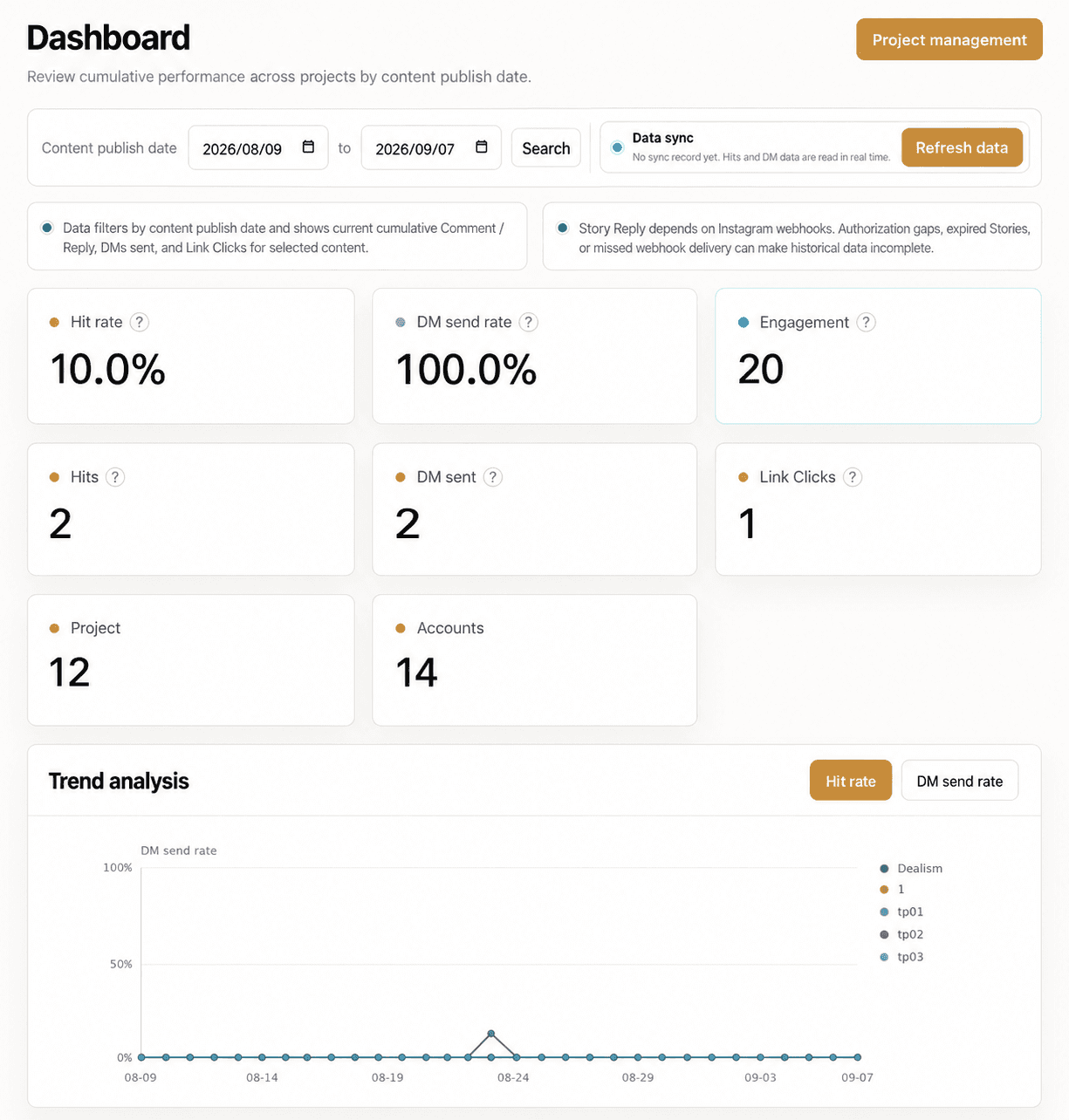
Figure 5-1 Dashboard project summary

Figure 5-2 Account and content-level performance
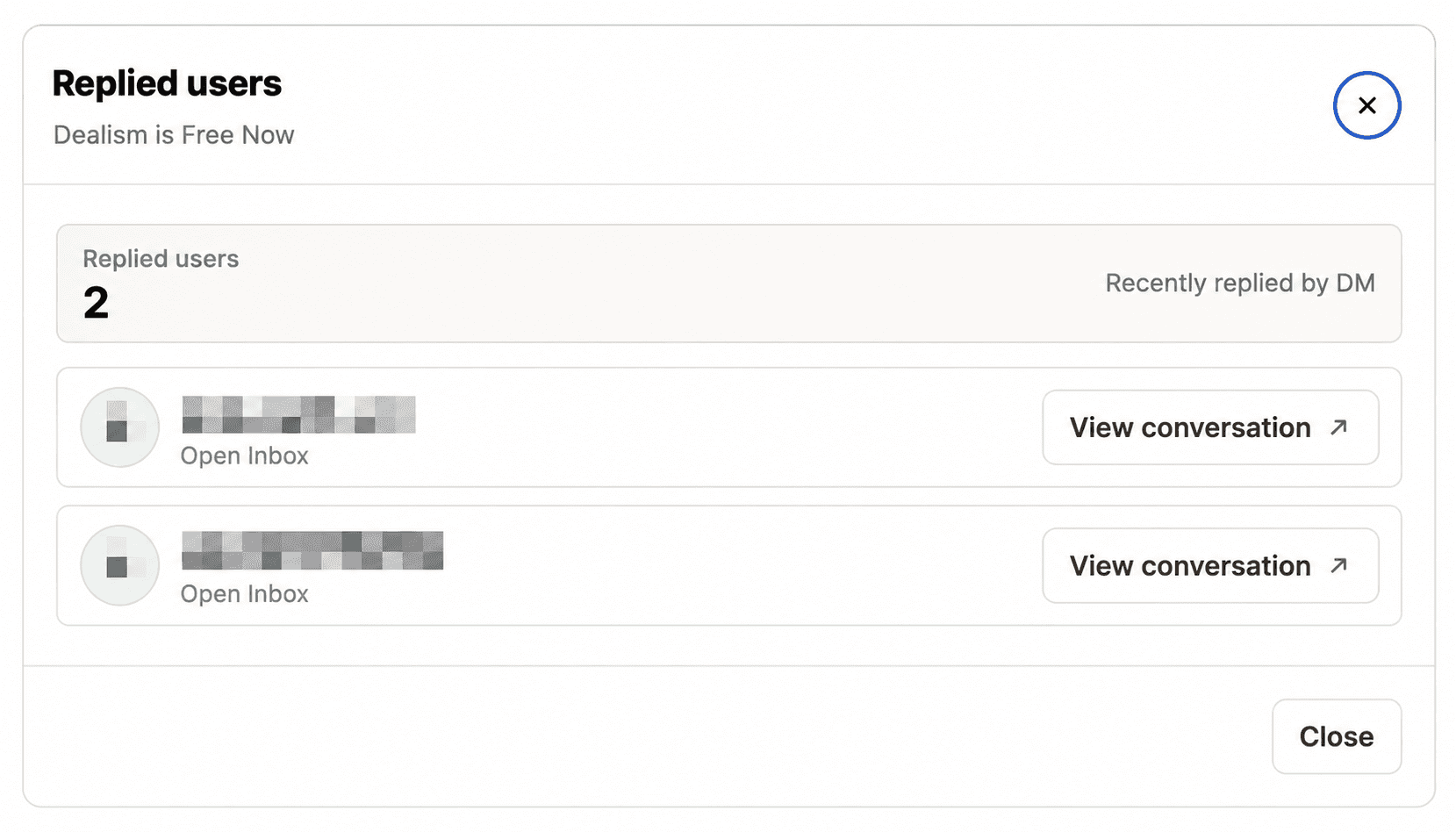
Figure 5-3 Replied users detail
Current capabilities and data boundaries in the whitelist beta
Status | Current capability | Usage boundary |
|---|---|---|
Available in the whitelist beta | Team provides a unified entry point to create Automations, train the AI Customer Agent, maintain knowledge, and modify Automation for an individual account. | Confirm the target Project and Account before editing, and run a controlled test before enabling. |
Available in the whitelist beta | Dashboard supports Project, Account, and Content levels. Content covers Posts, Reels, and Stories. Current metrics include Engagement, Automation Hits, DMs Sent, and Link Clicks. | Engagement equals comments plus Story Replies. Link Clicks are collected through Bitly. N/A does not mean zero. |
Available in the whitelist beta | Content details show the number and usernames of replied users and can open the corresponding Unified Inbox conversation under the correct account. | Team is not a complete conversation-review workspace. Continue follow-up in the account's Unified Inbox. |
Metric definition not yet confirmed | Attribution from Comment-to-DM to website visitors is confirmed, but the specific data source, attribution window, and GA4 / UTM fields have not been confirmed. | State the metric scope shown on the current page in external reports. Do not automatically equate Link Clicks with GA4 UTM Visit. |
Troubleshooting
Issue | Check first | Resolution |
|---|---|---|
Team page is unavailable | Whether the signed-in account has Team access | Switch to the invited account or contact the Team admin |
User remains Pending registration | Whether the registration email matches the invitation | Verify email, refresh, and reissue the invitation only if needed |
Authorization link expired | When the link was generated | Generate a new link and send it immediately |
Still Pending auth after completion | Correct Dealism account and complete Instagram flow | Repeat the flow if needed, then refresh Team |
Authorized but no dashboard data | Automation, content date range, and refresh | Enable and test Automation, expand the date range, and refresh |
Link-click or visitor attribution differs from expectations | Whether current Link Clicks are being treated as complete GA4 / UTM Visit data | Check Bitly, authorization, date range, and latest sync time. In external reports, explain only the metric scope shown on the page. |