
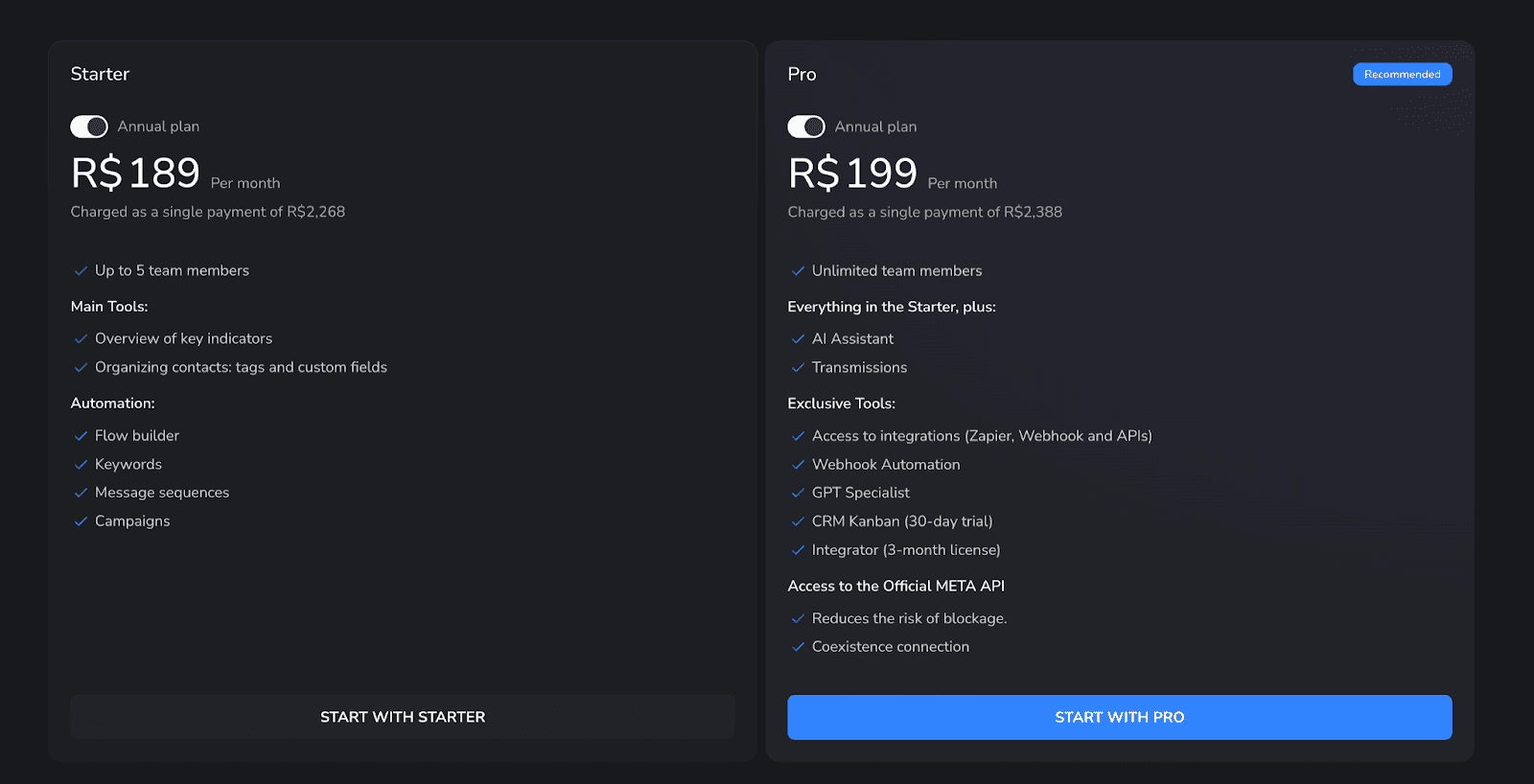
BotConversa custa R$ 189 ou R$ 199 por mês em 2026 — mas os dois valores são equivalentes mensais de planos anuais. O Starter é cobrado em um pagamento de R$ 2.268. O Pro + API Oficial custa R$ 2.388 por ano.
A diferença parece ser de apenas R$ 10 por mês. Na prática, ela muda a conexão inteira: o Starter usa QR code; o Pro inclui a API oficial da Meta e o modo de coexistência, que mantém o mesmo número no BotConversa, no aplicativo e no WhatsApp Web.
Verificação: 7 de agosto de 2026. Preços e recursos podem mudar; confirme sempre na página oficial do BotConversa.
BotConversa preço: Starter vs Pro
Plano | Preço anunciado | Cobrança anual | O que realmente muda |
|---|---|---|---|
Starter | R$ 189/mês | R$ 2.268 em um pagamento | QR code, até 5 pessoas, fluxos, palavras-chave, sequências e campanhas |
Pro + API Oficial | R$ 199/mês | R$ 2.388 em um pagamento | API oficial, coexistência, equipe ilimitada, IA, transmissões e integrações |
Se você depende do WhatsApp todos os dias, o Pro é a escolha mais coerente dentro do próprio BotConversa. A diferença anual é de R$ 120, e é justamente o Pro que inclui a infraestrutura oficial da Meta.
Há, porém, uma inconsistência na página do fornecedor: a tabela coloca CRM Kanban e Integrador entre os recursos do Pro, enquanto o FAQ diz que ambos funcionam também no Starter. Confirme esses dois itens no checkout ou com o suporte antes de pagar.
QR code ou API oficial: qual conexão escolher?
Starter: conecta o WhatsApp por QR code, de forma semelhante ao WhatsApp Web. É simples para começar, mas não inclui a API oficial nem a coexistência.
Pro: conecta pela API oficial da Meta com coexistência. O mesmo número pode continuar no celular, no WhatsApp Web e no BotConversa, enquanto automações e atendentes trabalham em paralelo.
Isso não significa “risco zero”. A própria página do BotConversa diz que o Pro reduz o risco de bloqueio. Qualidade da lista, consentimento, frequência e conteúdo das mensagens continuam importando.
Como configurar a API oficial sem transformar isso em um projeto
O processo pode ser resumido em quatro movimentos:
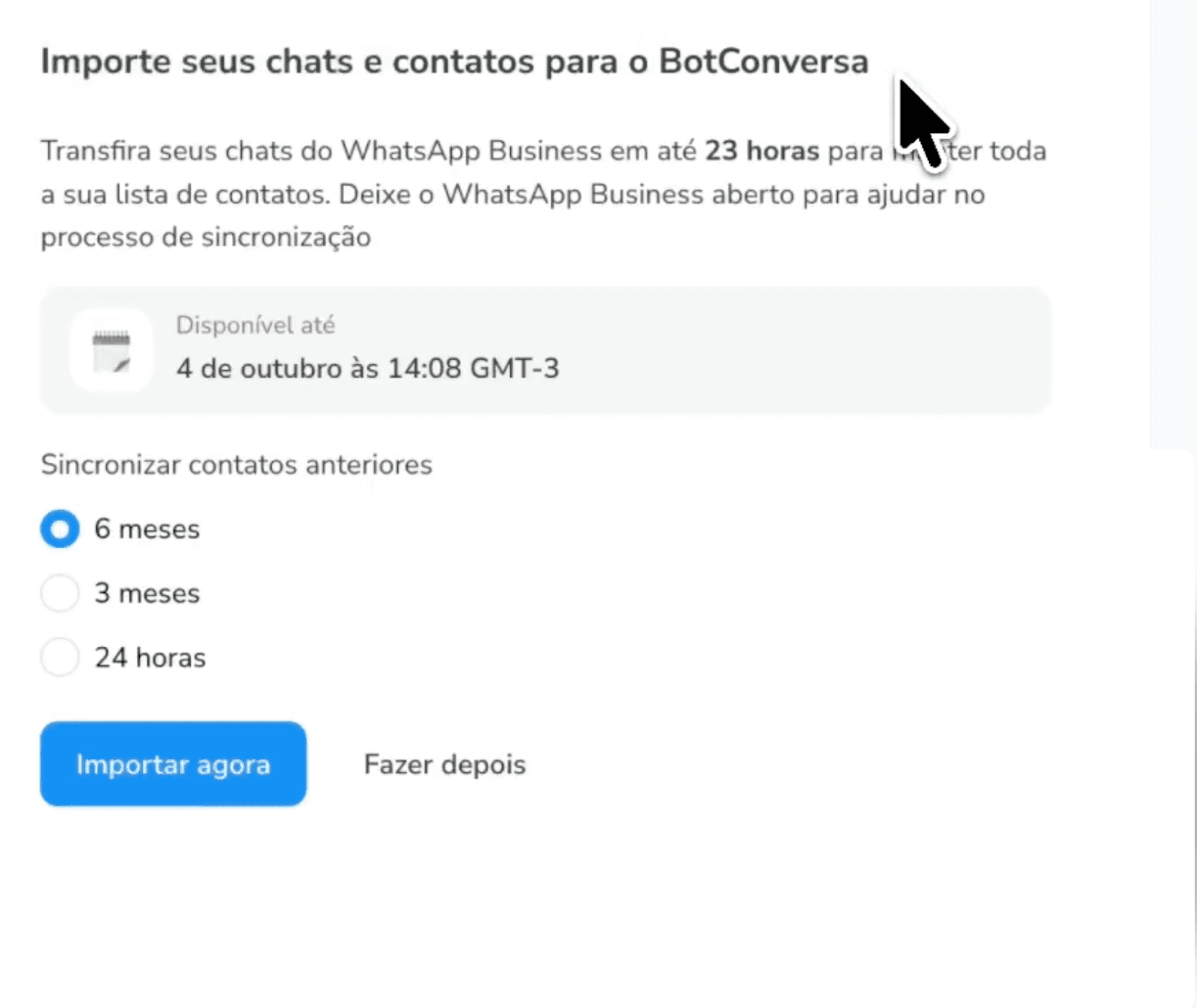
No BotConversa, abra a configuração do WhatsApp e escolha API Oficial com Coexistência.
Entre com um perfil que tenha acesso administrativo ao Gerenciador de Negócios da Meta e aceite as permissões solicitadas.
Selecione ou crie a conta de WhatsApp Business, confirme a empresa, o número e o fuso horário.
Finalize a validação e teste mensagem, automação e atendimento humano antes de iniciar campanhas.
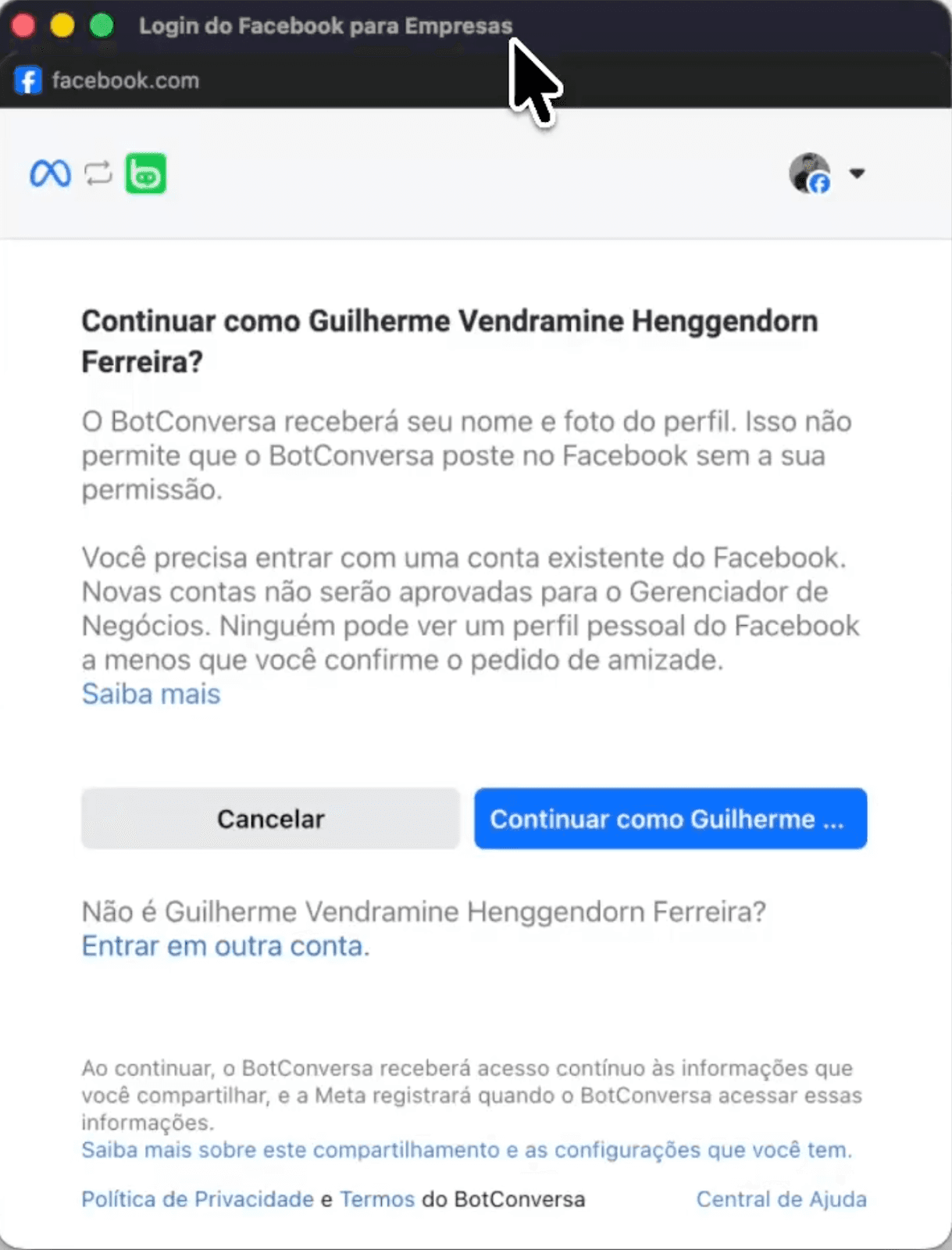
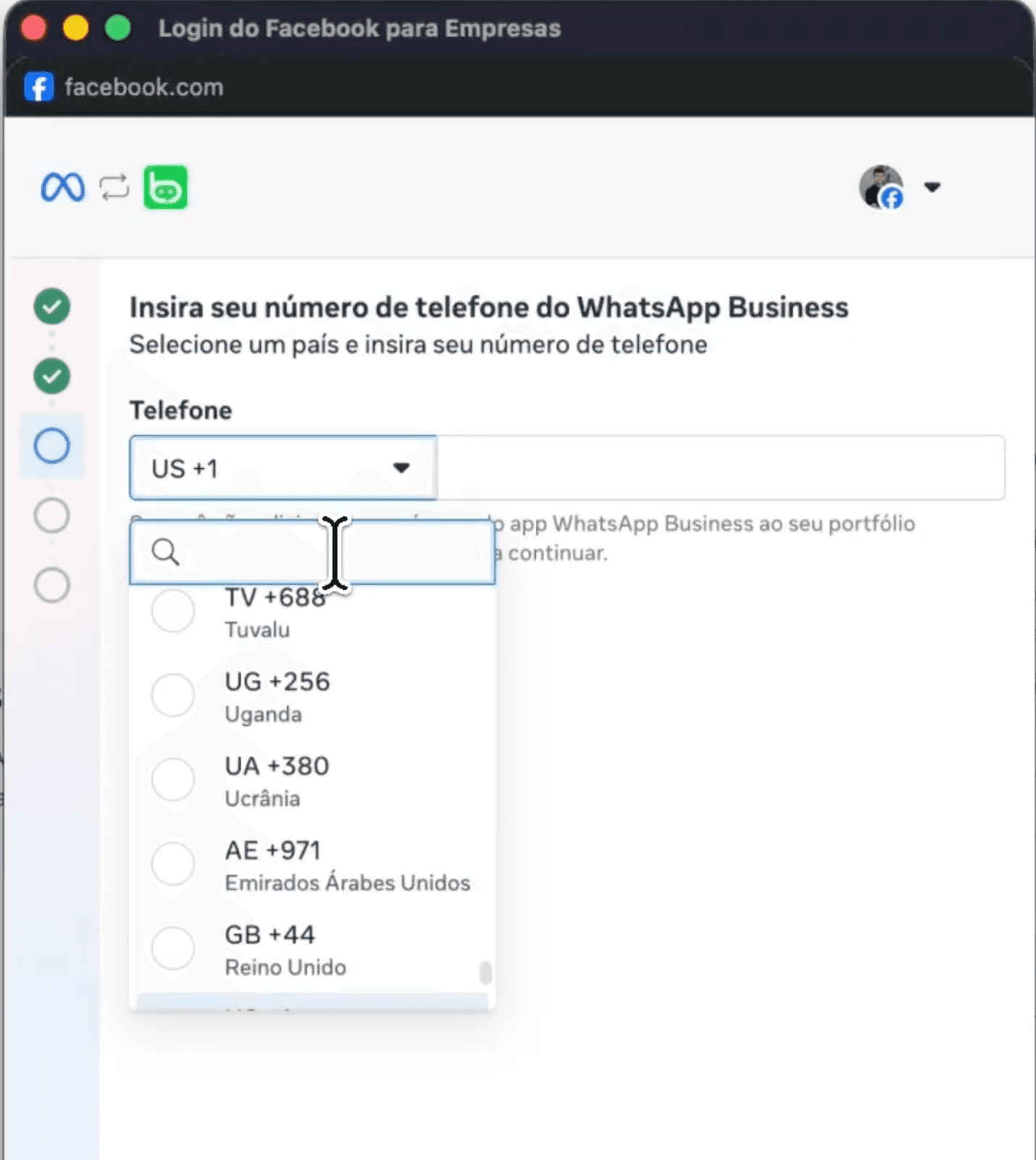
O modo de coexistência existe justamente para evitar a antiga escolha entre usar a API ou manter o aplicativo no telefone. Se a opção errada for selecionada, o WhatsApp do celular pode ser desconectado; confira “coexistência” antes de concluir.
O preço do BotConversa não é o custo total
Há duas cobranças diferentes:
Assinatura do BotConversa: paga o software.
Tarifas do WhatsApp Business Platform: pagam determinadas mensagens entregues pela infraestrutura da Meta.
A Meta calcula preços por categoria e mercado de destino. Marketing, utilidade, autenticação e serviço não têm necessariamente a mesma tarifa. A página oficial também informa quando mensagens de serviço, respostas de utilidade e janelas abertas por anúncios podem ser gratuitas.
O próprio BotConversa vende créditos atualmente por R$ 0,50 para mensagens de marketing e R$ 0,05 para utilidade. Esses são os valores exibidos pelo fornecedor, não uma tarifa universal da Meta para todos os provedores.
A conta correta, portanto, é: plano anual + mensagens + equipe + outros números + tempo de implantação. Comparar apenas R$ 189 com R$ 199 deixa metade da fatura fora da tela.
BotConversa vale a pena?
Sim, quando você precisa de fluxos visuais, campanhas, palavras-chave, transmissões e uma operação centrada no WhatsApp.
Ele perde simplicidade quando o problema não é “qual bloco vem depois?”, mas “como entender uma pergunta aberta, recomendar a opção certa e lembrar o que aconteceu com cada cliente?”. É aqui que vale comparar categorias, não apenas listas de recursos.
BotConversa vs Dealism: fluxo pronto ou conversa que entende contexto?
Necessidade | BotConversa | Dealism |
|---|---|---|
Configuração | Construção de fluxos, regras e sequências | Você informa sobre o negócio; o agente é criado sem fluxos complexos |
Canais | Foco em WhatsApp | WhatsApp, Instagram e Live Chat |
Registro do relacionamento | Contatos, tags, campos e CRM | Resumos automáticos de clientes, conversas e oportunidades |
Melhor uso | Campanhas e automações estruturadas | Perguntas abertas, qualificação, recomendação, follow-up e transferência humana |
O Dealism reúne automação de mensagens, caixa de entrada unificada, CRM, Agente com IA e um workspace de IA (DealOnca) para pequenos negócios que vendem por conversa — com contatos ativos ilimitados no plano gratuito. A configuração pode começar pelo site, por arquivos ou pelas informações do negócio, para que o Agente responda dúvidas, qualifique a intenção e recomende o próximo passo sem exigir que toda conversa seja desenhada com antecedência.
Também há uma diferença operacional importante: a Dealism reúne WhatsApp, Instagram e Live Chat e cria resumos automáticos de cada cliente e oportunidade. A equipe consegue ver o que aconteceu, em que ponto a venda está e qual deve ser a próxima ação sem reler dezenas de mensagens.
E o preço da Dealism?
Na página atual de preços do Dealism, o plano gratuito começa em R$ 0. O plano gratuito do Dealism inclui contatos ativos ilimitados, fluxos ilimitados, um Agente de Atendimento com IA, os recursos essenciais de CRM e 50 créditos de IA que você pode resgatar todos os dias.
Starter: R$ 99/mês, com 100 créditos de IA por dia.
Pro: R$ 199/mês, com 150 créditos de IA por dia.
Teste gratuito: sem cartão.
O Pro da Dealism e o Pro do BotConversa chegam ao mesmo valor mensal anunciado, mas compram trabalhos diferentes. BotConversa vende uma estrutura de automação para WhatsApp. Dealism vende agentes conversacionais multicanal, configuração sem fluxos complexos e memória operacional por meio de resumos e follow-ups.
Crie gratuitamente seu agente na Dealism e teste com as informações do seu negócio →
Perguntas rápidas
Qual plano do BotConversa tem API oficial?
O Pro + API Oficial, anunciado por R$ 199/mês e cobrado como R$ 2.388 no plano anual.
O BotConversa tem plano grátis?
Não há plano gratuito permanente na página atual. O fornecedor anuncia um período de experiência e uma política de reembolso; confirme as condições no checkout.
Posso continuar usando o WhatsApp no celular?
Sim, ao conectar o Pro pelo modo de coexistência. O mesmo número pode permanecer no aplicativo e funcionar com a API oficial.
Dealism substitui a API oficial do BotConversa?
Não necessariamente. São escolhas para trabalhos diferentes. Use BotConversa Pro se a prioridade é a API oficial, campanhas e fluxos. Considere Dealism quando a prioridade é começar sem fluxos complexos, operar em mais canais e acompanhar clientes por contexto, resumos e follow-up.
Veredito
Se você escolheu BotConversa, os R$ 120 adicionais por ano tornam o Pro mais lógico para uma operação comercial séria. Só não confunda a assinatura com o custo total: mensagens da Meta e implementação continuam na conta.
Se o que você quer é colocar um agente para trabalhar sem desenhar automações, atender WhatsApp, Instagram e Live Chat e receber resumos automáticos de clientes e oportunidades, a comparação mais útil não é Starter vs Pro. É BotConversa vs Dealism.