Criar um bom modelo de mensagem do WhatsApp evita que uma pequena equipe tenha de reescrever a mesma saudação, atualização de pedido, confirmação de horário ou resposta de suporte todos os dias. Mas “modelo” pode significar duas coisas diferentes no WhatsApp: uma resposta salva para usar em uma conversa ativa ou um Modelo de Mensagem aprovado para iniciar contato pela Plataforma do WhatsApp Business.
Este guia reúne mais de 25 exemplos e mostra quais funcionam como respostas rápidas, mensagens de serviço, modelos de Utilidade ou modelos de Marketing. Essa diferença importa: escolher a categoria errada — ou iniciar uma conversa sem um modelo aprovado — pode causar reprovação ou falhas na entrega.
O que é um modelo de mensagem do WhatsApp?
Um modelo de mensagem do WhatsApp é um texto reutilizável, mas as regras mudam conforme o local e o momento do envio.
Resposta salva no WhatsApp Business App
É um texto pronto que a equipe insere em uma conversa ativa. Mensagens de saudação, ausência e respostas rápidas não se tornam modelos aprovados da API apenas porque o texto foi salvo.
Modelo de Mensagem aprovado na Plataforma do WhatsApp Business
É uma mensagem estruturada e analisada pela Meta, usada quando a empresa inicia o contato ou envia algo depois que a janela de atendimento de 24 horas terminou. Ela precisa usar um modelo aprovado de Marketing, Utilidade ou Autenticação e respeitar a finalidade definida.
Situação | Precisa de modelo aprovado? | Formato mais comum |
O cliente enviou uma mensagem nas últimas 24 horas | Não; é possível responder com uma mensagem de serviço | Texto livre, resposta rápida, atendente ou automação |
A empresa inicia o contato ou a janela de 24 horas terminou | Sim | Modelo aprovado de Marketing, Utilidade ou Autenticação |
A mensagem será publicada em um grupo do WhatsApp | Não é um caso de uso de modelo da Plataforma Business | Mensagem manual no aplicativo do WhatsApp |
Nos modelos da API, variáveis numeradas como {{1}}, {{2}} e {{3}} inserem informações específicas de cada cliente:
“Olá, {{1}}. Seu pedido {{2}} foi enviado. Acompanhe aqui: {{3}}.”
Nos exemplos abaixo, os colchetes facilitam a leitura das respostas comuns. Os exemplos marcados como Utilidade ou Marketing usam o formato de variáveis numeradas esperado em um modelo da API.
25+ exemplos de modelos de mensagem do WhatsApp
Modelos de boas-vindas e primeiro contato
Melhor uso: respostas rápidas ou mensagens de serviço depois que o cliente entra em contato. Para enviar uma delas de forma proativa, crie e aprove primeiro um modelo de Marketing.
Olá, [Nome]. Obrigado por falar com a [Nome da Empresa]. Como podemos ajudar?
Boas-vindas à [Nome da Empresa]. Podemos ajudar com [produto/serviço], preços e agendamentos.
Olá, [Nome]. Obrigado pelo interesse. O que você procura neste momento?
Recebemos sua mensagem. Nossa equipe costuma responder em até [tempo].
Olá, [Nome]. Recebemos seu contato por [origem]. Você precisa de informações, orçamento ou agendamento?
Exemplos de mensagem de boas-vindas para grupos do WhatsApp
Melhor uso: mensagens manuais em grupos pelo WhatsApp ou WhatsApp Business App. Elas não são Modelos de Mensagem da Plataforma do WhatsApp Business, e a Plataforma não deve ser tratada como ferramenta para enviar modelos da API a grupos.
Boas-vindas ao [Nome do Grupo], [Nome]. Este grupo é sobre [finalidade]. Leia primeiro a mensagem fixada.
Olá, pessoal. Boas-vindas ao [Nome do Grupo]. Compartilhamos novidades sobre [assunto] por aqui.
Boas-vindas, [Nome]. Se quiser, apresente-se com seu nome, cidade e objetivo.
Olá, [Nome]. Que bom ter você aqui. As atualizações são publicadas [dia/horário].
Boas-vindas ao grupo. Mantenha as mensagens relacionadas ao assunto e evite promoções repetidas.
Modelos para e-commerce e atualização de pedidos
Os quatro primeiros normalmente são modelos de Utilidade, pois tratam de um pedido específico. Avisos de reposição de estoque e carrinho abandonado são modelos de Marketing, porque promovem ou retomam uma oportunidade comercial.
Utilidade: Olá, {{1}}. Seu pedido {{2}} foi confirmado.
Utilidade: Boa notícia, {{1}}. Seu pedido {{2}} foi enviado. Acompanhe aqui: {{3}}
Utilidade: Olá, {{1}}. O pacote do pedido {{2}} saiu para entrega hoje.
Utilidade: Seu pedido {{1}} foi entregue. Responda se algum item estiver faltando ou danificado.
Marketing: Olá, {{1}}. O produto {{2}} voltou ao estoque. Veja aqui: {{3}}
Marketing: Olá, {{1}}. O produto {{2}} ficou no seu carrinho. Quer ajuda para escolher? {{3}}
Modelos de lembrete de agendamento
Atualizações sobre um horário já confirmado normalmente são de Utilidade. Uma mensagem não solicitada divulgando uma vaga disponível é Marketing.
Utilidade: Olá, {{1}}. Seu agendamento com {{2}} será em {{3}}, às {{4}}. Responda CONFIRMAR para manter o horário.
Utilidade: Olá, {{1}}. Sua reserva está confirmada para {{2}}, às {{3}}. Endereço: {{4}}
Utilidade: Lembrete: seu atendimento começa em {{1}} horas. Chegue com {{2}} minutos de antecedência.
Utilidade: Olá, {{1}}. Notamos que você não compareceu ao horário de {{2}}. Responda se quiser reagendar.
Marketing: Olá, {{1}}. Temos um horário disponível em {{2}}, às {{3}}. Quer reservar?
Modelos de suporte e mensagens fora do expediente
Melhor uso: saudação, ausência, resposta rápida ou mensagem de serviço durante uma janela de atendimento aberta. Fora dessa janela, a empresa precisa usar um modelo aprovado.
Obrigado pela mensagem. Nosso horário de atendimento é [horário]. Deixe sua dúvida por aqui.
Olá, [Nome]. Envie o número do pedido para verificarmos mais rápido.
Obrigado por aguardar. Encaminhamos sua solicitação para a equipe responsável.
Olá, [Nome]. Envie uma foto ou captura de tela para analisarmos o problema.
Este caso pode precisar de atendimento humano. Vamos transferir a conversa agora.
Modelos de reengajamento e reativação
Melhor uso: modelos de Marketing aprovados, enviados apenas para pessoas que autorizaram esse tipo de comunicação.
Marketing: Olá, {{1}}. Você ainda tem interesse em {{2}}?
Marketing: Olá, {{1}}. Você já pediu informações sobre {{2}}. Veja a atualização mais recente: {{3}}
Marketing: Olá, {{1}}. Seu orçamento para {{2}} é válido até {{3}}. Responda SIM se quiser continuar.
Como funcionam os Modelos de Mensagem do WhatsApp Business
Os Modelos de Mensagem da Plataforma do WhatsApp Business são mensagens estruturadas que uma empresa pode usar para iniciar ou retomar uma conversa depois que a janela de atendimento de 24 horas terminou. O modelo deve ser aprovado antes desse uso. A Meta também pode revisar, reclassificar, pausar ou rejeitar um modelo mais tarde, caso o conteúdo ou a qualidade deixem de atender às políticas.
Existem três categorias de modelo. Serviço é uma quarta categoria de mensagem, mas não é uma categoria de modelo pré-aprovado:
Categoria | Melhor uso | Formatos comuns |
Modelo de Marketing | Promoções, recomendações, carrinhos abandonados e reativação | Descontos, lançamentos, reposição de estoque e ofertas de follow-up |
Modelo de Utilidade | Uma transação, conta, pedido, agendamento ou atualização solicitada e específica | Confirmação de pedido, atualização de entrega, lembrete de horário e aviso de pagamento sem conteúdo promocional |
Modelo de Autenticação | Verificação de identidade | Código de acesso, senha de uso único e verificação de conta |
Mensagem de Serviço | Responder depois que o cliente envia uma mensagem | Respostas livres de suporte ou vendas dentro da janela de atendimento de 24 horas |
Quando um cliente envia uma mensagem, o WhatsApp abre uma janela de atendimento de 24 horas. A janela é reiniciada sempre que esse cliente envia outra mensagem. Durante esse período, a empresa pode responder com mensagens de serviço sem usar um modelo aprovado. Fora dele, é necessário usar um modelo aprovado. Consulte a Política de Mensagens do WhatsApp Business.
A cobrança da Plataforma do WhatsApp Business é feita por mensagem entregue e varia conforme o mercado do destinatário e a categoria. Em agosto de 2026, a página oficial informa que mensagens de serviço e mensagens de Utilidade enviadas em resposta ao usuário não são cobradas. Como as regras podem mudar, confira a página atualizada de preços da Plataforma do WhatsApp Business antes de planejar o orçamento de uma campanha.
O período gratuito de 72 horas se aplica quando o cliente inicia a conversa por um anúncio de clique para o WhatsApp ou pelo botão de chamada para ação de uma Página do Facebook. As mensagens qualificadas enviadas nesse período não são cobradas, embora anúncios e plataformas de terceiros ainda possam ter custos.
Empresas que usam IA também precisam observar os Termos da Solução do WhatsApp Business. As regras diferenciam empresas que usam automação, fornecedores terceirizados de IA e fornecedores cujo produto principal é um assistente de IA de uso geral; também incluem exigências sobre uso de dados e exceções regionais. Não reduza isso a “toda IA é proibida” nem presuma que qualquer uso de IA é automaticamente permitido.
Como criar um modelo de mensagem do WhatsApp
A forma de criar um modelo de mensagem do WhatsApp depende do produto usado. No WhatsApp Business App, a área de Ferramentas Comerciais permite configurar saudações, mensagens de ausência e respostas rápidas. Na Plataforma do WhatsApp Business, crie um Modelo de Mensagem aprovado no Gerenciador do WhatsApp ou por meio do seu provedor de API.
Etapa 1: crie a mensagem no aplicativo ou na API
Para um modelo da Plataforma, escolha Marketing, Utilidade ou Autenticação de acordo com a finalidade real da mensagem — não pela categoria com o menor preço. Uma mensagem que acrescenta uma promoção a uma atualização de pedido pode ser tratada como Marketing, mesmo que parte dela seja transacional.
Escreva um texto com um único objetivo, insira as variáveis numeradas na ordem correta e adicione somente os botões ou mídias necessários para a próxima ação. Forneça exemplos realistas para que a análise entenda o que cada variável representa.
Etapa 2: envie o modelo para análise da Meta
Envie o modelo para aprovação antes de usá-lo para iniciar uma conversa. A Meta verifica se conteúdo, categoria, variáveis e finalidade estão de acordo com as políticas do WhatsApp. Ela pode aprovar o modelo como enviado, atribuir outra categoria ou rejeitá-lo.
Antes do envio, confira quatro pontos:
A mensagem tem uma única finalidade clara.
A categoria escolhida corresponde ao texto inteiro, inclusive ofertas e chamadas para ação.
Variáveis como {{1}} e {{2}} são compreensíveis pelo restante da frase.
Os valores de exemplo, links, idioma e contexto do opt-in estão completos e corretos.
Etapa 3: evite os motivos comuns de reprovação
Um modelo pode ser rejeitado ou reclassificado quando é vago, enganoso, enviado como Utilidade apesar de conter promoção, não apresenta contexto ou fica difícil de entender porque as variáveis substituem quase toda a frase. Conteúdo restrito pelas políticas, links quebrados e afirmações sem comprovação também podem gerar problemas.
Um modelo fraco seria:
“Olá, {{1}}. Temos uma novidade especial para você. Clique agora: {{2}}.”
Um modelo de Utilidade mais claro apresenta o contexto da transação:
“Olá, {{1}}. Seu pedido {{2}} foi enviado. Acompanhe a entrega aqui: {{3}}.”
Texto claro, categoria correta, exemplos úteis e contexto específico facilitam a análise do Modelo de Mensagem e tornam o envio em escala mais seguro.
Boas práticas para modelos de mensagem do WhatsApp
Um bom Modelo de Mensagem do WhatsApp é curto, esperado e orientado a uma ação. Ele deve explicar por que a empresa está entrando em contato e deixar o próximo passo evidente.
Use uma finalidade por modelo
Não misture atualização de pedido, desconto e pesquisa no mesmo modelo de Utilidade. Separar os objetivos deixa a categoria mais clara e facilita o entendimento.
Personalize informações úteis
Inclua dados como número do pedido, horário, link de rastreamento ou serviço solicitado. Não transforme todos os substantivos em variáveis; o texto fixo ainda precisa deixar clara a finalidade da mensagem.
Use uma CTA clara
Ofereça uma única próxima ação natural, como “Acompanhar pedido”, “Confirmar horário”, “Ver produto” ou “Responder SIM”. Botões funcionam melhor quando o próximo passo é previsível.
Escolha a categoria real
Use Utilidade para atualizações específicas, solicitadas ou relacionadas a uma transação; Marketing para promoções e reengajamento; e Autenticação para códigos de verificação. Se a mensagem misturar conteúdo de Utilidade e Marketing, espere que ela seja classificada como Marketing.
Respeite o opt-in e o opt-out
Inicie mensagens apenas com pessoas que forneceram uma autorização adequada para contato pelo WhatsApp. Registre o que foi autorizado e interrompa futuras campanhas quando alguém solicitar o cancelamento.
Localize cada versão de idioma
No Gerenciador do WhatsApp, adicione ao modelo as versões de idioma necessárias. Ao enviar pela API, use o mesmo nome de modelo com o código de idioma e o conteúdo localizado correspondentes. Não dependa de tradução palavra por palavra: preserve finalidade, variáveis, botões e contexto de conformidade, mas adapte o texto ao uso natural do mercado.
Do modelo à venda: não pare em “mensagem enviada”
Um modelo do WhatsApp pode iniciar ou retomar uma conversa, mas não responde às perguntas que surgem depois. Quando o cliente interage, a empresa ainda precisa explicar preços, entender necessidades, recomendar o próximo passo, fazer follow-up e envolver uma pessoa quando necessário.
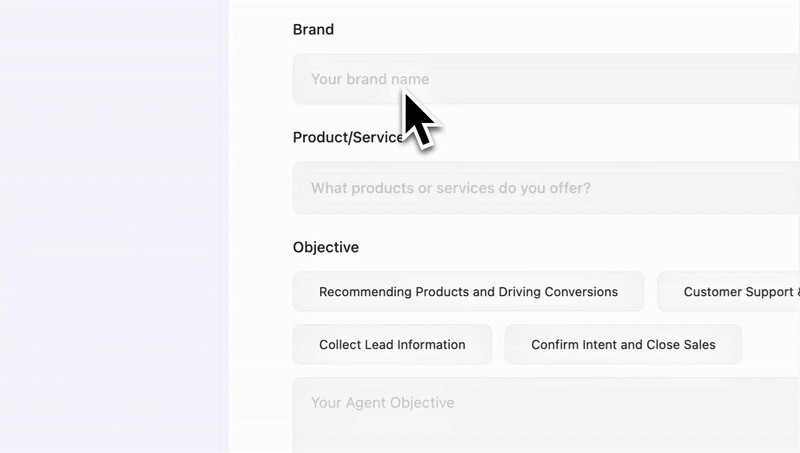
A Dealism foi criada para essa etapa de resposta. Ela não substitui o processo de aprovação de modelos da Meta. Depois que o cliente responde por uma conexão compatível do WhatsApp, um agente de vendas com IA da Dealism pode usar as informações da empresa e o contexto da conversa para continuar o atendimento.
Crie sua conta gratuita na Dealism e monte um agente de IA para as conversas que vêm depois →
Um fluxo prático depois do envio do modelo pode incluir:
Responder perguntas rotineiras
Use informações verificadas da empresa para explicar preço, entrega, disponibilidade, detalhes do serviço ou horário de funcionamento.Qualificar a intenção
Entenda necessidade, prazo, localização, orçamento ou preferência do cliente sem obrigar todas as pessoas a seguir o mesmo roteiro rígido.Orientar a próxima ação
Leve o cliente ao produto, à página de agendamento, ao checkout ou ao próximo passo adequado.Fazer follow-up com contexto
Continue a partir da conversa existente quando o cliente pedir mais tempo ou precisar de outro lembrete, sempre respeitando as regras de mensagens do WhatsApp.Transferir para uma pessoa
Encaminhe conversas complexas ou de alta intenção com o contexto relevante disponível.
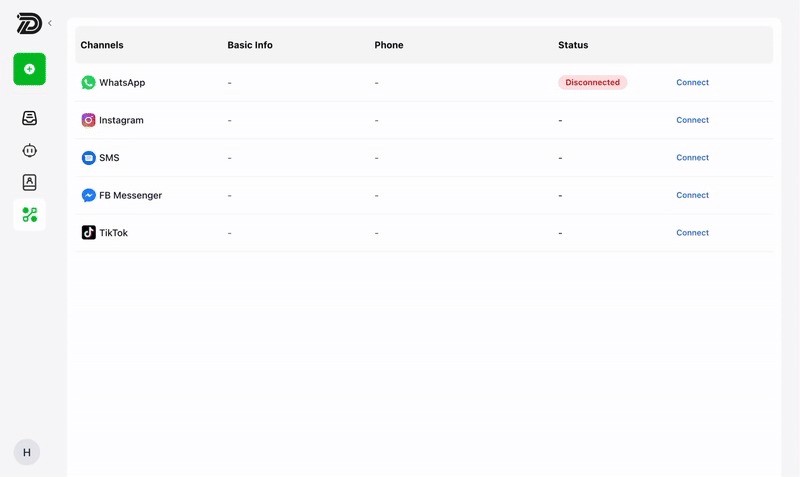
O modelo abre a porta; a conversa cria a oportunidade. Saiba mais sobre automação de WhatsApp e use a Dealism quando precisar transformar uma resposta em uma conversa de vendas útil, em vez de deixá-la virar apenas mais um item na caixa de entrada.
Crie e teste seu agente de vendas com IA na Dealism →
Perguntas frequentes
Qual é a quantidade ideal de modelos no WhatsApp Business?
Não existe uma quantidade ideal definida oficialmente. Comece pelas mensagens que sua equipe usa com frequência, como boas-vindas, atualizações de pedido, lembretes de horário, follow-ups de faltas, carrinhos abandonados, respostas de suporte e campanhas de reativação. Mantenha as finalidades de Utilidade e Marketing separadas e crie outros modelos somente quando houver um caso recorrente claro.
Vale a pena usar botões nos modelos de mensagem do WhatsApp?
Use botões quando o próximo passo for simples, como confirmar um horário, acompanhar um pedido, abrir uma página de produto ou entrar em contato com o suporte. Se o cliente precisar explicar a situação, um botão de resposta ou uma conversa normal pode funcionar melhor do que forçar uma CTA para o site.
Quando atualizar um modelo de mensagem do WhatsApp?
Revise um modelo quando clientes interpretarem o texto de forma errada, ignorarem a CTA, pedirem descadastro, bloquearem o remetente ou repetirem a mesma pergunta depois da mensagem. Atualize também quando oferta, link, política, preço ou processo operacional mudar. Monitore status, avaliação de qualidade, entrega, taxa de leitura, cliques em botões e principais motivos de bloqueio quando esses dados estiverem disponíveis.