Desktop App
Updated
4 min read
Use the same Dealism workspace
Sign in with the account and workspace your team already uses. The WhatsApp connection will appear in that workspace's Channels and Inbox.
Sign in
Open Dealism Desktop.
Sign in with the same account you use at Dealism on the web.
Select the correct workspace if your account belongs to more than one.
Connect WhatsApp by QR code
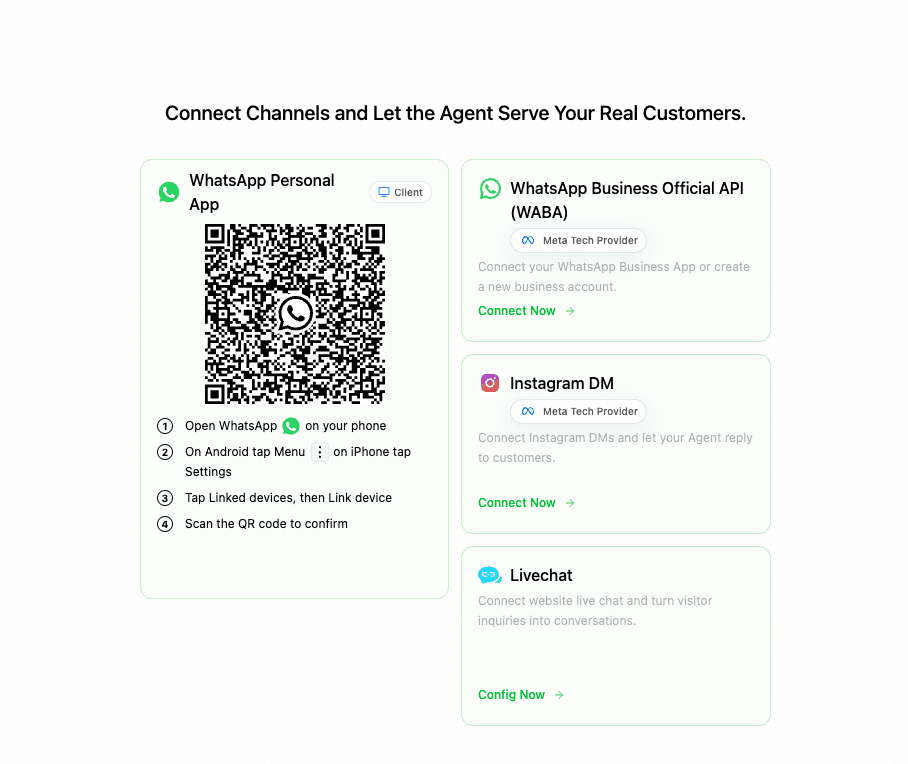
In Dealism Desktop, open Channels and choose the Desktop WhatsApp connection.
Select Connect to display the QR code.
On your phone, open WhatsApp or WhatsApp Business App and go to Linked Devices.
Select Link a device and scan the QR code shown in Dealism Desktop.
Return to Channels and confirm that the status is connected.
Wait for the initial sync
After the QR code is confirmed, Dealism checks the connected chats and message history. Keep the computer awake and online until the channel card finishes syncing. You can continue using WhatsApp on your phone during this process.
Enable notifications
Allow notifications when your computer asks. Desktop notifications help you notice new customer messages and connection changes without keeping the Inbox in front of you.
Verify the setup
Send a test message to the connected number from another phone.
Confirm that the conversation appears in the Dealism Inbox.
Reply from Dealism and confirm that the message reaches WhatsApp.
Keep the computer awake, online, and running Dealism Desktop. If syncing stops, see Troubleshoot Dealism Desktop.