Desktop App
Updated
4 min read
Check the computer first
Most Desktop QR connection interruptions happen when the computer sleeps, loses internet access, or closes Dealism Desktop.
Start with these checks
Confirm that the computer is awake and connected to the internet.
Confirm that Dealism Desktop is open and signed in to the correct workspace.
Check that the phone is online and WhatsApp is working normally.
Open Channels in Dealism and check the connection status.
The app will not install or open
On Mac, confirm that the computer uses Apple Silicon and macOS 13 or later. Intel Macs are not supported.
On Windows, confirm that you use Windows 10 or 11, 64-bit.
Download a fresh installer from the official Dealism download page.
If the operating system blocks the app, review the security prompt and allow the trusted Dealism application.
The QR code does not connect
Refresh the QR code if it expired, make sure you scan it from WhatsApp's Linked Devices screen, and remove an unused linked device if WhatsApp has reached its device limit.
Messages stop syncing
Wake the computer, restore its internet connection, and reopen Dealism Desktop. If the channel still shows disconnected, reconnect it from Channels and scan a new QR code. Reconnecting does not require changing the WhatsApp phone number.
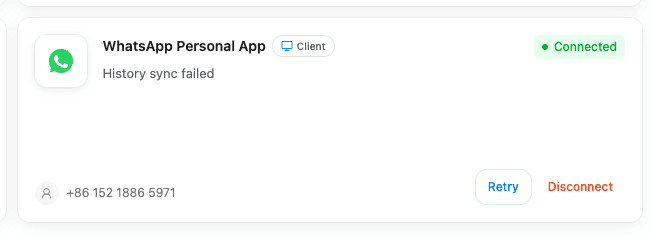
If the channel is connected but shows History sync failed, keep the phone and computer online, select Retry, and allow the sync to run again. Use Disconnect only when you intend to remove the connection and set it up again.
Notifications do not appear
Check notification permission for Dealism Desktop in macOS or Windows settings. Also confirm that Focus, Do Not Disturb, or battery-saving settings are not suppressing notifications or putting the app to sleep.
If the problem continues
Record the operating system version, Dealism Desktop version, approximate time of the issue, and the channel status shown in Dealism. Share these details with support so the team can investigate without asking you to repeat the first checks.