Channels
Updated
12 min read
Current WABA capability scope
Dealism's current first-phase WABA capability focuses on receiving customer messages and replying within the 24-hour customer service window after a customer starts a conversation. Template messages and bulk campaigns are not part of the current capability described in this guide.
After you connect WhatsApp to Dealism, customer messages enter the Unified Inbox. You can reply yourself or let a Dealism Agent help handle the conversation.
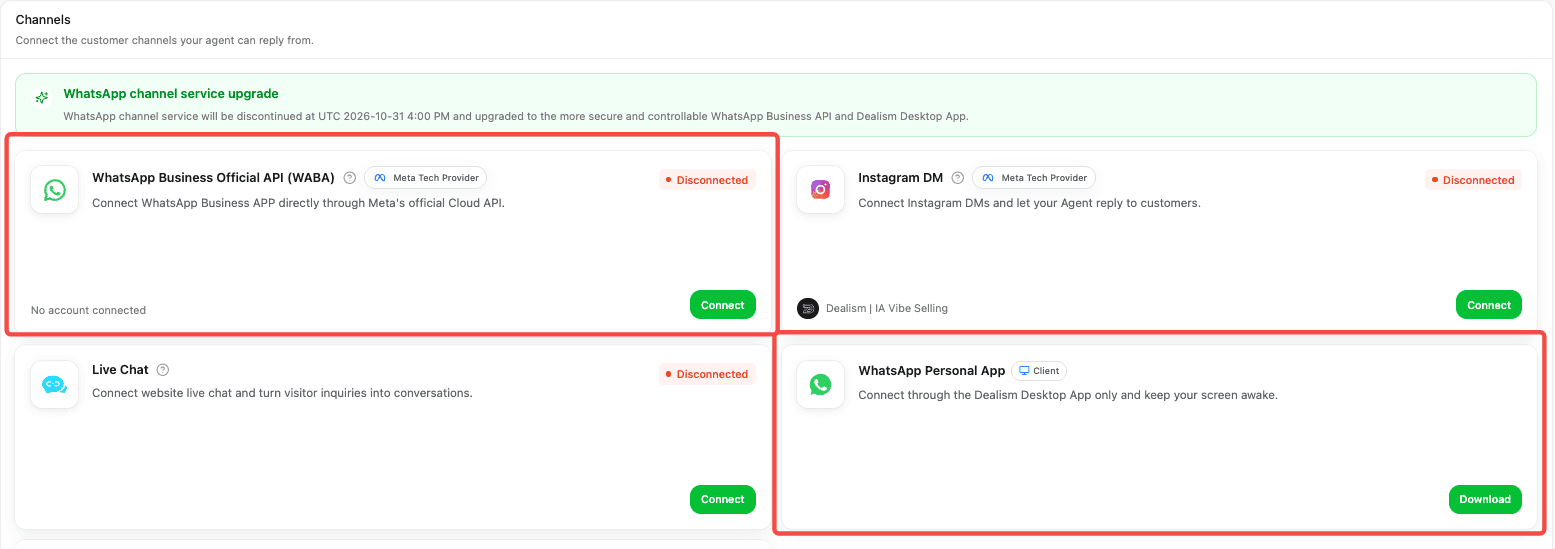
Dealism currently provides 2 WhatsApp channels and 3 connection paths:
WhatsApp Business API (WABA) — Coexistence: Keep using your existing WhatsApp Business App number while connecting it to Meta's official Cloud API.
WhatsApp Business API (WABA) — Dedicated API number: Use a number that has not yet been registered with WhatsApp as an API-only business number.
WhatsApp Personal / Business App — Dealism Desktop: Scan a code on your computer to connect an existing WhatsApp account. This is suitable for individuals or small teams that want to get started quickly.
This guide helps you choose the right option and lists the preparation, connection flow, main benefits, and important notes for each path.
Choose the right connection method first
Your situation | Recommended method | Main reason |
|---|---|---|
You already use WhatsApp Business App and want to keep the same number and mobile-app workflow | WABA — Coexistence | The same business number can continue to be used in Business App while also connecting to Dealism and Meta's official API |
You are preparing a new business number and want a more stable, scalable official API connection | WABA — Dedicated API number | It does not depend on a computer running continuously and is suitable for an established team and long-term business use |
You use regular WhatsApp, or want to try it quickly without preparing Meta Business assets | Dealism Desktop QR connection | Connect your existing number by scanning a code; no Meta Business setup is required |
Dealism's current first-phase WABA capability focuses on receiving customer messages and replying within the 24-hour customer service window after a customer starts a conversation. Template messages and bulk campaigns are not part of the current capability described in this guide.
Option 1: Connect an existing WhatsApp Business App number (Coexistence)
Who it is for
If you already communicate with customers through WhatsApp Business App and do not want to change your number or stop using the mobile app, choose Coexistence first.
Coexistence uses Meta Embedded Signup to connect an existing WhatsApp Business App number to the WhatsApp Business Platform. After setup, you can still handle messages in WhatsApp Business App on your phone and manage conversations in Dealism Inbox.
Prepare before connecting
A number currently used in WhatsApp Business App. A regular WhatsApp Messenger number must first be switched to the free WhatsApp Business App.
A phone signed in to that number, with WhatsApp Business App updated to the latest version.
A Facebook account that can sign in to Meta.
Admin access to the existing Meta Business Portfolio and WhatsApp Business Account; you can create them in the Meta flow if you do not have them.
Basic company details such as the business name, website, and business category. Meta may request additional verification materials depending on the account.
If two-step verification is already enabled for the number, have the existing 6-digit PIN ready. If it is not enabled, you will create a 6-digit PIN during connection.
Meta determines Coexistence availability. Meta may not show this option for very new WhatsApp Business App accounts, numbers without a normal usage history, or accounts with restrictions.
Connection steps
Sign in to Dealism and open Channels.
Find WhatsApp Business API (WABA) and select Connect.
Select Connect my WhatsApp Business APP number and confirm that it has the Coexistence label.
Select Continue to Meta and sign in with a Facebook account that has the required permissions.
Select or create a Meta Business Portfolio, then select or create a WhatsApp Business Account.
Confirm the business details and authorization scope as prompted by Meta.
Open WhatsApp Business App on your phone, scan the QR code shown by Meta, and confirm the connection.
If Dealism asks for a two-step verification PIN, enter the existing 6-digit PIN or create and safely store a new 6-digit PIN. This is not a one-time SMS or phone-call verification code.
Return to Dealism, keep the page open, and wait for the status to become Connected.
Select Go to Inbox, send a test message to the number from another phone, and reply to it.

Main benefits
Keep your existing business number: Customers continue contacting the number they already know.
Keep using the mobile app: People can still reply in WhatsApp Business App without changing their existing workflow.
Connect Dealism Inbox and Agent: Your team can manage customer conversations centrally in Dealism.
Use Meta's official Cloud API: The connection is completed through Meta's official Embedded Signup, while the business assets remain managed by your Meta account.
Synchronize some conversation history: Meta may synchronize up to about six months of historical messages; the actual range depends on account eligibility and sync results.
Important notes
This option supports WhatsApp Business App only, not regular WhatsApp Messenger.
To maintain the connection, continue using WhatsApp Business App on the primary phone. Meta may disconnect Coexistence if the primary device is inactive for a long time.
Dealism currently supports only 1 WABA and 1 sending number per account.
This phase does not support migrating a number from another BSP or WABA provider.
Meta bills any applicable messaging charges directly to your Meta account; Dealism does not top up the balance.
Option 2: Connect a dedicated WhatsApp Business API number
Who it is for
If you want a dedicated business number for sales, support, or an AI Agent, and do not need to keep using that number in the WhatsApp mobile app, choose a dedicated API number.
The number is registered directly with the WhatsApp Business Platform and connects to Dealism through Meta Cloud API. It does not depend on a particular computer remaining online.
Prepare before connecting
A phone number not currently registered with WhatsApp Messenger or WhatsApp Business App.
The number must be able to receive an SMS or voice verification code and use the correct international country-code format.
A Facebook account that can sign in to Meta.
Admin access to an existing Meta Business Portfolio; you can create one during connection if needed.
Brand information such as a business display name, company website, and business category. The display name should match your website or other public brand materials.
A 6-digit two-step verification PIN that you will store long term.
Meta may require Business Verification or additional billing information, depending on business status. Whether these steps appear is determined by Meta.
Connection steps
In Dealism, go to Channels → WhatsApp Business API (WABA) → Connect.
Select Connect my non-WhatsApp phone number.
Select Continue to Meta and sign in with a Facebook account that has the required permissions.
Select or create a Meta Business Portfolio and WhatsApp Business Account.
Enter your business information and WhatsApp display name.
Enter the prepared phone number and choose SMS or voice call for the verification code.
Enter the verification code in Meta to complete number verification.
Set and confirm the 6-digit two-step verification PIN in Dealism.
Wait for Dealism to finish connecting and confirm that the status is Connected.
Send a test message from another phone to confirm that messages enter Dealism Inbox and can be replied to normally.
Main benefits
Better for long-term business use: The connection does not depend on the WhatsApp mobile app or a particular computer staying online.
Official Meta assets: You can view the WABA, number, and business information in Meta WhatsApp Manager.
A unified team workflow: Customer messages enter Dealism Inbox, reducing the need for multiple people to share one phone.
Prepared for future expansion: The official Business Platform supports higher message volumes, template messages, and automation capabilities; specific features depend on what Dealism makes available.
Important notes
This number is used as an API-only number and cannot also be used as a regular WhatsApp or WhatsApp Business App number.
Dealism currently does not provide a migration process for numbers from other BSPs.
A successful WABA connection does not mean the Meta account has no restrictions. In Dealism's WABA management page, check the connection status, WABA risk status, account review status, phone number status, and number quality.
Option 3: Connect WhatsApp by scanning a code in Dealism Desktop
Who it is for
If you use regular WhatsApp Messenger, or want to get started without configuring Meta Business assets, install Dealism Desktop and scan a code just as you would for WhatsApp Web.
This option supports both WhatsApp Personal App and WhatsApp Business App, but it is a desktop-device connection, not WhatsApp Business API.
Prepare before connecting
A phone signed in to WhatsApp Personal App or WhatsApp Business App.
An available WhatsApp Linked Devices slot.
A computer with Dealism Desktop installed:
- macOS: Apple Silicon and macOS 13 or later; Intel Macs are not currently supported. - Windows: 64-bit Windows 10 or Windows 11.
A stable internet connection, and permission for the computer to remain running with the screen awake while in use.
A phone that can complete fingerprint, Face ID, or device-passcode verification.
Connection steps
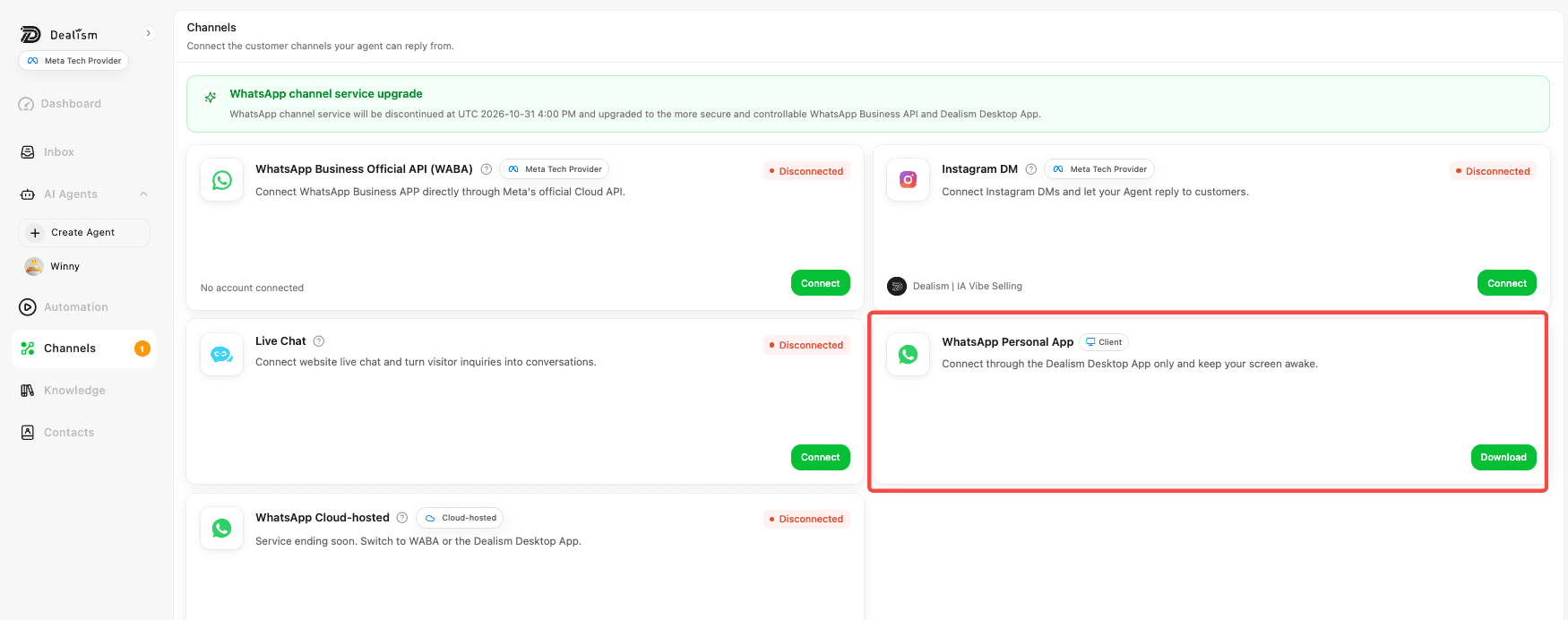
On your computer, open the Dealism Desktop download page and install the version for your operating system.
Open Dealism Desktop and sign in with the same Dealism account you use on the web.
Go to the WhatsApp connection page and wait for the QR code to appear.
Open WhatsApp on your phone:
Android: Open the top-right menu → Linked devices → Link a device.
iPhone: Go to Settings → Linked Devices → Link a Device.
Complete identity verification on your phone, then scan the QR code in Dealism Desktop.
Wait for the status to become Connected and allow conversation history to finish synchronizing.
Open Dealism Inbox and confirm that recent conversations and new messages display normally.
Main benefits
Fastest way to start: Scan a code to start; you do not need to create a Meta Business Portfolio or WABA first.
Supports regular WhatsApp: Personal numbers can also connect.
Keep your current account and conversations: Continue using your existing WhatsApp number and mobile app.
Good for trying Dealism first: Individual sellers, small teams, or lower-message-volume businesses can quickly validate the Agent and Inbox workflow.
Important notes
Dealism Desktop must remain running. Computer sleep, closing the app, or a network interruption affects message synchronization and automated handling.
Open WhatsApp on the primary phone regularly. WhatsApp states that linked devices may be disconnected if the primary phone is not used for a long time.
This connection is not WABA and does not provide API-only WhatsApp Business Platform capabilities.
If the QR code expires, refresh it and scan the new code again.
How to confirm that the connection is successful
Whichever option you choose, complete these checks:
The connection status in Dealism displays Connected.
Send a new message from another WhatsApp number.
The new message appears in Dealism Inbox, with the correct contact and time.
Reply from Dealism and confirm that the other phone receives the message.
For WABA, check the WABA status, phone-number status, and latest synchronization time in the management page.
For Desktop, confirm that the app can restore the connection after the screen lock is exited or the network is briefly interrupted.
Frequently asked questions
I already use WhatsApp Business App. Do I need to change my number?
Not necessarily. If Meta offers Coexistence for your number, you can keep the existing WhatsApp Business App number and connect it to Dealism at the same time. If Meta does not offer the option, prepare a dedicated API number or use Dealism Desktop first.
Can regular WhatsApp Messenger connect directly to WABA?
It cannot use Coexistence directly. You can first switch the number to WhatsApp Business App and then try Coexistence, or scan to connect regular WhatsApp through Dealism Desktop.
Can I keep using WhatsApp Business App on my phone after connecting WABA?
Yes, when you choose Coexistence. With a dedicated API number, the number is used by WhatsApp Business Platform and is not used in the mobile app.
Must I create a Meta Business Portfolio in advance?
No. Meta Embedded Signup usually lets you choose an existing Business Portfolio or create a new Portfolio during connection. If you already have assets, ensure the Facebook account you use has admin permissions.
Why can’t I proactively message any customer after WABA connects successfully?
Dealism's current first-phase WABA capability is for receiving customer messages and replying within the 24-hour customer service window after a customer starts a conversation. Proactive messages outside this window normally require Meta-approved message templates; template and campaign features depend on what Dealism makes available.
Can I connect the same number through Desktop and WABA at the same time?
This is not recommended. For the same WhatsApp Business App number, choose WABA Coexistence as the official way to use both ends. Connecting the same number twice may create conflicts in conversation sources, synchronization, and automated replies.
Does Dealism store my Meta password, SMS verification code, or two-step verification PIN?
Meta sign-in and business authorization take place on Meta pages. SMS or voice verification codes are used for Meta number verification. Dealism uses the two-step verification PIN only in the short-term process required to complete registration and does not retain it as a long-term viewable password. Store your PIN securely yourself.
Ready to connect?
Sign in to Dealism, open Channels, and choose the WhatsApp connection method that fits you best. If you already use WhatsApp Business App, try WABA Coexistence first. If you only want to get started quickly, download Dealism Desktop and scan to connect.
Open Dealism · Download Dealism Desktop