Channels
Updated
7 min read
Use the code from your own workspace
Your Live Chat installation code is generated for your Dealism workspace. Copy the current code from Website installation instead of reusing a code sample or screenshot.
Before you begin
Dealism Live Chat adds a chat widget to your website so visitors can start a supported conversation while they are viewing your pages. A trained AI Customer Agent can answer from your approved knowledge, and your team can review or take over the conversation in Inbox.
Before installing Live Chat, prepare the following:
A Dealism workspace with an AI Customer Agent. If you do not have one yet, see Create your first AI Customer Agent.
Current business knowledge for the questions visitors are likely to ask. See Add your first knowledge source.
Access to edit your website template or add custom code before the closing
</body>tag. Ask your website administrator or developer if you do not have this access.
Enable and customize Live Chat
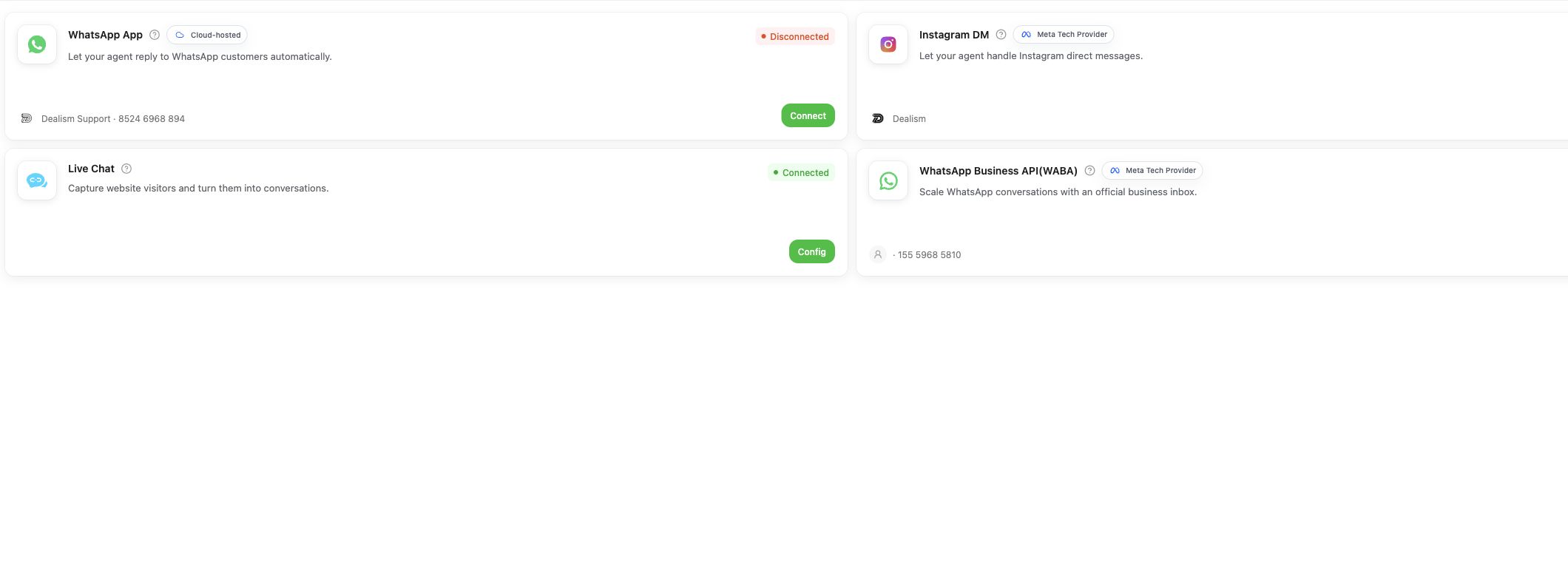
In Dealism, open Channels from the left navigation.
Find Live Chat. Confirm that it is connected, then select Config.
On Live Chat configuration, make sure the main Live Chat switch is on.
Choose what visitors can see. Enable Native chat for the website conversation and, when available, add connected WhatsApp or Instagram contact options.
Set the window title, greeting, avatar, main color, widget position, and visitor information fields. Enable fields such as Email or Phone only when you need to collect them.
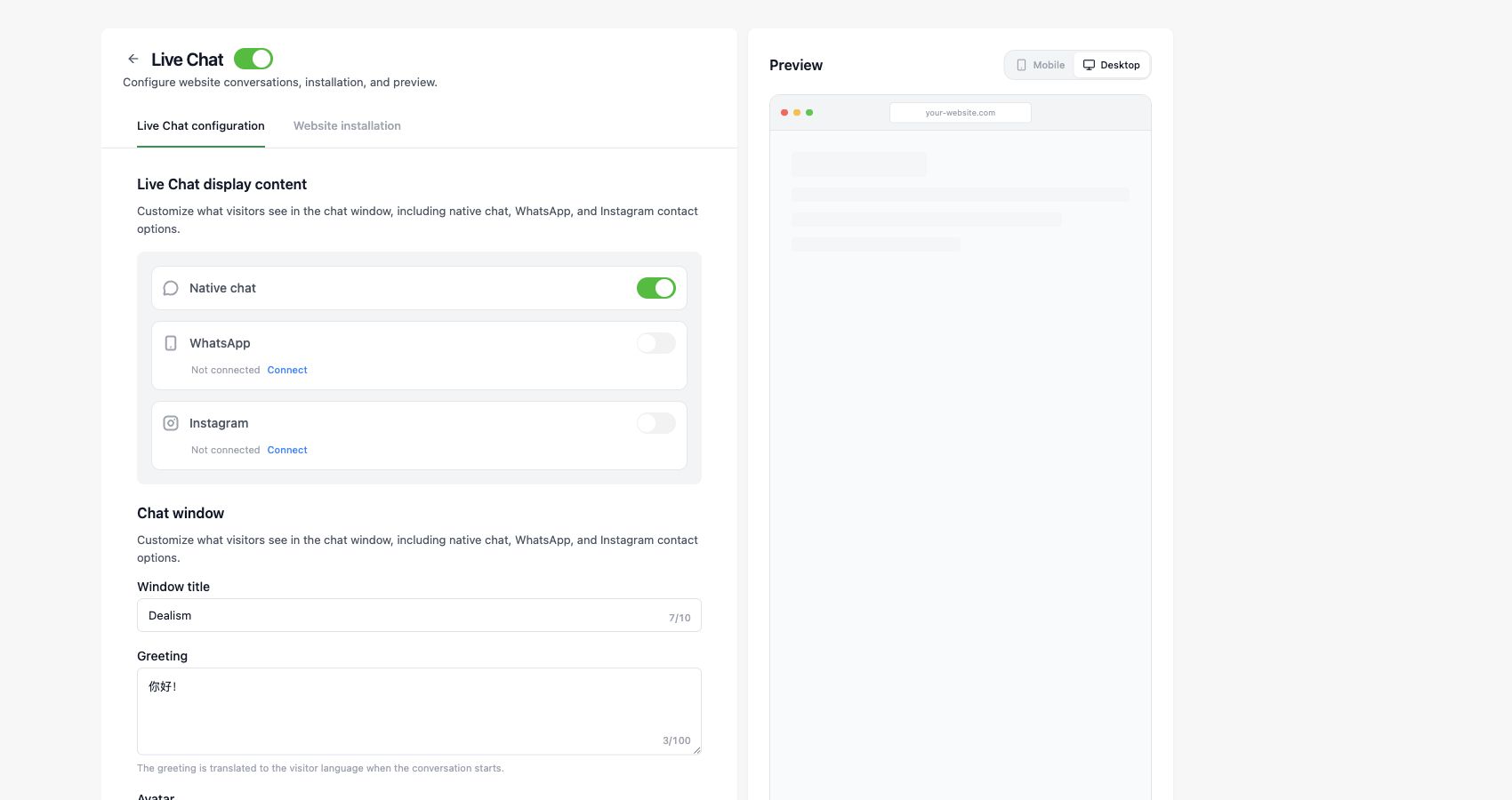
Use the desktop or mobile preview to check the entry points, greeting, required visitor fields, and message input. The greeting can be translated to the visitor language when the conversation starts.
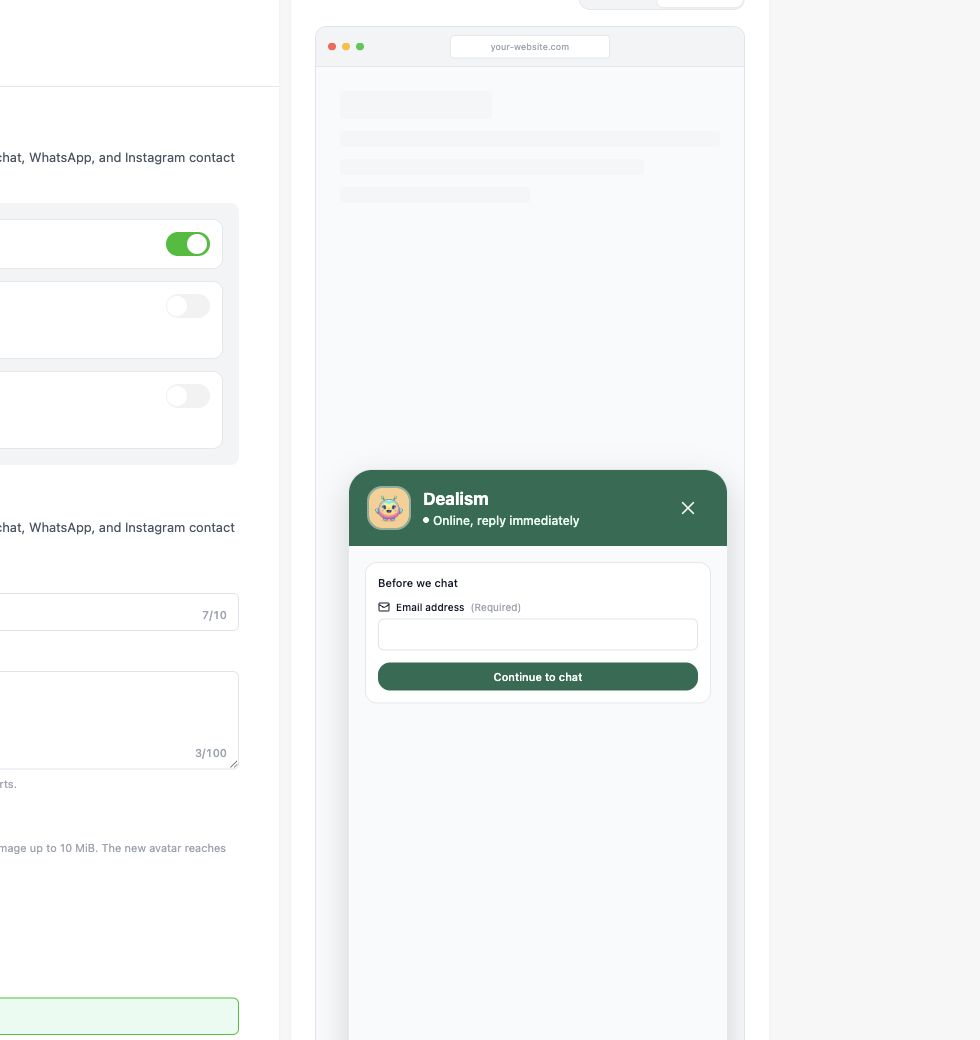
For more display options, see Customize the chat entry point.
Install and verify the website script
Open the Website installation tab.
Select Copy to copy the installation code generated for your workspace.
Paste the complete script once in your website template, immediately before the closing
</body>tag.Save and publish the website change.
Return to Dealism, enter the public website URL, and select Verify installation.
Confirm that the website appears under Connected websites with a Connected status.
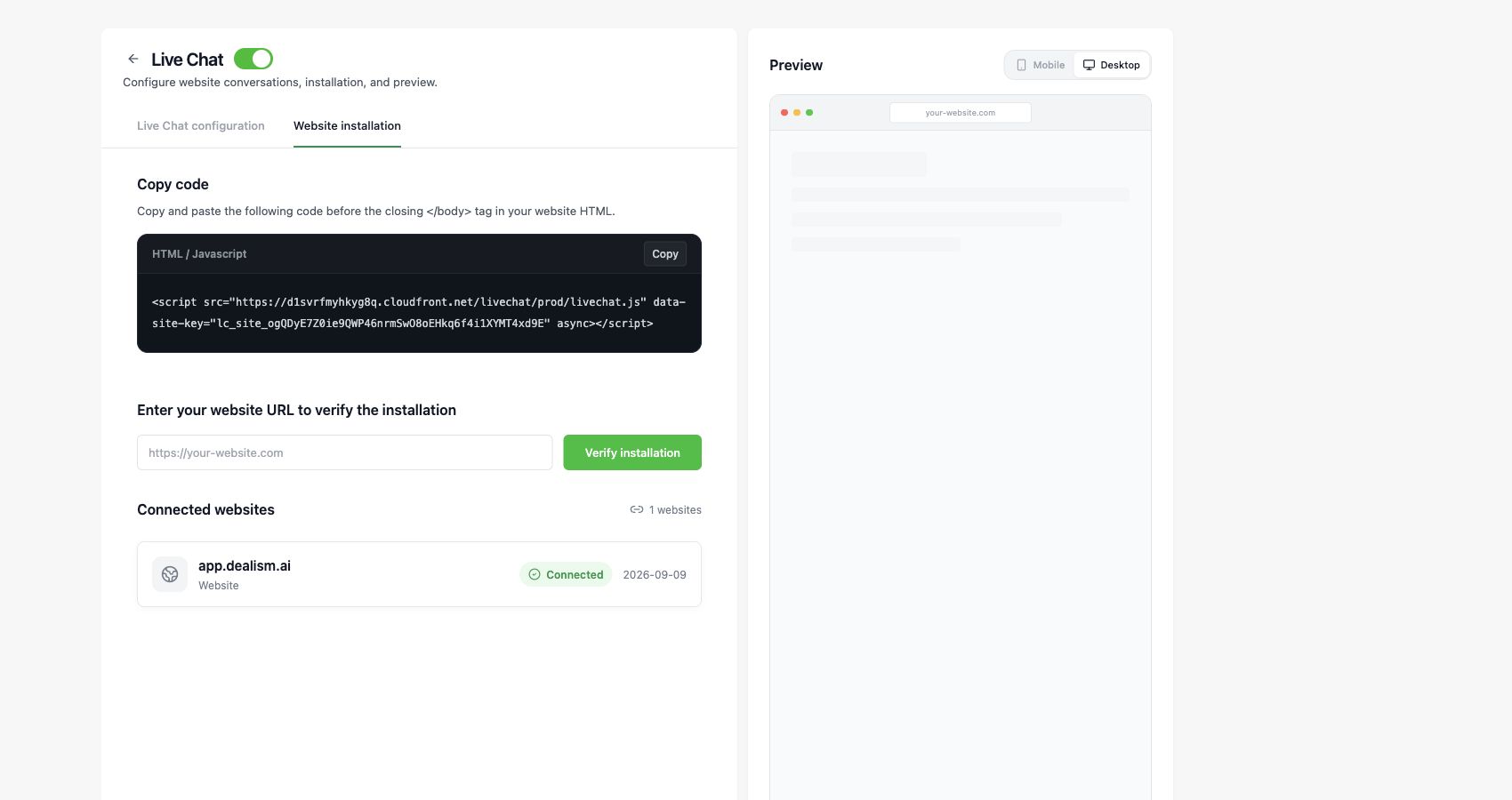
Do not copy the script shown in this screenshot. Always use the current code generated in your own workspace. Install it once per website template; duplicating the snippet can cause the widget to load more than once.
Assign, test, and review Live Chat
Assign Live Chat to the AI Customer Agent that should handle website conversations.
Open the published website in a private browser window and start a test conversation.
Test a straightforward question, an incomplete question, a follow-up, and a request that should involve a person.
Open Inbox and select the Live Chat filter to confirm that the conversation appears.
Check that any visitor details you chose to collect, such as Email or Phone, appear in the conversation header or customer profile after the visitor submits them.
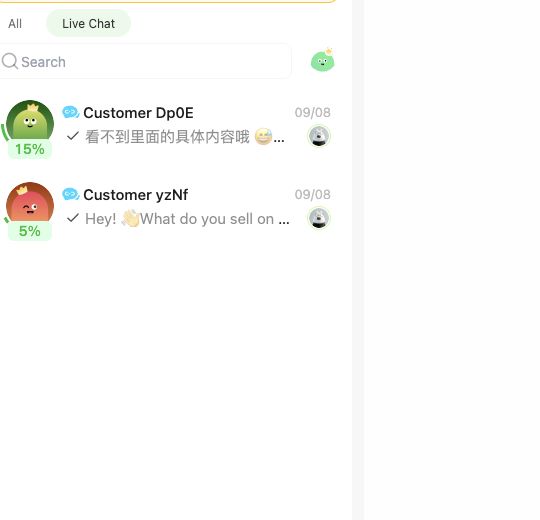
Live Chat conversations can include text and supported media or file attachments. Review the conversation in Inbox, then refine the Agent's knowledge, objective, or handoff rules if the result is incomplete. See Unified Inbox overview or Take over from AI for the next steps.
If the widget does not appear, confirm that Live Chat is enabled, the full script is present only once, the website change is published, and the exact public URL is verified. If the problem continues, contact Dealism Support.