Channels
Updated
4 min read
Good to know
Disconnecting WhatsApp stops new messages from syncing, but your existing conversations and contacts remain in Dealism. After reconnecting, confirm the channel shows Connected, check that new messages appear in Inbox.
Overview
You can disconnect WhatsApp from Dealism when you need to troubleshoot the connection, switch phone numbers, change connection methods, or temporarily stop WhatsApp conversations from syncing.
When you’re ready, reconnect using your original connection method or choose a different WhatsApp connection.
Disconnect WhatsApp
Go to Channels and find your WhatsApp connection.
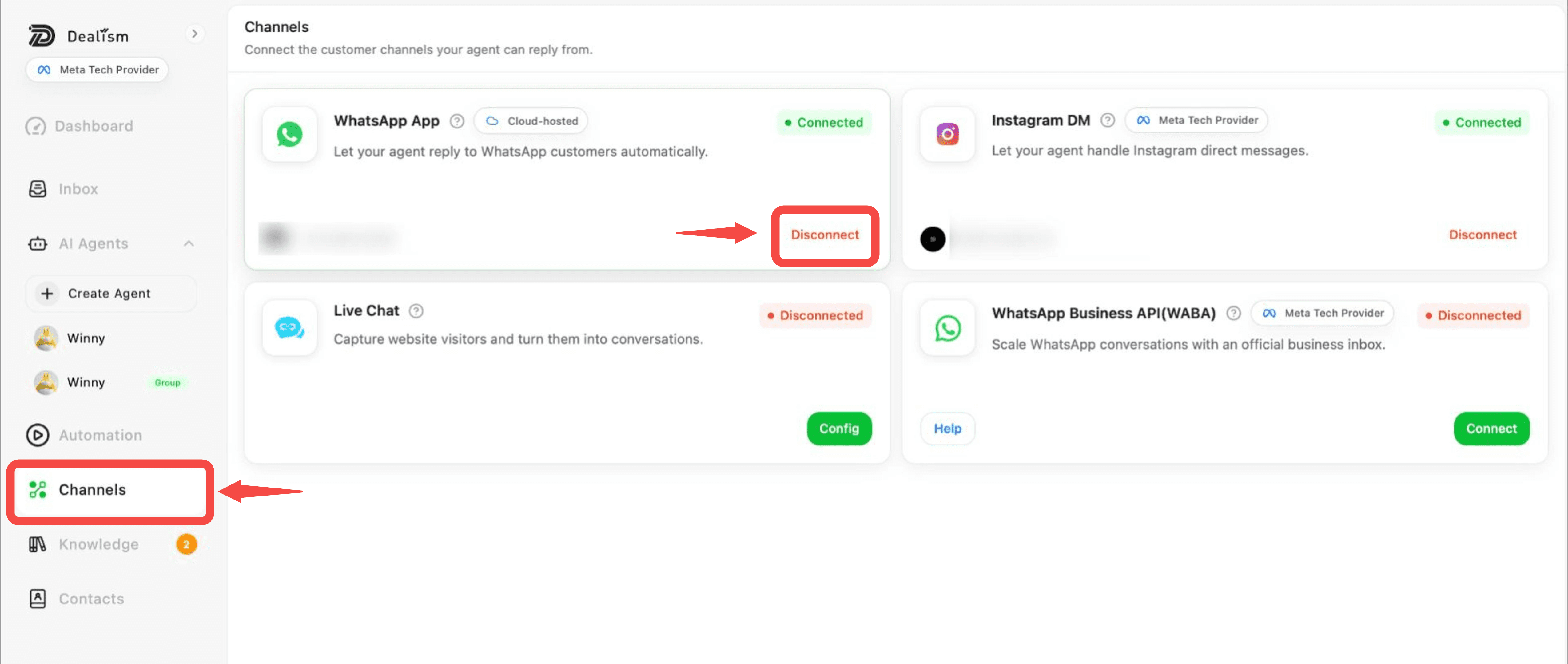
Select Disconnect and confirm the action. The channel status will change to Disconnected.
While disconnected, new WhatsApp messages will no longer sync to your Dealism Inbox, and your AI Customer Agent will not automatically reply through that WhatsApp connection.
What happens when you disconnect
Disconnecting WhatsApp does not delete your existing Dealism conversations, contacts, or Agent Knowledge.
Previously synced conversations remain available in Inbox, but new messages will stop flowing through the disconnected channel.
Any follow-ups or workflows that depend on sending WhatsApp messages may also be affected until you reconnect.
Reconnect Personal WhatsApp or WhatsApp Business App
If you previously connected WhatsApp using a QR code, go to Channels and find WhatsApp.
Select Connect and choose Personal WhatsApp or WhatsApp Business App.
A new QR code will appear. On your phone, open WhatsApp or WhatsApp Business and go to Settings > Linked Devices > Link a Device.
Scan the QR code displayed in Dealism and confirm that the channel changes to Connected.
Allow some time for conversations to begin syncing again, then check Inbox for new WhatsApp activity.
Reconnect WABA
If you’re using WhatsApp Business API (WABA), go to Channels and select the WABA connection option.
Follow the Meta authorization process if Dealism asks you to reconnect or reauthorize your WhatsApp Business account.
Complete any required account, phone number, or permission steps, then return to Dealism and confirm that the channel shows Connected.
Switch your WhatsApp connection
If you want to use a different phone number, disconnect the existing WhatsApp connection first and connect the new account.
You can also change from a QR-based Personal or Business App connection to WABA by disconnecting the existing connection and completing the WABA setup process.
Make sure you follow the required WhatsApp and Meta setup steps for the new connection method.
Reconnect when messages stop syncing
If new WhatsApp messages aren’t appearing in Dealism, first check that the channel shows Connected and that your Inbox is displaying WhatsApp conversations.
For QR-based connections, check whether the linked device is still active. If necessary, reconnect and scan a new QR code.
For WABA, review the connection and complete Meta reauthorization if requested.
Check your Agent after reconnecting
Once WhatsApp shows Connected, open Inbox and confirm that new conversations are syncing correctly.
Check that the appropriate AI Customer Agent is assigned and review the Autopilot status for your conversations.
If you want to verify responses before sending them automatically, use Copilot first.
Test the connection
Send a test message through the connected WhatsApp account and confirm that it appears in Dealism Inbox.
Review the conversation and make sure your Agent can generate the expected response.
Once everything is working correctly, enable Autopilot when you’re ready for the Agent to resume automatic replies.