Channels
Updated
4 min read
Good to know
Disconnecting Instagram stops new messages from syncing, but your existing conversations remain in Dealism. After reconnecting, confirm the channel shows Connected and test that new Instagram messages appear in Inbox.
Overview
You can disconnect Instagram from Dealism when you need to troubleshoot the connection, switch accounts, or temporarily stop using Instagram conversations.
When you’re ready, reconnect the channel through Meta authorization to resume syncing supported Instagram conversations with Dealism.
Disconnect Instagram
Go to Channels and find your Instagram connection.
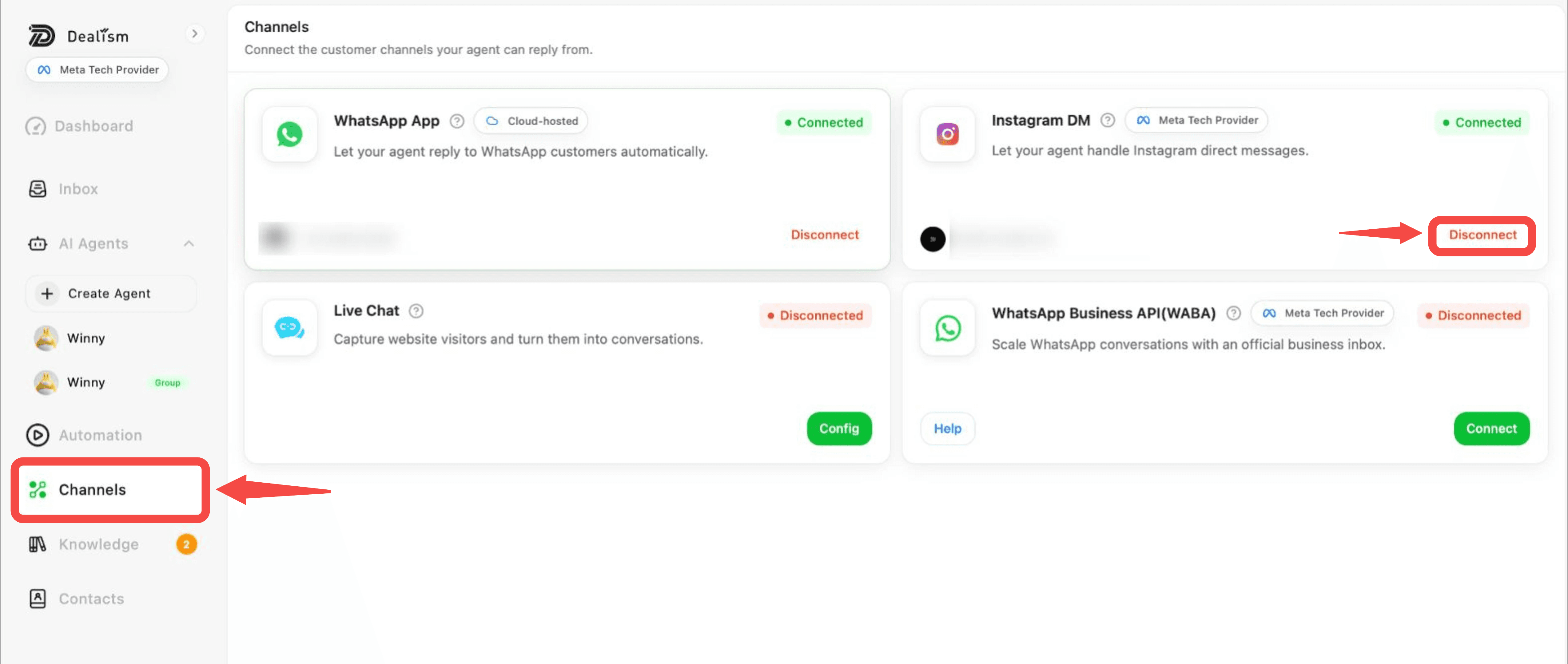
Select Disconnect and confirm the action. The channel status will change to Disconnected.
Once disconnected, new Instagram messages will no longer sync to your Dealism Inbox, and your AI Customer Agent will not automatically reply to new Instagram messages through that connection.
What happens to existing conversations
Disconnecting the channel does not remove the conversations that have already been synced to Dealism.
Your existing conversation history and Agent Knowledge remain available. Disconnecting only stops new Instagram activity from flowing through the channel.
Instagram automations that depend on the connection, such as comment-to-DM, will also stop working while the channel is disconnected.
Reconnect Instagram
To restore the connection, go to Channels and find Instagram.
Select Connect and complete the Meta authorization process. Sign in with the appropriate account and approve the required permissions.
When finished, return to Dealism and confirm that the channel shows Connected.
Allow some time for conversations to begin syncing again, then check Inbox for new Instagram activity.
Check your setup before reconnecting
Make sure your Instagram and Meta setup still meets the connection requirements.
Your Instagram account should be a Professional account, connected to the appropriate Facebook Page, and the Facebook account completing authorization should have the required Page permissions.
If any of these settings changed since your original connection, resolve them before reconnecting.
Switch to another Instagram account
If you want to use a different Instagram account, disconnect the existing Instagram channel first.
Then select Connect and complete authorization using the Instagram and Meta accounts associated with the new connection.
Confirm the correct account is connected before enabling Autopilot.
Check your automations after reconnecting
After reconnecting Instagram, review any workflows that depend on the channel.
Confirm that Instagram conversations are reaching Inbox and check your comment-to-DM workflows if you previously configured them.
Also review your Agent assignment and Autopilot status before relying on automatic replies.
Test the connection
Once Instagram shows Connected, send a test message through Instagram and verify that it appears in Dealism.
Start with Copilot if you want to review your Agent’s responses before enabling Autopilot again.