
You can schedule WhatsApp messages, but the right method depends on your device and what you need the message to do.
The standard WhatsApp app does not offer one universal Send Later button for personal chats. On iPhone, you can create a time-based automation with Apple Shortcuts. On Android, third-party scheduling or automation apps are the common workaround. On WhatsApp Web, browser extensions can queue a message. The WhatsApp Business app can schedule when an away message is active, but it cannot proactively send any message to any customer at a chosen future time.
Businesses have another option. Dealism supports scheduled automations for specific customers and can continue the sales conversation when they reply. That makes it suitable for follow-ups, reminders, and other customer actions where sending at the right time is only the first step.
This guide explains each method, its limitations, and how to choose between a personal reminder, an away message, and conversation-aware WhatsApp scheduling.
Can You Schedule a Message on WhatsApp?
Yes, but not through the same feature on every version of WhatsApp.
Here are the main options:
Android: Use a third-party scheduler or device automation app.
iPhone: Use a time-based personal automation in Apple Shortcuts.
WhatsApp Web: Use a compatible browser extension.
WhatsApp Business app: Schedule when away messages are active.
Dealism: Schedule a message or follow-up for a specific customer through natural-language instructions, then let the connected AI Sales Agent handle the response.
It helps to distinguish three similar-looking tasks:
Scheduled send: A prepared message is sent or presented at a chosen date and time.
Scheduled auto-reply: A fixed reply is active during defined hours and fires only after someone messages you.
Scheduled sales follow-up: A customer-specific message is arranged as the next action in an ongoing conversation, with a system ready to understand and act on the reply.
Personal scheduling tools mainly solve the first task. WhatsApp Business away messages solve the second. Dealism is designed for the third.
Choose the Right WhatsApp Scheduling Method
If you want the fastest answer, start with the outcome rather than the device.
What you need | Best starting method | Important limitation |
|---|---|---|
An occasional personal reminder | iPhone Shortcuts or an Android scheduler | May require device permissions, confirmation, or an unlocked device |
A message queued from a laptop | WhatsApp Web extension | The browser may need to remain open and logged in |
An automatic reply outside business hours | WhatsApp Business away message | Responds to incoming messages; it is not a proactive send-later tool |
A follow-up to a particular lead or customer | Dealism scheduled automation | Requires a connected channel and a clear instruction |
The next sales conversation to continue automatically | Dealism with Autopilot | Knowledge, sales strategy, and human handoff rules must be configured |
High-volume outbound campaigns | An appropriate official business messaging setup | Consent, templates, messaging rules, and campaign controls may apply |
For one message to a friend, a utility method is usually enough. If scheduling is part of a repeatable business process, compare more robust WhatsApp message automation tools before relying on a phone workaround.
How to Schedule WhatsApp Messages on Android
WhatsApp does not provide a consistent native scheduler inside the standard Android app. A third-party scheduling app such as SKEDit is one common workaround.
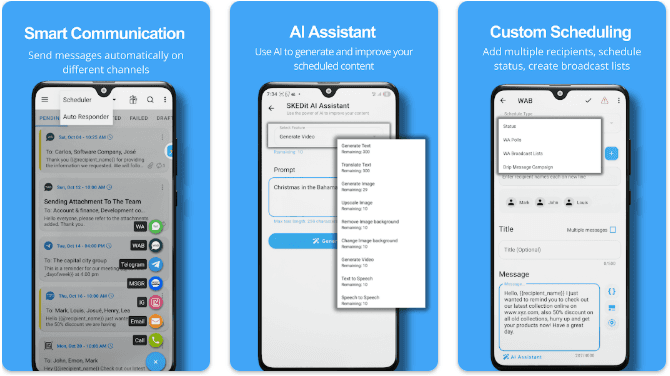
The exact labels can change between app versions, but the process generally works like this:
Install a reputable scheduling app from Google Play.
Create an account if the app requires one.
Select WhatsApp as the service you want to automate.
Grant only the permissions required for the feature.
Choose the recipient or group.
Write the message and add an attachment if supported.
Select the date, time, and any available repeat option.
Save the scheduled task.
Check whether the app requires confirmation or an unlocked device when the time arrives.
Android permissions and reliability
Android schedulers may request Accessibility access, notification access, permission to run in the background, or an exemption from battery optimization. These permissions can give an app substantial control over the device.
Before granting them:
Review the developer and recent user feedback.
Read what data the app collects.
Avoid tools downloaded outside a trusted app store.
Test with a low-risk message first.
Confirm whether the phone must remain unlocked or online.
Recheck the task after Android, WhatsApp, or the scheduler updates.
An Android utility is reasonable for a birthday message or personal reminder. It becomes harder to manage when a business has dozens of customers, changing appointment details, multiple team members, or replies that require immediate attention. At that point, a structured WhatsApp follow-up process is more valuable than another timer.
How to Schedule WhatsApp Messages on iPhone
On iPhone, the built-in Shortcuts app can create a personal automation triggered by the time of day. Whether WhatsApp can complete the final send without confirmation depends on the current iOS version, the actions WhatsApp exposes, and the settings applied to that automation.
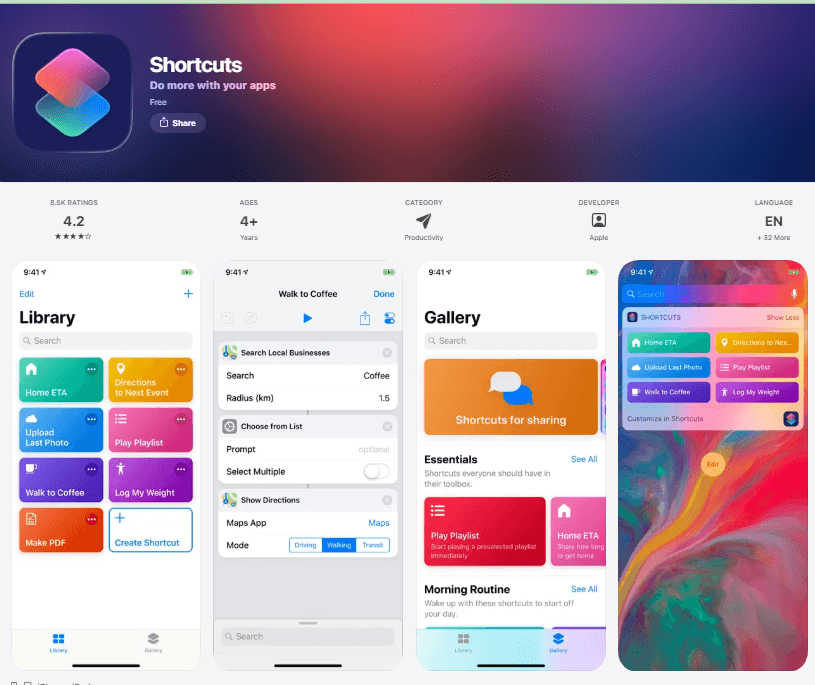
Apple documents that personal automations can use triggers such as a specific time of day. Its Shortcuts personal automation guide also explains that some automations can run without asking, while individual actions may still have their own requirements.
Schedule a WhatsApp message with Shortcuts
Open Shortcuts on your iPhone.
Tap Automation.
Tap the plus button and create a new personal automation.
Choose Time of Day as the trigger.
Select the desired time and available recurrence option.
Choose whether the automation should run immediately or request confirmation.
Add a WhatsApp message action if it is available for your current installation.
Enter the message and select the recipient.
Review the automation and tap Done.
Test it before relying on it for an important message.
If the WhatsApp send action is unavailable or still requires interaction, use the automation as a reminder that opens the relevant chat with prepared text. You may still need to tap Send.
When the iPhone method is a good fit
Shortcuts works best for personal reminders and low-risk messages. It costs nothing extra and stays within tools already available on the phone.
It is less suitable for business-critical reminders because the automation is tied to one device, settings may change, and no one is automatically responsible for handling the response. A customer who replies “Can we move the appointment?” creates a new task that a timer cannot resolve.
How to Schedule Messages on WhatsApp Web
WhatsApp Web does not include a native schedule button. Browser extensions such as Blueticks and similar tools add a scheduling control to the web interface.
A typical setup looks like this:
Install the extension from the official browser store.
Review the permissions it requests.
Open WhatsApp Web and link your account.
Select the conversation.
Write the message.
Click the scheduler or clock icon added by the extension.
Choose the date and time.
Confirm the scheduled send.
Some extensions support attachments or recurring tasks. Some require the browser to remain open, the account to stay logged in, and the computer to be awake. Test the exact behavior rather than assuming the message will send from a closed laptop.
Browser extensions can also stop working when WhatsApp changes its web interface. They are convenient for a small number of desktop messages, but they are a fragile foundation for appointments, quotes, payment reminders, or other communications the business cannot afford to miss.
Teams that manage most conversations from a browser may also want a broader guide to using WhatsApp Web for business communication.
How to Schedule an Away Message in WhatsApp Business
The WhatsApp Business app includes greeting messages, away messages, and quick replies. Of these, the away message has a schedule—but it is not the same as scheduling a proactive message for a customer.
An away message is sent in response to an incoming message while the feature is active. For example, someone who contacts the business at 9 p.m. might receive:
Thanks for your message. We are currently closed and will reply after 9 a.m. tomorrow.
Set an away-message schedule
Open the WhatsApp Business app.
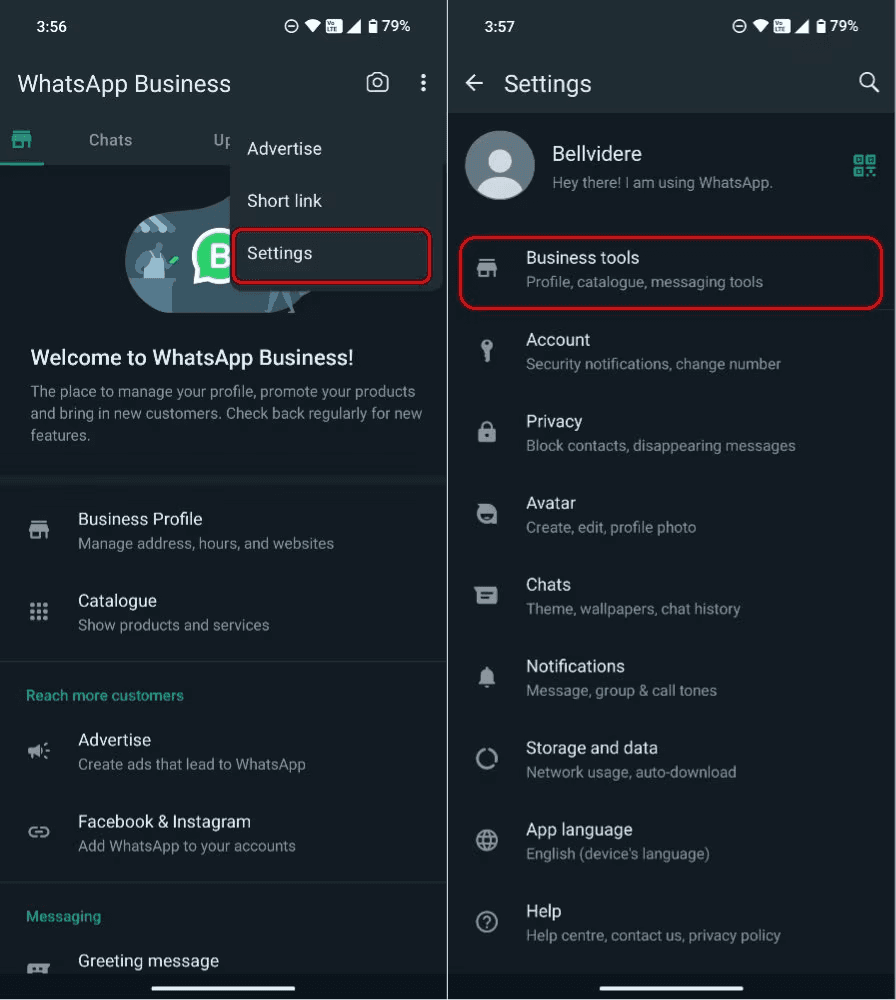
Open Business tools or the corresponding settings menu.
Select Away message.
Turn on Send away message.
Write and save the reply.
Choose the schedule: always send, custom schedule, or outside business hours, depending on the options shown.
Select which recipients should receive it.
Save the configuration and test it from another account.
The WhatsApp Help Center is the best place to verify the current menu for your device and app version.
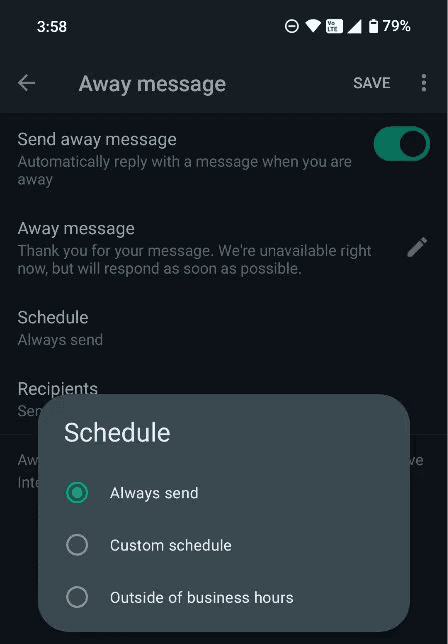
Away messages work well as a digital receptionist. They confirm receipt and establish expectations. They do not send an appointment reminder tomorrow at 3 p.m., follow up on a quote next Friday, or decide what to say after a lead replies.
If your main need is immediate rule-based responses rather than future outbound messages, a dedicated WhatsApp auto-reply agent is the more relevant next step.
How to Schedule WhatsApp Messages With Dealism
Dealism is an AI sales platform that connects customer conversations, sales knowledge, follow-up actions, and automation. Inside Dealism, Dealism's built-in "ChatGPT for sales" agent can analyze conversations and identify follow-up opportunities, while an AI Sales Agent carries out customer-facing actions such as sending a scheduled message to a specific contact.
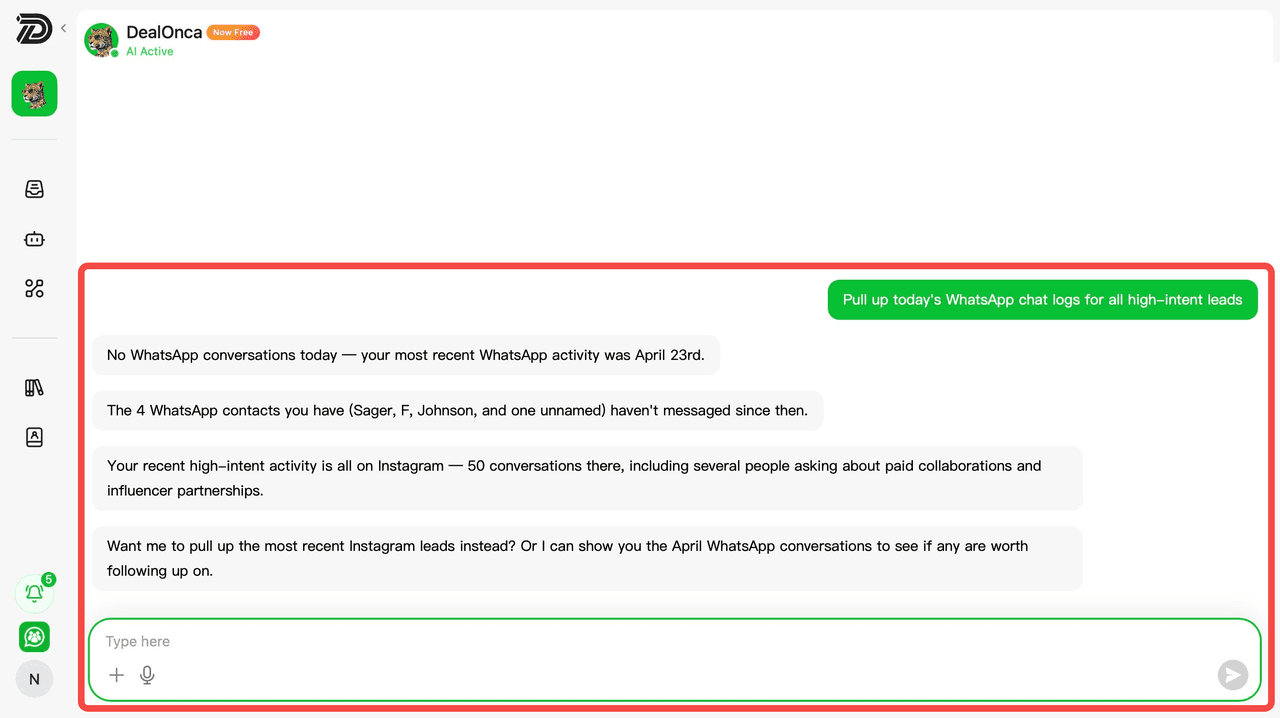
Dealism can use natural-language requests to review WhatsApp activity and identify the customer conversations that need attention.
Instead of building a visual workflow for every scenario, you can describe the intended action in natural language. The connected Sales Agent can then continue the conversation when the customer replies.
This changes the job from “send these words at 10 a.m.” to “take the next agreed sales action at the right time and stay available for the response.”
What Dealism can schedule
Based on Dealism’s current public product documentation, the platform can:
Arrange scheduled automations for specific customers.
Ask a Sales Agent to reach out to a named contact.
Send a greeting or check the customer’s intent.
Continue an existing sales conversation.
Identify customers who need follow-up.
Preserve context so the next message relates to what was discussed.
Let Autopilot respond when a new customer message arrives.
Bring in a person according to configured handoff rules.
The public documentation confirms scheduled automations, but it does not promise that every daily, weekly, monthly, bulk, or conditional schedule is available in every account configuration. Verify the current scheduling options in your workspace for any specialized recurrence or campaign requirement.
Set up a scheduled customer message
Create a Dealism account. Register and create the Sales Agent that will handle the conversation.
Add business context. Provide the agent’s objective, brand, product or service scope, knowledge, and relevant sales strategy.
Connect WhatsApp. Connect the supported WhatsApp account or WhatsApp Business API channel used for the customer conversation.
Identify the customer. Confirm the exact contact and review the preceding conversation.
Tell Dealism what should happen. Include the recipient, timing, purpose, and any important context.
Review the scheduled action. Check the customer, date, time zone, and intended message before relying on it.
Configure the response path. Use Autopilot when the Sales Agent should handle the reply, or define when a human must step in.
Review the outcome. Confirm delivery and make sure any promised next action is completed.
The official Dealism setup guide covers registration, agent creation, channel connection, knowledge, follow-up actions, and scheduled automations.
Example instructions for Dealism
The following are examples of clear natural-language instructions, not a claim that one exact command format is required:
Follow up with Sarah tomorrow at 10 a.m. and ask whether she still wants the Tuesday appointment.
Message Daniel on Friday afternoon to check whether he has reviewed the quote. Continue from our previous conversation.
Send Maria a reminder two hours before her consultation. If she needs to reschedule, help her with the next step or bring in a person.
Contact Alex next Monday and ask whether the product compatibility question has been resolved before recommending checkout.
A useful instruction answers four questions:
Who should receive the message?
When should it be sent?
Why are you following up?
What should happen if the person replies?
What happens after the scheduled message?
This is the central difference between Dealism and a basic scheduler.
Imagine an appointment reminder goes out at the correct time:
Scheduled message: Hi Maria, this is a reminder about your consultation tomorrow at 2 p.m. Does that time still work?
With a basic scheduler, the automation has completed its job. If Maria replies, “I need Thursday instead,” someone must notice the message, understand the context, and take over.
With a connected Dealism Sales Agent in Autopilot, the reply can be analyzed using the business knowledge and sales strategy already provided. The agent can continue within its permitted scope or bring in a person with the context intact.
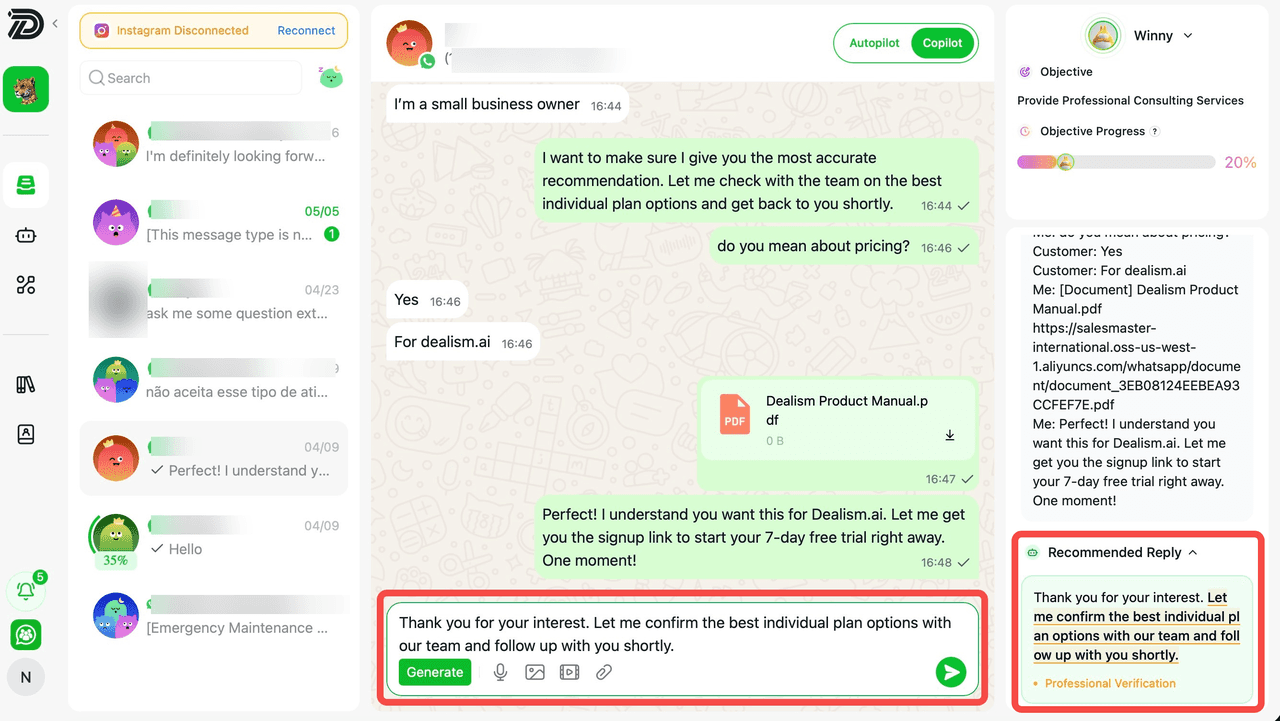
Autopilot lets the configured Sales Agent respond to incoming customer messages after the scheduled action.
That is particularly useful for appointment reminders, quote follow-ups, product questions, and leads that paused in the middle of a decision. A modern WhatsApp AI chatbot should not only deliver text; it should help the conversation reach an appropriate result.
If scheduling customer conversations is the reason you opened this guide, you can start a free Dealism trial and test the workflow with one low-risk follow-up before expanding it.
Fixed-Time Scheduling vs. Conversation-Aware Follow-Up
Both approaches can send something later, but they solve different problems.
Capability | Basic scheduler | WhatsApp Business away message | Dealism scheduled follow-up |
|---|---|---|---|
Future time selected | Usually | Activation hours only | Supported scheduled automation |
Proactive customer message | Usually | No; responds to incoming contact | Supported for specific customers |
Uses previous conversation | No | No | Yes, through connected context |
Handles the reply | No | Sends only the fixed reply | Sales Agent can continue in Autopilot |
Qualifies intent | No | No | Can analyze intent within its configured role |
Human handoff | Manual | Manual | Can follow handoff rules |
Best use | Personal reminders | After-hours acknowledgment | Sales follow-up and customer next actions |
This does not mean every personal message needs AI. If you only want to send “Happy birthday” at 9 a.m., use the simplest reliable tool. Dealism becomes relevant when the response may affect a booking, quote, purchase, or relationship.
Business Uses for Scheduled WhatsApp Messages
Appointment reminders and rescheduling
Send a reminder before the appointment and be ready for confirmation, cancellation, or a request to change the time. The value comes from completing the scheduling conversation, not merely sending the reminder.
Quote follow-ups
A generic “Did you see the quote?” message often feels disconnected. A better follow-up refers to the customer’s actual concern and continues from the last decision point.
Consultation or trial check-ins
Arrange a check-in after a demo, trial, consultation, or sample. If the customer raises an objection, the next response should address it or route the conversation to the right person.
Product-decision reminders
Follow up with a shopper who asked about fit, availability, delivery, or compatibility. Avoid treating every quiet customer as an abandoned cart; use the information already present in the conversation.
Post-purchase messages
Schedule a delivery check, setup reminder, care instruction, or satisfaction question. If something went wrong, the reply may need immediate human attention.
Re-engaging a paused lead
Reach out at the time the customer requested rather than sending repeated “just checking in” messages. The broader goal is to sell through WhatsApp conversations, not to fill the inbox with reminders.
WhatsApp Scheduling Safety and Compliance
Scheduling does not remove the responsibility to send appropriate messages.
Use the correct account and method
Personal device automation, the WhatsApp Business app, and the WhatsApp Business Platform are different environments. A method that is convenient for one personal reminder may not be suitable for customer messaging at scale.
Respect permission and expectations
Do not schedule promotional messages to people who did not agree to receive them. Keep the purpose consistent with the consent and relationship you have with the recipient.
Follow business messaging rules
Businesses using the WhatsApp Business Platform should review Meta’s current Cloud API messaging documentation for rules involving customer service windows, templates, and supported message types. Requirements can change, so verify them before launching an outbound workflow.
Protect customer data
Third-party schedulers may request broad device permissions. Business systems may store contact records, conversation history, and scheduled actions. Limit access, review vendors, and retain only what the business needs.
Keep a human path available
Define when a person must take over, especially for complaints, sensitive information, unusual requests, low-confidence answers, or decisions requiring professional judgment.
Businesses planning more complex scheduled sends can review this guide to automated WhatsApp campaigns before choosing a tool or workflow.
How to Schedule WhatsApp Messages Without Any New App
If “without an app” means without installing another third-party tool, there are two limited options:
iPhone: Use Apple Shortcuts, which is already installed on many devices. The final WhatsApp action may still require confirmation or interaction.
WhatsApp Business: Use the built-in away-message schedule. It responds during selected hours but cannot proactively send any arbitrary future message.
There is no universal built-in send-later control in the standard WhatsApp app across iPhone, Android, Web, and Desktop. On Android, true scheduling generally requires another app or a business automation system. On Web, it requires an extension or external service.
If your real goal is setting up the business account correctly before adding automation, follow the complete WhatsApp Business setup process.
Frequently Asked Questions
Can I schedule WhatsApp messages natively?
The standard WhatsApp app does not provide one universal native send-later feature. WhatsApp Business can schedule when an away message is active, but that message responds to incoming chats rather than proactively sending to any customer at a chosen future time.
Can I schedule WhatsApp messages without an app?
On iPhone, you can use Apple Shortcuts without installing a separate scheduler. In WhatsApp Business, you can use the built-in away-message schedule. Both have limitations and are not equivalent to a full business follow-up system.
Can WhatsApp Business schedule messages?
The WhatsApp Business app can schedule the operating hours for an away message. For proactive outbound scheduling and broader automation, businesses generally need a connected automation solution or an appropriate WhatsApp Business Platform setup.
Can Dealism schedule WhatsApp messages?
Yes. Dealism’s public Setup Guide confirms that the platform supports scheduled automations, including sending messages to specific customers. It can also automate follow-ups through natural-language instructions across connected channels.
Can Dealism handle replies after a scheduled message?
Yes, when the relevant Sales Agent and Autopilot are configured for the conversation. Autopilot can analyze a new incoming message and respond using the configured knowledge and sales strategy, or follow the business’s human handoff rules.
Can I schedule recurring WhatsApp messages?
Some Android schedulers, browser extensions, and iPhone time-based automations provide repeat options. Dealism’s public documentation confirms scheduled automations but does not specify every recurrence pattern. Check the current options in your workspace for daily, weekly, monthly, or conditional requirements.
What is the safest scheduling method for business use?
Use a method appropriate to your account, volume, and risk. Avoid unknown tools that request excessive device access. For customer messaging, use clear permission, current business information, a tested workflow, and a human escalation path.
What is the best time to send a scheduled WhatsApp message?
There is no universal time. Use the customer’s time zone, stated preference, previous response behavior, appointment time, and the purpose of the message. Avoid unnecessary messages during expected rest hours.
Schedule the Message—and Prepare for the Reply
You now know how to schedule WhatsApp messages on the major platforms:
Android scheduler for occasional device-based sends;
Apple Shortcuts for iPhone personal automation;
a browser extension for WhatsApp Web;
away-message hours in WhatsApp Business;
Dealism for customer-specific scheduled actions that can continue as conversations.
Choose the simplest method that reliably completes the job. For a personal reminder, that may be a phone automation. For a business follow-up, the send time is only half the workflow. Someone—or an appropriately configured agent—must understand the reply and move the customer toward the next agreed action.
A scheduler sends a message later. Dealism helps schedule the next sales action and stays ready for the reply. Compare the available Dealism plans when you are ready to test that process with real customer conversations.