Account & Billing
Updated
3 min read
How to read changes
Positive values add credits to your balance. Negative values remove or spend credits.
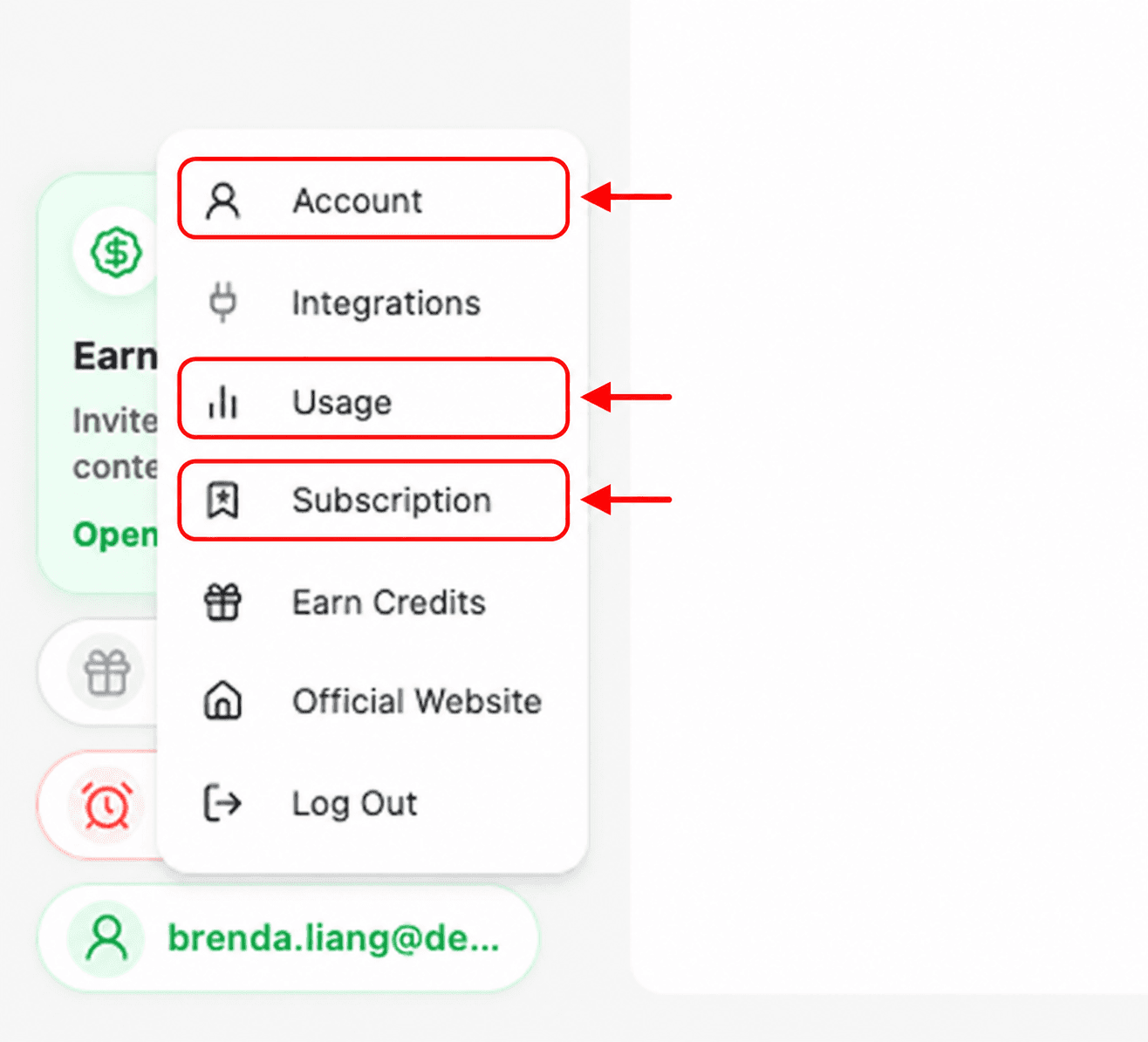
Open your usage history
Select your profile button in the lower-left corner.
Select Usage from the menu.
Read each entry
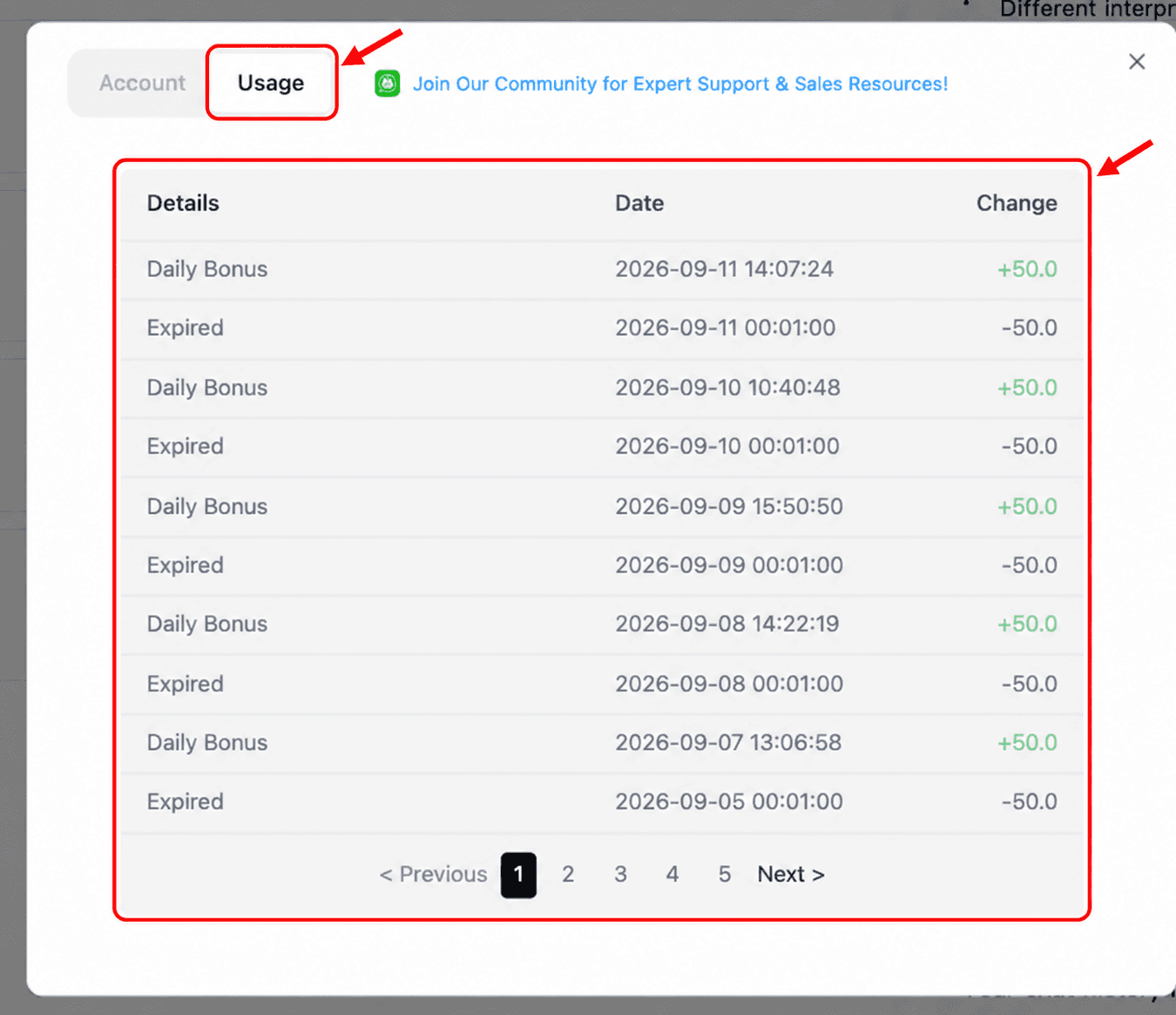
The Usage tab records three pieces of information for each credit event:
Details identifies the event, such as Daily Bonus or Expired.
Date shows when the event was recorded.
Change shows the number of credits added or removed.
Interpret positive and negative values
A green value with a plus sign adds credits. A value with a minus sign removes credits. For example, Daily Bonus +50.0 adds 50 credits, while Expired -50.0 records 50 unused credits expiring.
View older activity
Use the page numbers or Previous and Next controls at the bottom of the table to review older entries. If an entry looks unfamiliar, note its Details, Date, and Change before contacting Dealism support.