Account & Billing
Updated
4 min read
This guide covers purchasing and upgrading
The screenshots available for this guide do not show the controls for changing or canceling an active paid plan.
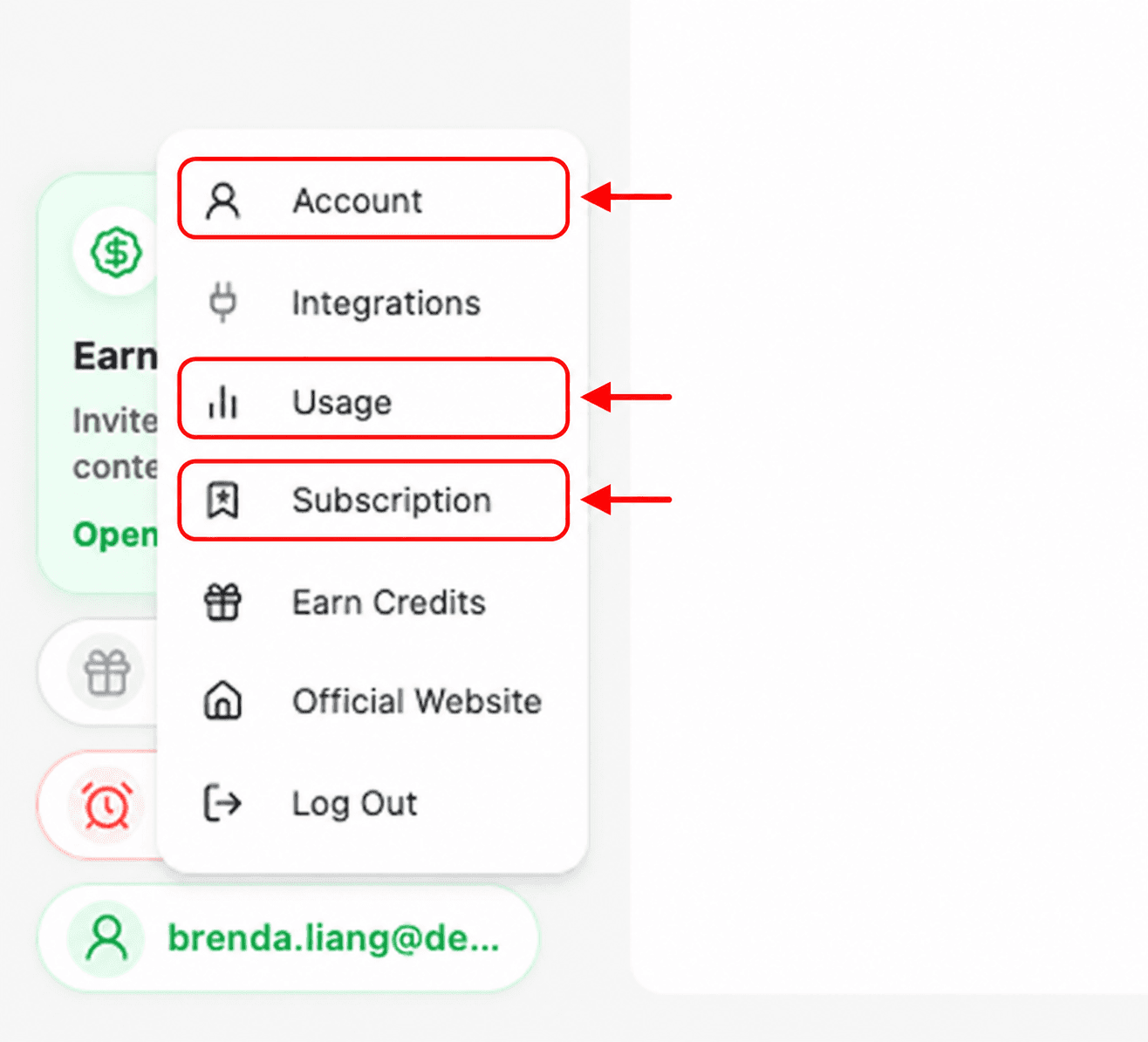
Open Subscription
Select your profile button in the lower-left corner.
Select Subscription.
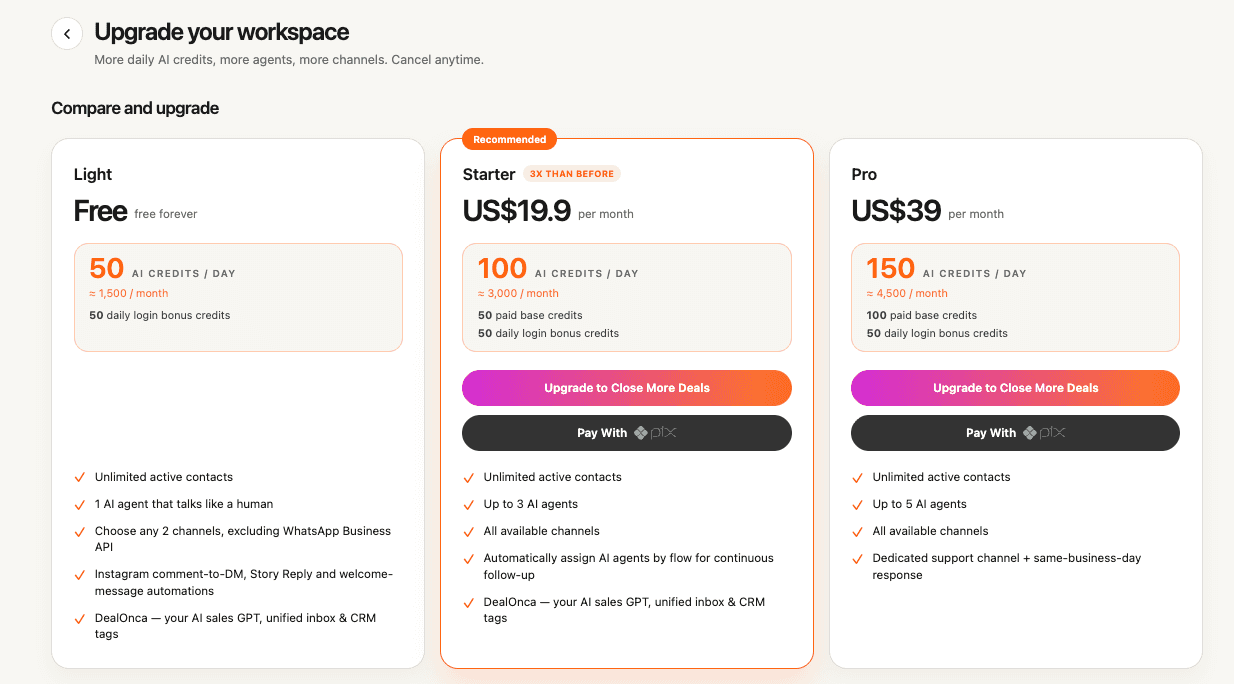
Compare plans
Review the Light, Starter, and Pro plan cards. Compare the monthly price, daily AI credits, number of AI agents, available channels, and support level before choosing a plan.
The Light plan is shown as free. Starter and Pro are paid monthly plans. Plan details and prices can change, so use the values currently displayed in your workspace as the source of truth.
Complete payment
Select the upgrade button on your chosen plan.
Confirm your email, country, and state or province.
Choose an available payment method, such as Google Pay or card.
Enter the required billing details and select Pay Now.
Available payment methods can vary by country and checkout provider. Review the amount and plan before submitting payment.
Confirm the upgrade
After payment, return to the Account tab and confirm that the plan name and credit allowance have updated. If the payment succeeded but the workspace still shows the previous plan, refresh Dealism and contact support with the payment date and account email.
To document changing or canceling an active subscription: add screenshots of the current-plan billing controls to this guide before publishing those steps.