Automation
Updated
4 min read
Good to know
Start with a template that matches your channel and goal, then customize the workflow before publishing. Test the automation yourself to confirm the trigger, message, and Agent handoff work as expected.
Overview
Automations in Dealism help you respond to customer activity automatically on supported Instagram and WhatsApp workflows.
Instead of building from scratch, you can start with a published template based on what you want the automation to do.
Create a new automation
Go to Automation from the Dealism sidebar.

Select New automation in the top-right corner.
Dealism will open the Automation templates page, where you can choose a template for your workflow.
Choose a channel
Use the filters at the top of the template page to browse All, Instagram, or WhatsApp automations.
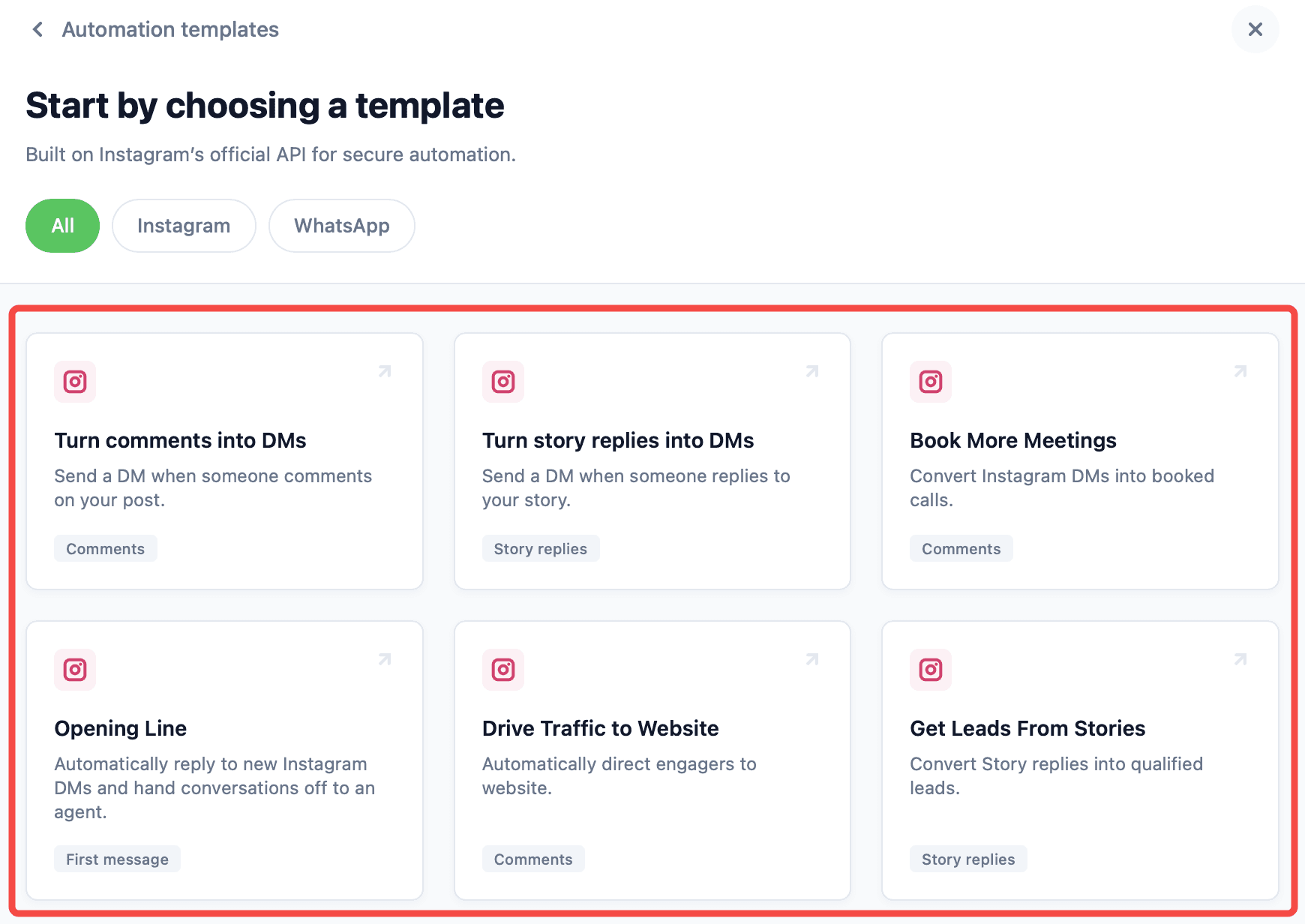
Choose the channel where you want the automation to run. The available templates will change depending on the selected channel.
Choose an automation template
Select a template based on the customer action you want to automate.
Available templates can include:
Turn comments into DMs — Send a DM when someone comments on your Instagram post.
Turn story replies into DMs — Send a DM when someone replies to your Instagram Story.
Book More Meetings — Use Instagram conversations to guide customers toward booking a call.
Opening Line — Automatically respond to a new Instagram or WhatsApp message and hand the conversation to an Agent.
Drive Traffic to Website — Direct people who engage with your Instagram content to your website.
Get Leads From Stories — Turn Instagram Story replies into lead conversations.
Grow Instagram Followers — Create a comment-based workflow designed around follower growth.
Get Leads From Comments — Turn Instagram comments into lead conversations.
Get Leads With Freebies — Use a comment-based workflow to share a free resource and continue the conversation.
Configure your automation
Select the template you want to use and complete the configuration shown for that workflow.
Depending on the template, you may need to define the trigger, message content, customer action, or Agent that should continue the conversation.
Review each setting before publishing the automation.
Publish your automation
Once the workflow is configured, publish or enable the automation.
Return to Automation to confirm that your new automation appears in the automation list.
You can use the search bar to find an existing automation when you have multiple workflows.
Test your automation
Trigger the workflow yourself before relying on it with customers.
For example, if you created a comment automation, leave a test comment that matches its trigger and check whether the expected DM is sent.
For a first-message workflow, send a new message through the connected channel and confirm that the automation starts correctly and hands the conversation to the expected Agent.
What to do next
After testing, monitor the resulting conversations in Inbox.
If the automation hands the conversation to an AI Customer Agent, review how the Agent continues the interaction and adjust the automation or Agent configuration when needed.