Inbox & Contacts
Updated
4 min read
Good to know
Use search and filters to quickly narrow down your Inbox. Check Support Needed and unread conversations regularly, and review the Autopilot status before replying manually.
Overview
The Unified Inbox brings conversations from your connected channels into one place.
Use search and filters to quickly find a specific customer, focus on one channel, review recent activity, or identify conversations that need your attention.
Search for a conversation
Use the search bar at the top of Inbox to find a specific conversation.

Enter a customer name or a keyword from the conversation, then review the matching results.
This is useful when you remember what a customer asked but don’t remember exactly where the conversation came from.
Filter by channel
Use the channel filter to focus on conversations from a specific messaging channel.
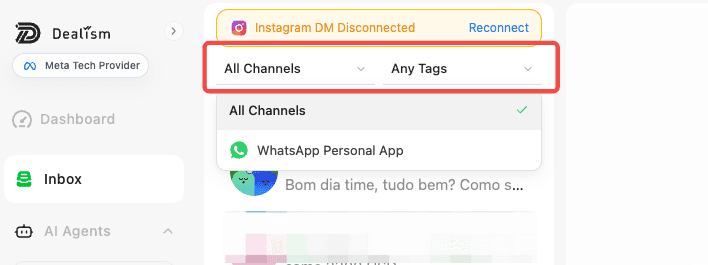
Select WhatsApp to view WhatsApp conversations or Instagram to focus on Instagram conversations.
Return to All Channels when you want to see everything together again.
Filter by custom customer tag
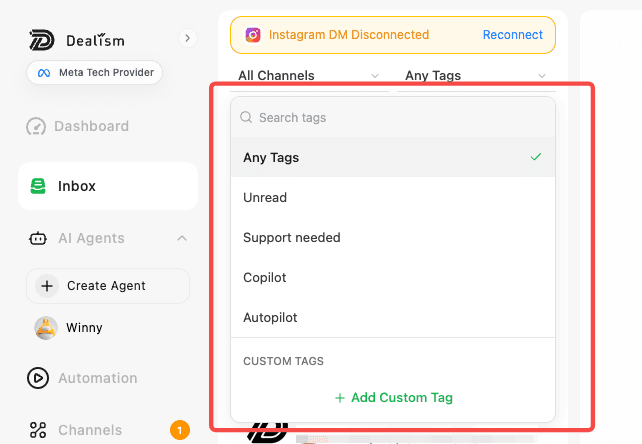
Custom tags turn a long conversation list into practical work queues, such as New lead, Needs follow-up, or VIP. This helps the team focus on the right group instead of checking every conversation one by one.
Open Inbox.
Use the Tags filter to display conversations for a specific customer group.
Open an individual conversation when a customer needs a new label.
In the customer details area, add an existing tag or create a custom tag.
Return to the Inbox list and continue working from the filtered queue.
Tags stay attached to the customer and can also be used from Contacts, giving the team a shared way to organize follow-up.
Recognize the channel and Desktop source
The icon beside each conversation shows whether it came from WhatsApp or Instagram. A Desktop badge means the WhatsApp conversation is connected through Dealism Desktop, so you can understand the source before opening it.

Find Support Needed conversations
Conversations marked Support Needed require human attention and can be surfaced prominently in Inbox.
Open the conversation and review the message history and available customer context before responding.
If you need to take full control, turn Autopilot OFF and handle the conversation in Copilot.
Find unread conversations
Use the unread status to focus on conversations with new messages you haven’t reviewed yet.
This can help you work through new customer activity without searching through conversations you’ve already handled.
Review Autopilot status
You can also use the conversation’s AI status to understand how it is currently being handled.
Autopilot ON means the AI Customer Agent is automatically handling supported replies.
Autopilot OFF means the conversation is in Copilot, giving you control over reviewing and sending responses.