Inbox & Contacts
Updated
4 min read
Use filters before exporting
On a paid plan, apply the tags and other filters you need before exporting so the contact list matches the customer group you intend to work with.
Turn customer history into an organized follow-up list
Contacts helps you find customers, understand their past conversations, and decide on the next action. Custom tags let your team organize people around the work that matters, while paid plans add contact-list export and access to more customer conversation summaries.
Create and use custom customer tags
Create tags that match your business process, such as New lead, Quote sent, Returning customer, or Follow up this week. A shared tag system means your team can find the same group of customers without relying on memory or a separate spreadsheet.
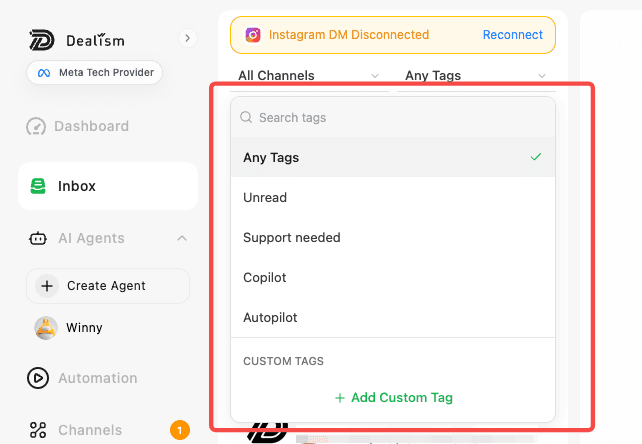
Open Contacts and search for the customer, or open their conversation in Inbox.
Open the customer details.
Use the Tags area to add an existing label or create a custom tag.
In Contacts or Inbox, use the tag filter to show the customers carrying that tag.
Review the filtered group and take the appropriate follow-up action.
You can also add a tag directly from an individual conversation in Inbox, which is useful when a customer needs immediate classification while you are replying.
Search, filter, and review a contact
Use the Contacts search bar to find a customer, then filter by tags, channel, or recent activity to narrow the list. Open a contact to review available customer information, conversation history, AI-generated summaries and context, sales-journey progress, and recommended next actions.
The expanded conversation summaries on paid plans help you understand more of the customer’s history before you reply, so follow-ups can be more relevant and a human handoff starts with context.
Export a contact list on a paid plan
Paid-plan users can export the contact list for analysis, reporting, or work in another approved business tool. Apply the filters you need first—for example, a channel, recent activity range, or custom tag—so the exported list matches the customer group you intend to work with.
Open Contacts.
Search or apply filters, including tags, to prepare the list.
Select Export.
Download the generated list and handle customer data according to your privacy obligations and internal access rules.
Keep contacts moving
Regularly review the tags and recent conversations that need attention. Use Copilot when you want to review AI suggestions, Autopilot for suitable conversations your Agent can handle automatically, and the customer summaries to plan a useful follow-up. For real-time conversation handling, see Unified Inbox overview.