Knowledge
Updated
4 min read
Delete only when the information should no longer be used
For a changed fact, editing is usually safer than creating a duplicate. Delete an entry when it is obsolete, incorrect, or no longer appropriate for customer answers.
Find the knowledge entry
Open Knowledge. Use Search to find a product name, question, or phrase. You can also filter by category—for example faq, pricing, product_info, or usecase—to narrow the list.

Edit knowledge
Locate the entry in the Knowledge list.
Select Edit in the Action column.
Correct the content and save the change.
Search for duplicate or conflicting entries that may also require an update.
Keep the direct answer and critical facts easy to find. If a price, policy, or service changed, include the new conditions and remove outdated wording.
Delete knowledge
Locate the entry you no longer want the Agent to use.
Select Delete in the Action column.
Review the entry and confirm the deletion if prompted.
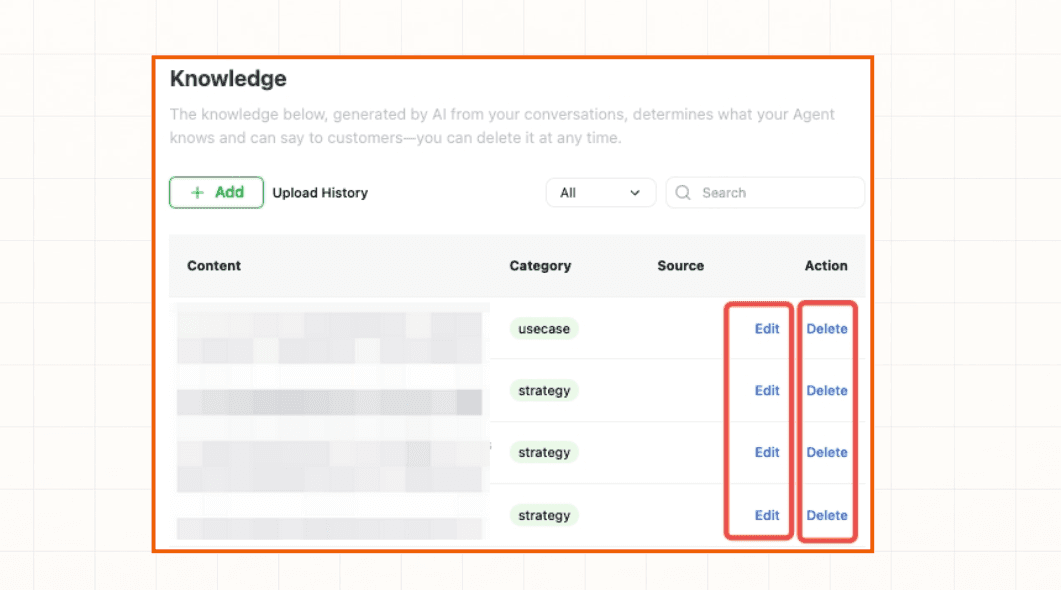
Before deleting, check whether another FAQ, product, policy, or use case links to the same information. Add a replacement first when customers still need an answer.
Verify the change
Search the Knowledge list again and test the Agent with questions related to the edited or deleted entry. Confirm that the old answer is no longer used and that the updated answer is complete.
If the Agent continues using outdated information, see Agent is not using new knowledge or contact Dealism Support.