Getting Started
Updated
4 min read
Good to know
After connecting a messaging channel, confirm it shows Connected and that conversations appear in Inbox. Test your Agent with Try Me and Copilot before enabling Autopilot.
Overview
Connect your messaging channels to bring customer conversations into Dealism.
Dealism supports WhatsApp and Instagram connections, allowing your AI Customer Agent and your team to manage supported conversations from the Unified Inbox.
Connect WhatsApp
Dealism provides two WhatsApp channels and three connection paths. Choose by the number you have and how your team needs to work after setup.
WABA Coexistence for an existing Business App number
Choose this path when you want to keep the same WhatsApp Business App number and continue replying from the phone while connecting the number to Dealism through Meta's official Cloud API.
Go to Channels → WhatsApp Business API (WABA) → Connect.
Select Connect my WhatsApp Business APP number.
Continue through Meta Embedded Signup and authorize the number from WhatsApp Business App.
Meta decides whether the business and number are eligible for Coexistence.
Dedicated WABA number
Choose this path for a new number that has not been registered with WhatsApp and will be used only through the official API. It does not depend on a phone app or an always-on computer.
Go to Channels → WhatsApp Business API (WABA) → Connect.
Select Connect my non-WhatsApp phone number.
Complete Meta onboarding, phone verification, and the six-digit two-step verification PIN.
Dealism Desktop QR
Choose Desktop for WhatsApp Personal or WhatsApp Business App when you want to start quickly without preparing Meta business assets. Install Dealism Desktop, open the WhatsApp connection, and scan the QR code from Linked Devices on the phone.
The computer must remain awake, online, and running Dealism Desktop. This is a linked-device connection, not WABA.
For the complete decision table, requirements, benefits, and step-by-step setup, see Connect WhatsApp to Dealism.
Connect Instagram
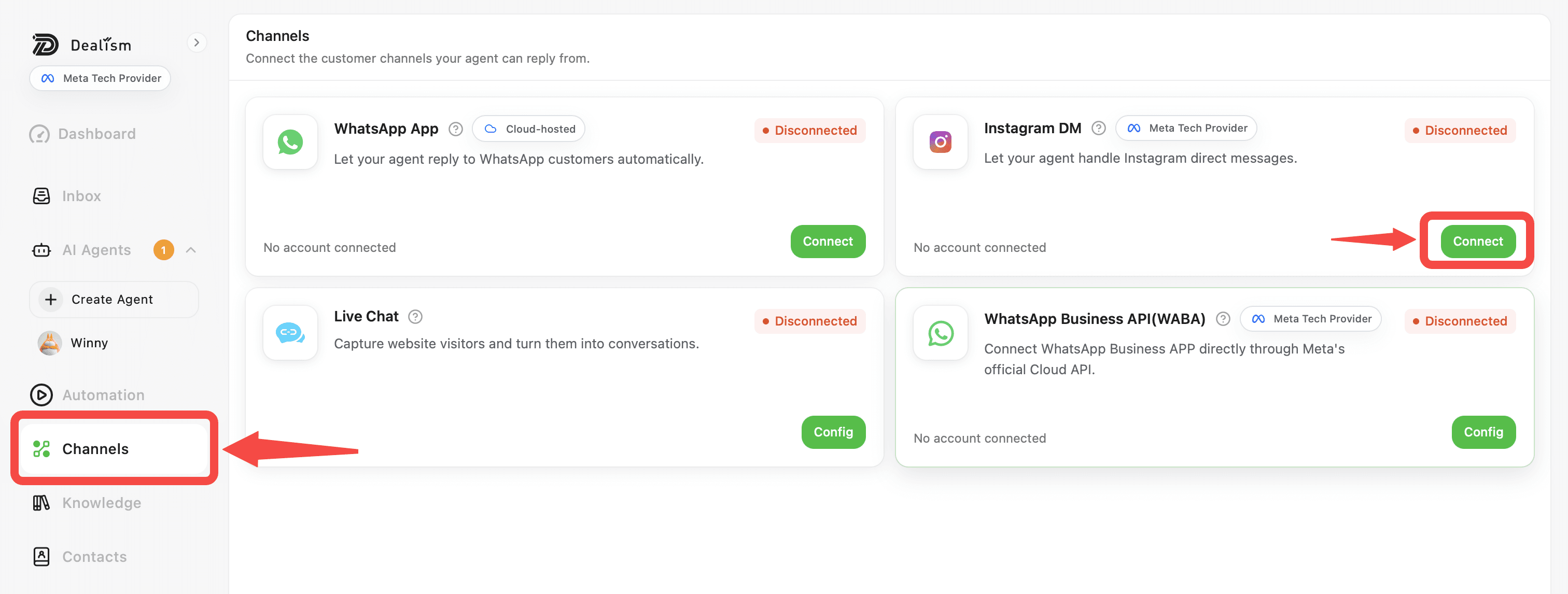
Go to Channels > Instagram DM and select Connect.
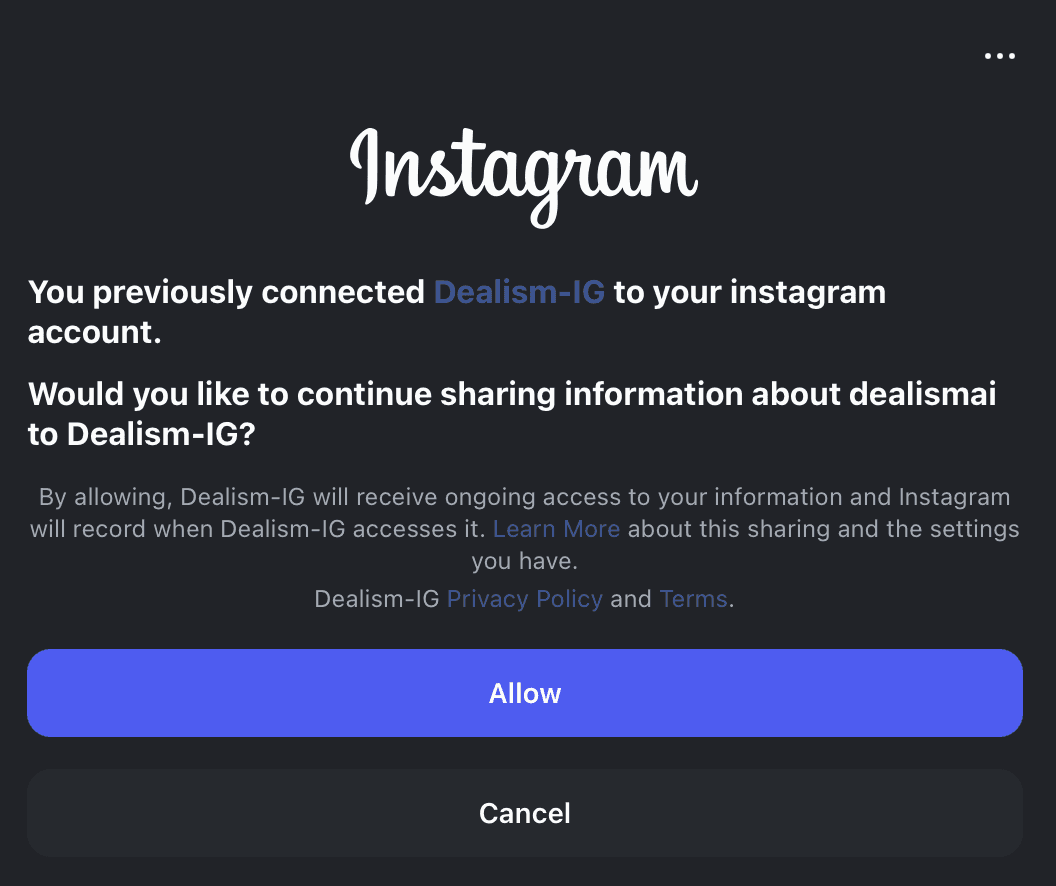
Complete the Instagram/Meta authorization process and approve the required messaging permissions.
When authorization is complete, return to Channels and confirm that Instagram shows Connected.
Your supported Instagram conversations can then begin appearing in the Unified Inbox.
Check your conversations
After connecting a channel, go to Inbox.
Use the channel filter to confirm that conversations from the newly connected account are appearing correctly.
Open a conversation and check that the appropriate AI Customer Agent is assigned.
Test your Agent
Before enabling automatic replies, test your Agent with Try Me.
Go to Agents, select your Agent, then open Basic Info > Try Me. Test common customer questions and make sure the Agent uses the correct Knowledge, tone, and Strategies.
After testing, use Copilot with live conversations so you can review AI-generated responses before sending them.
Enable Autopilot
When you’re comfortable with your Agent’s responses, enable Autopilot for appropriate conversations from Inbox.
You can control Autopilot for individual contacts or use the global Autopilot setting to manage automatic replies more broadly.
Continue monitoring Support Needed conversations after enabling automation.
Troubleshoot connection problems
If a channel doesn’t connect, retry the authorization or QR-code process and confirm that the required account permissions are available.
If the channel shows Connected but conversations don’t appear, check your Inbox channel filter and allow time for conversations to sync.
For persistent connection or synchronization problems, reconnect the channel or contact Dealism Support.